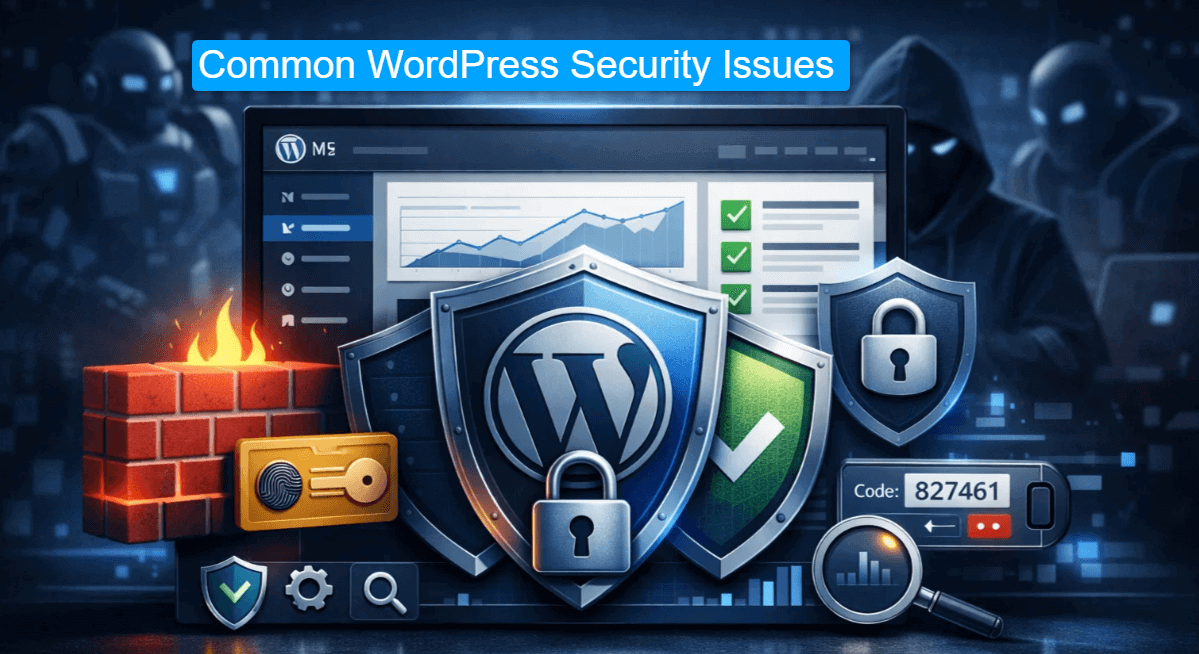
Users are visiting more than 43% of websites built on WordPress. This popularity makes WordPress sites a potential target for automated attacks. Thus, hackers are not focusing on vulnerabilities more than brand reputation.
In 2026, you must learn about common WordPress security issues and their best fixes. Otherwise, bots and hackers will be your regular visitors instead of real users.
Modern WordPress security requires more than plugins to protect your data and reputation. You need a layered security strategy with a proper checklist. This guide provides a practical checklist of fixes to help you safeguard your site and stay ahead of the competition.
WordPress security threats are evolving while attack methods are shifting. WordPress core is robust and serious about security updates. However, the ecosystem of plugins and themes is where most risks are present.
Outdated WordPress, themes, plugins, and poor server hygiene are the most vulnerable entry points for attacks. Then come the attackers using AI tools to find vulnerabilities faster and attack more frequently.
Here are some recent data on common WordPress security issues:
Installing a plugin alone can’t fix common WordPress security issues since it’s an operational task. Besides, keeping the default settings means you are leaving your site open to attackers.
Proven techniques, along with the latest defense mechanisms, can help protect your WordPress site from significant data loss. We have come up with the following checklist of threats and possible protection guidance:
As a WordPress user, you will love the features that plugins provide to enhance functionality. Developers are releasing patches and updates frequently (bi-weekly). So, ignoring updates lets hackers exploit old code as a point of entry, which is one of the common wordpress security issues. Security researchers recently found a critical backdoor in a popular Elementor addon. This flaw affected 2000 sites, where users were creating admin accounts without authentication.
What goes wrong:
• Site owners delay updates
• Abandoned plugins stay active
• Custom themes never get patches
The Fixe:
• Enable automatic updates for WordPress core
• Update plugins and themes weekly
• Remove plugins you don’t use and abandoned plugins
• Replace plugins not updated in the last 12 months
You can use plugins like Jetpack Notifier to get regular alerts.
Bots can guess the login credentials on your WordPress site through credential stuffing. Therefore, they can try thousands of password combinations per second. This method is a brute force attack and remains one of the most common WordPress security issues

Bots usually target common usernames like “admin” and passwords like “admin123”. Sometimes, a strong password also fails due to unlimited attempts.
What goes wrong:
The Fixes:
Use a plugin like Admin Safety Guard to fix this common WordPress security issue.
XSS is another frequent entry on the list of common WordPress security issues. According to Patchstack, XSS threats are the most common vulnerability type in recent years.

In this method, attackers inject malicious scripts into your web pages. These cross-site scripts run in your visitors’ browsers and stils session cookies. Besides, it redirects users to other harmful websites.
What goes wrong:
The Fixes:
Sucuri Security plugin is a reliable option for preventing XSS attacks by identifying suspicious scripts.
A WordPress hosting provider plays a crucial role in safeguarding your data with strong security measures. However, cheap or shared hosting plans often lead to common WordPress security issues.
A hacker can breach multiple sites at once after accessing a single site on a shared server. This cross-site contamination becomes a major risk for growing businesses. Thus, every website should prioritize security over low cost.
What goes wrong:
The Fixes:
WP Engine, Kinsta, and some of the managed hosting providers. They offer an isolated environment with server-level firewalls to minimize these risks. Hosting also provides robust protection against server-level vulnerabilities.
Your database is the hub of every post, user credentials, and other sensitive data of your site.
Keeping the common settings during WordPress installation also triggers common WordPress security issues. Thus, attackers can easily deploy SQL injection to steal your sensitive data from the database. They can easily pinpoint the user table when database tables use a standard prefix.
What goes wrong:
The Fixes:
Plugins like Admin Safety Guard and All-in-one security provide features like database prefix renaming.
A guardian is necessary to filter traffic before it reaches your web server. This is where WAF comes in as a digital shield that inspects every request to your site.

The most common WordPress security issues arise when site owners rely on default server security settings. It often overlooks the application-level attacks
What goes wrong:
The Fixes:
You can use plugins Admins Safety Guard and All In One WP Security. These plugins handle WAF properly to establish a strong security in the background.
Sometimes, admins can perform actions on their own WordPress site without knowing the risks. This is where CSRF comes in as a subtle entry among common WordPress security issues. In this process, the attacker tricks an authenticated admin into clicking a malicious link.
The link then executes automated commands like changing your login credentials or creating a new admin user.
What goes wrong:
The Fixes:
Wordfence and iThemes Security plugins can strengthen protection against CSRF and suspicious admin actions.
Your server files need strict rules on who can read or write to them. Incorrect permissions are a common WordPress security issues that give hackers an easy path to modify your site’s core.
Any script on the server can inject malware into your index.php and wp-config.php files when your files are globally writable. With proper configuration, you can ensure that only essential processes can access the sensitive data.
What goes wrong:
The Fixes:
Malware and backdoors are common WordPress security issues that often arrive via pirated “nulled” plugins or themes. They hide in the /uploads/ folder or act as valid core files. Over 500,000 websites were infected with such malware in the last year alone.

What goes wrong:
The Fixes:
You can schedule daily scans with Sucuri, Malcare, or the Wordfence plugin.
We’ve put together a solid WordPresssecurity checklist you can follow to audit your site monthly. Consistent maintenance helps prevent major breaches and keeps you ahead of common WordPress security issues.
| Security Task | Frequency | Priority |
| Update WordPress Core, Plugins, and Themes | Weekly | Critical |
| Verify Off-site Backups and Test Restoration | Daily | Critical |
| Scan for Malware and File Integrity Changes | Daily | High |
| Enforce Two-Factor Authentication (2FA) for All Users | Once | Critical |
| Review User Roles and Remove Inactive Accounts | Monthly | Medium |
| Audit File Permissions (755 for folders / 644 for files) | Monthly | High |
| Check Web Application Firewall (WAF) Block Logs | Weekly | Medium |
| Update Server PHP Version to Latest Stable Release | Annually | High |
| Change Database Prefix from default “wp_” | Once | Medium |
| Refresh WordPress Salts and Security Keys | Quarterly | High |
| Disable File Editor in the WordPress Dashboard | Once | Low |
| Verify SSL Certificate Validity and Renewal | Monthly | High |
Protecting your WordPress site requires constant awareness against common WordPress security issues. Bot attacks have become more relentless than ever before. However, with a proper checklist and fixes, you can make your site a fortress even before the attack occurs.
Focus on the basics like secure hosting, strong passwords, and regular updates. These are small changes, yet consistent actions can effectively prevent the majority of attacks.
A secure WordPress site sends a trust signal to your audience, protecting your brand’s authenticity. So, let’s wait till the threat notification arises. Use this guide to safeguard your site with proactive measures. Ultimately, your site will remain a reliable space for your content and the visitors.
Why Every Modern Website Needs a WordPress Chatbot Plugin to Maximize Engagement
Most modern WordPress sites utilize AI chatbots for better customer engagement. AI-powered chatbots for WordPress are significantly minimizing operational costs.
Statistics show that AI chatbots will handle 80% of customer interactions by 2026. This is where wordpress chatbot plugins become essential for every WordPress site. These chatbots use Natural language processing (NLP) and Machine Learning to handle user queries, responses, and predict customer requirements.
An AI chatbot satisfies your customers with 24/7 availability and instant engagement for any query. Thus, it becomes easier to answer FAQs, guide your customers, and collect leads. The best part? You don’t need any human intervention.
From this article, you will learn how AI-powered chatbots can improve customer engagement on WordPres sites. You will also learn how it works, its benefits, top AI-chatbot plugins for WordPress, and more.
AI-powered chatbots are different from previous rule-based chatbots that generate human-like conversation. Currently, it depends on three leading technologies:
It doesn’t work like rule-based chatbots that follow rigid scripts that are not dynamic. So, the replies of an interaction become obvious and sound static. On the other hand, the AI chatbots learn from ongoing interaction and improve the replies over time. This makes wordpress chatbot plugins sound more human-like than ever.
Why AI Chatbots Outperform Rule-Based Bots:
| Feature | AI Chatbot | Rule-Based Chatbot |
| Learning Ability | Improves with data | Static responses |
| Complex Queries | Handles open-ended questions | Only pre-programmed replies |
| Personalization | Provides responses to user history | Generic answers |
| Integration | Connects with CRM, ERP, and email tools | Limited to basic scripts |
Several amazing features of AI chatbots make them different from traditional chatbots. These features are capable of creating personalized and scalable customer interactions. This engages users more with your store, and you never miss a sales opportunity. Here are some main key features of AI chatbots:

This powerful feature allows AI chatbots to analyze the keywords and the meaning behind user queries. For this, the wordpress chatbot plugins use Natural Language Processing models like BERT and GPT. This feature can provide accurate and fact-based replies since it interprets nuanced language and detects user intent.
Example: When a customer asks the chatbot about order status, it can fetch that customer’s order details and display them. Instead of showing the message “I’ll try my best to help,” the bot will ask you for more information, like the order details. So, the response interprets the intent of the customer.
Machine learning algorithms help chatbots evolve through each conversation with a customer or user. They learn through the pattern of each user’s queries and remember the answers and user responses. The next time, the response of the chatbot improves since it learn through its previous conversation.
Some wordpress chatbot plugins even implement robust learning capabilities. As a result, the response and performance improve by analyzing feedback and offering successful resolution.
Example: When a chatbot identifies a recurring pattern in its queries, it refines its response to that user. Let’s say, a customer frequently asks about the “return policies”, and the AI chatbot recognizes the pattern and refines its subsequent response. Next time, it will add more information than the previous one to make it better.
An ideal WordPress chatbot plugin comes with multilingual and multichannel support to favor international businesses. So global customers can interact with your store since it can communicate in multiple languages.
This feature helps operate across different platforms like websites, Facebook Messenger, and even direct SMS from smartphones. This feature helps your store to serve customers according to their language preference.
Example: Ideal multilingual WordPress chatbot plugins auto-detect the language preference and respond in that language. Your customers will get a response whether their query is in English, “¿Cuál es el estado de mi pedido?” in Spanish, or “我的订单状态是什么?” in Chinese.
This feature of WordPress chatbot plugins brings in more customers via cross-platform engagement. This feature lets you connect smoothly with tools and platforms like WooCommerce, HubSpot, Salesforce, and Mailchimp. So, customers will chat through your bot and get essential information by connecting with other platforms.
Example: Customers getting their order details while inquiring through your store’s chatbot. The data is collected from WooCommerce and presented in your chat response. Another example can be sending product discount emails whenever a user asks about a product. This time, the chatbot connects with Mailchimp based on user interaction.
This feature of WordPress chatbot plugins adds another level of sophistication to your site’s interaction capability. AI chatbots can now analyze the text, tone, and choice of words of a user to measure their emotions.
This enables them to customize their responses according to the emotion. The chatbot then transfers the communication to a human agent if a conversation escalates or the customer gets angry.
Voice recognition and voice chat are advanced features of the latest WordPress chatbot plugins. This option allows users to support voice commands like virtual assistance like Alexa, Siri, and more. The voice chat option is very useful for mobile device users since accessibility is more manageable.
Example: A customer visits a WooCommerce site using their mobile device and activates the voice chat option. They say, “I’m looking for running shoes under $100.” The chatbot then processes the voice input, searches the inventory, and responds audibly. It responds: “I found several running shoes under $100. Would you like me to show you options from Adidas or Reebok?”
WordPress AI chatbot plugins are essential for enhancing your site’s customer interaction. These tools boost your eCommerce business by facilitating real-time communication, gathering customer data, and providing effective solutions. AI chatbot offers the following benefits through automated customer support for WordPress:
WordPress chatbot plugins ensure your site is never unavailable to customers or out of service. This means customers will get an instant human-like response.
However, human chat agents can’t handle multiple chats at once. AI chatbots can handle hundreds of simultaneous conversations without any delays. Outcome? More engagement and sales opportunities with a minimum bounce rate.
Advanced WordPress chatbot plugins are capable of understanding user behavior and responding accordingly. It can also explore a user’s purchase histories and browsing patterns. Thus, they can offer hyper-relevant recommendations that customers are actually looking for.
Customers will receive recommendations tailored to the content they have previously accessed on your site. Similarly, for blog platforms, a chatbot can suggest relevant blog posts based on users’ search behaviors.
Modern WordPress chatbot plugins respond instantly to answer a variety of customer queries. It can be related to shipping, returns, a specific WooCommerce product page, product details, etc. This minimizes the hassle for human staff since they can focus on complex queries. Besides, customers face zero waiting time since the chatbot responds quicker than human agents.
Premium WordPress chatbot plugins efficiently manage conversations in various languages. These plugins use translation APIs to enable chatbots to communicate in the native languages of visitors, ensuring that global customers can connect with your store without any language obstacles. Some of these plugins offer support for over 100 languages.
Leading WordPress chatbot plugins flawlessly connect with WooCommerce to handle broader aspects of customer support. It can provide order tracking information, connect with learning management systems, and CRM systems.
Some plugins like ChatBot for WordPress can even update customer records. Besides, it can send emails, sms, and follow-ups based on the conversation.
Sophisticated WordPress chatbot plugins track and analyze each and every interaction to learn more. So chatbots identify frequently asked questions, find customer problems, and understand their sentiments.
Therefore, the data collected by chatbots can be a goldmine since you can use it to improve product pages. Moreover, you can refine your marketing strategy and then optimize your customer journey.
The right WordPress chatbot plugins can make your site more responsive with a personalized experience. Thus, the customers are never stuck at a certain point and complete their buying journey without human interaction. Which means you can get more conversions without expanding your support team.
The right WordPress chatbot plugin can transform your site into a highly customer-engaged platform. It offers features that automate the entire support system with human touch but without any human intervention. We’ve stacked some of the best free AI-powered WordPress chatbot plugins that strike a balance between AI and user-friendliness:
Tidio is a complete solution for chatbots and live chat, boosting customer interaction and support. Its advanced integration with WordPress has made it a favored option for businesses, regardless of scale. The platform features AI-driven chatbots that manage customer inquiries effectively, leading to shorter response times and enhanced customer satisfaction.

Key Features:
Tidio offers an ideal free plan for small businesses. However, the premium plans start at $24.17/ month.
HubSpot Chat is a free WordPress plugin that combines live chatbot capabilities with the power of HubSpot CRM. This integration allows businesses to manage customer interactions, track leads, and provide personalized support. The plugin is particularly beneficial for businesses already using HubSpot’s ecosystem.
Key Features:
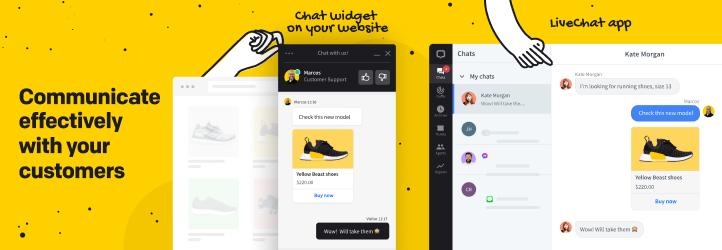
LiveChat is an advanced and feature-rich WordPress chatbot plugin. It simplifies customer communication and enhances user experiences on WordPress websites. It’s a go-to solution for businesses aiming to improve customer satisfaction and boost conversions. Businesses of all sizes can easily access the plugin with its flexible pricing plans.
Key Features:
LiveChat offers a free trial, and its premium plans start at $20 per month.
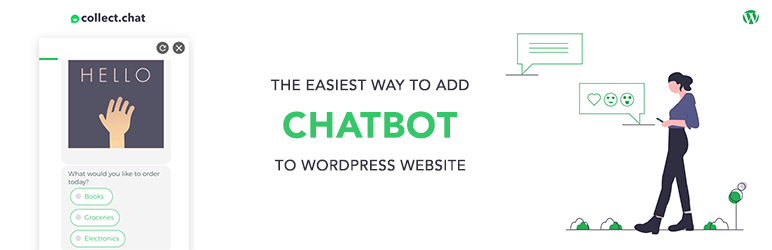
Chatbot is a very user-friendly WordPress chatbot plugin developed by the Collect.chat team. It’s ideal for lead generation and data collection. It allows businesses to create conversational forms that engage visitors and gather valuable insights. The premium plan offers advanced features like appointment booking and integrations.
Key Features:
Though it’s a free plugin, the premium plan comes with more advanced features, starting from $24/month.
Tawk.To Live Chat WordPress chatbot Plugin is a popular and completely free live chat solution. This WordPress chatbot plugin is designed to help businesses engage with their website visitors in real time. Businesses can handle chats using their recently introduced AI chatbot capabilities.

Key Features:
The plugin quickly identifies FAQs and directs searches to create articles and shortcuts. This helps agents to respond quickly so that customers can get help instantly without human intervention.
WordPress chatbot plugins are not just an option to maintain your business operations. It has become a mandatory tool since AI-implemented tools are becoming essential to improve effectiveness.
With a chatbot, your site won’t just interact with the customers; it will collect more information about the customers’ buying patterns, behavior, and preferences. Later on, you can use this data to improve your WooCommerce store’s output to the fullest. We’ve provided you with a list of plugins to select since it will help you turn casual visitors into loyal customers.
Now it’s your turn to select and implement the plugin that best suits your business type. Beside, if you need to plugging development services, Wordpreseedirect is the best for plugin development in uk.
How to Optimize Images for WordPress for Faster Load Times and Better SEO
No one likes a slow, unoptimized website in today’s fast-paced tech landscape. Users expect your WordPress site to load in the blink of an eye. If it doesn’t, they are likely to leave and turn to your competitors. Unoptimized images are the biggest culprits behind slow loading times on WordPress.
Everyone enjoys viewing high-resolution images because they quickly attract attention. However, the downside is that they can slow down a web page’s loading time. This can frustrate users and lead to a loss of valuable search engine rankings. Nevertheless, you can optimize images for WordPress to find a balance between quality and performance.
In this article, we will explain everything you need to know about optimizing images to improve WordPress load times.
Why Optimize Images for WordPress? Well, it’s a small change that makes a significant difference on your WordPress site. Here are the reasons why:
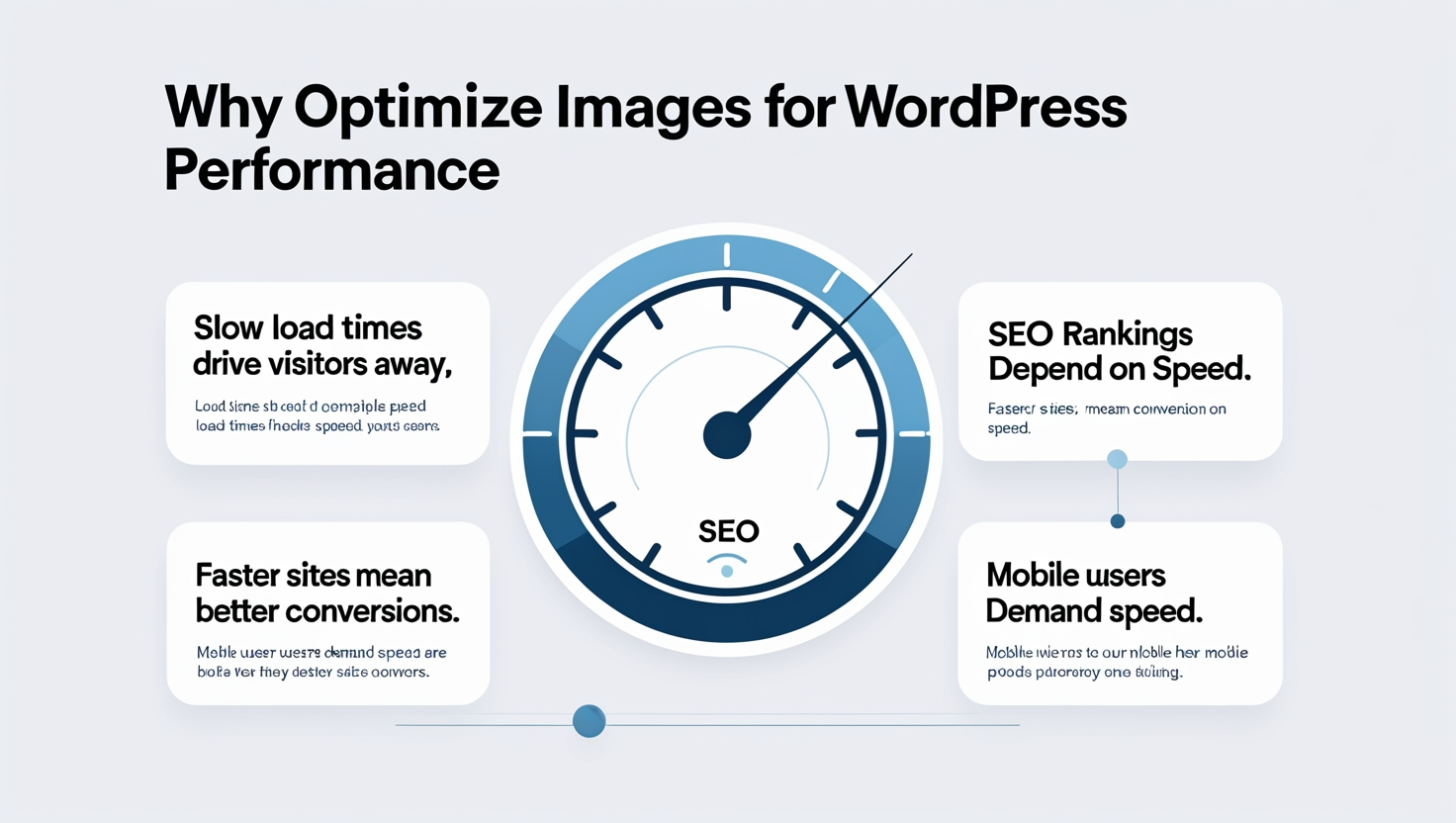
If your WordPress site loads slowly, visitors may leave before viewing the content. Research shows that even a slight delay can significantly increase bounce rates. On the bright side, taking steps to optimize images for WordPress helps your site load quickly. This method keeps visitors engaged and reduces the likelihood of them leaving.
You should optimize images for WordPress because search engines like Google prioritize websites that load quickly. They penalize slow-loading sites, making it harder for users to find your website. Optimized images can boost your SEO score by enhancing the core web vitals.
A speedy website enhances user retention, boosts SEO, and benefits your business. Research indicates that faster load times result in better conversion rates. A fast-loading website allows you to reach your objectives more successfully. When a customer gets everything he expects within a second or two, there is a chance of conversion.
Over 50% of all web traffic comes from mobile devices. Mobile users frequently encounter slower connections, and unoptimized images can result in frustratingly slow loading times on their devices. By taking steps to optimize images for WordPress, you ensure that your site runs effectively on all devices. This keeps mobile users satisfied and engaged.
Selecting the appropriate format is the first step in optimizing images for your WordPress site. There are several image formats, each designed for specific purposes. Picking an unsuitable format can result in larger file sizes and slower loading speeds, which is why it’s essential to optimize images for WordPress correctly.
So, which format should you use? Here’s a quick cheat sheet:
Choosing the right format ensures smaller file sizes and faster load times. Next, let’s explore how you can further optimize images for WordPress.
After choosing the correct format, you must utilize the proper techniques to make your images as light and fast as possible. Here are some simple yet powerful practices to ensure your WordPress site loads quickly without sacrificing image quality.
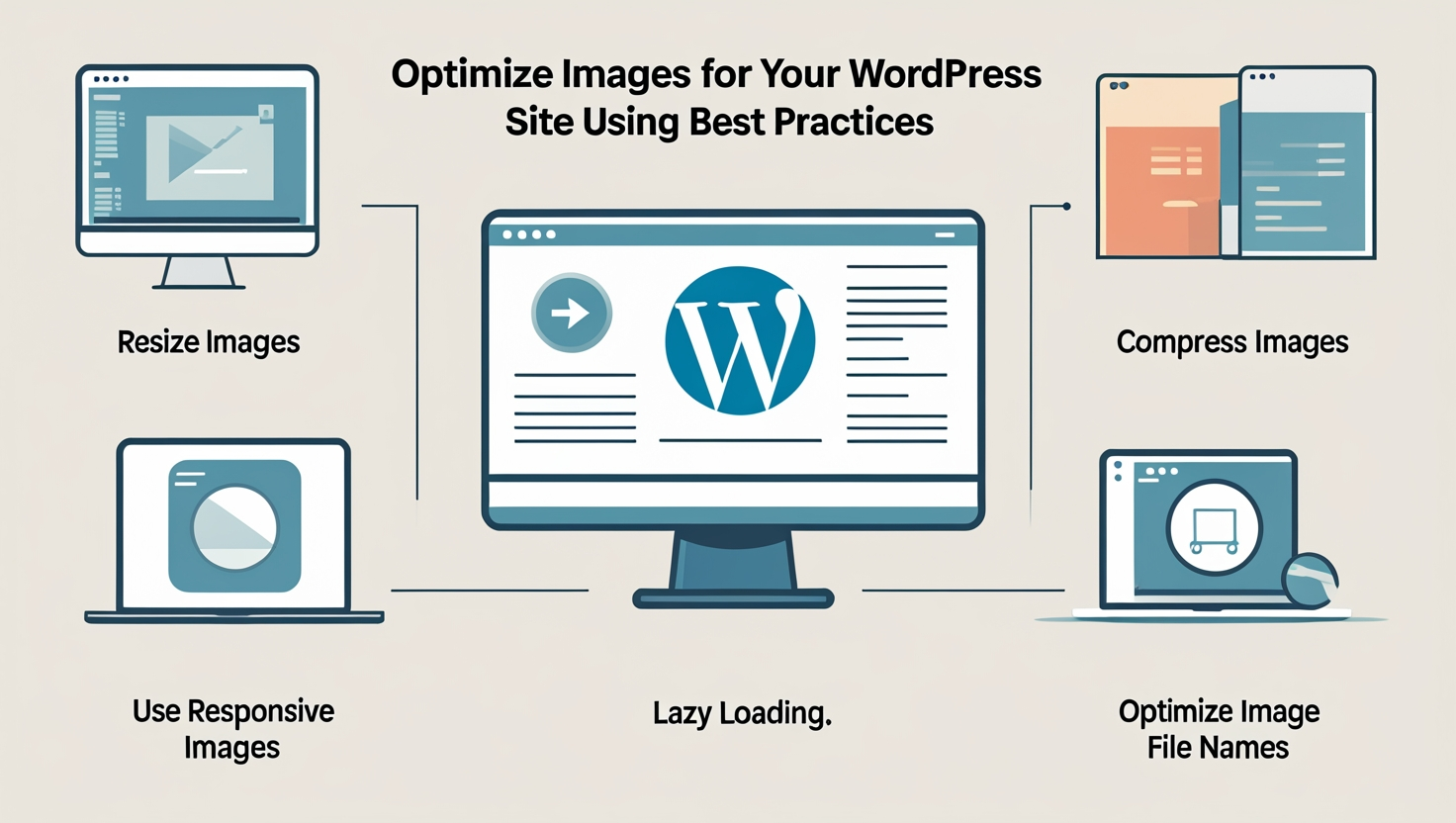
It’s advisable to avoid uploading large images and expecting WordPress to resize them for you. Instead, take a moment to adjust your images to the exact dimensions they will display when you optimize images for WordPress properly.
For instance, if your blog’s featured image is 1200×800 pixels, try not to upload a 4000×3000-pixel photo. You can use helpful tools like Photoshop, Canva, or even free online resizers to adjust the size before you upload. This way, you’ll reduce the file size and save some server resources.
Compression is your best friend when you are looking to optimize images for WordPress. Tools like TinyPNG, ShortPixel, or Squoosh can shrink file sizes significantly while keeping your images looking sharp. There are two types of compression:
We recommend you experiment with both to find the right balance for your images.
Visitors arrive at your site using different devices. A desktop user may view a large image, while a mobile user requires a smaller version. Responsive images guarantee that the correct size is provided for each device when you optimize images for WordPress effectively.
When you upload images to WordPress, it automatically generates several sizes for you. Using the srcset attribute, you can choose the best version of your images to display. This handy technique saves bandwidth and helps your site load faster, making for a smoother experience for your visitors.
Lazy loading is an effective method of postponing image loading until necessary. For instance, images at the bottom of a page won’t be loaded until the user scrolls down. While WordPress includes lazy loading, plugins like WP Rocket or Smush can provide additional enhancements. This technique helps decrease initial load times and improve performance when you optimize images for WordPress properly.
When optimizing images for the WordPres site, don’t overlook the basics. Use descriptive file names, such as “red-sneakers.jpg,” instead of “IMG_1234.jpg.” This helps search engines better understand your images and is a core best practice when you optimize images for WordPress.
Moreover, include meaningful alt text to enhance accessibility and SEO. The alt text describes the image for screen readers and search engines. Keep in mind that Alt text makes your site more inclusive and search-friendly.
The above steps ensure that the images are optimized for speed, quality, and usability. Next, we will explore some WordPress default features that make image optimization even easier.
You will receive some fantastic built-in features and tools to optimize images for WordPress sites. You don’t need to be a tech wizard to utilize these features. Let’s explore how to utilize these methods to enhance your site’s speed.
A Content Delivery Network (CDN) is like a global delivery service for your images. Instead of serving images from your server, it stores them on servers around the world. When a visitor loads your site, the images are delivered from the server closest to them. This reduces the time it takes to load the images on your site and is a key strategy when you optimize images for WordPress.
Popular CDNs like Cloudflare or BunnyCDN are easy to set up and can make a huge difference in performance.
Caching is like giving your website a shortcut to optimize images for WordPress. When a visitor loads your site, their browser stores a copy of your images locally. The browser can load those images from its cache the next time they visit. So it does not download the images from your server again. This speeds up load times, especially for returning visitors.
WordPress makes caching easy with plugins like WP Rocket, W3 Total Cache, or WP Super Cache. These tools automatically handle caching and ensure that your site stores images efficiently.
WordPress has some handy built-in tools to help you optimize images without needing extra plugins. It creates images of multiple sizes whenever you upload one. This means you can use smaller versions for thumbnails or mobile devices. This method saves you bandwidth and speeds up the load times.
Additionally, WordPress now supports modern image formats like WebP. This format offers smaller file sizes without compromising the quality. You can upload WebP images directly if your server supports it. WordPress will handle the rest after uploading the image.
These built-in features make it easy to optimize images for WordPress right from the start, giving your site a performance boost with minimal effort.
You’ve optimized your images, but how do you know if it’s actually working? Testing and monitoring your site’s performance is the final step to ensure your efforts are paying off. Think of it like website maintenance for your website. It helps you spot issues and keep everything running smoothly.
Start by using tools like GTmetrix, Google PageSpeed Insights, or Pingdom. These tools analyze your site’s speed and give you a detailed report. They’ll show you how your images are performing, highlight any bottlenecks, and suggest improvements. For example, they might tell you if an image is still too large or if lazy loading isn’t working correctly.
Don’t just test once and forget about it. Regularly monitor your site’s performance whenever you make any changes or upload new content. This helps you catch problems early and ensures your site stays fast over time.
Testing might sound technical, but it’s worth the effort. A faster site means happier visitors, better SEO, and more conversions. So, grab your tools, run a test, and see how much your optimizations have improved your site’s performance.
Optimizing images doesn’t have to be manual or time-consuming. WordPress is well-known for offering fantastic tools and plugins that automate the process. Let’s examine the best options to optimize Images for WordPress via some of the best options out there.
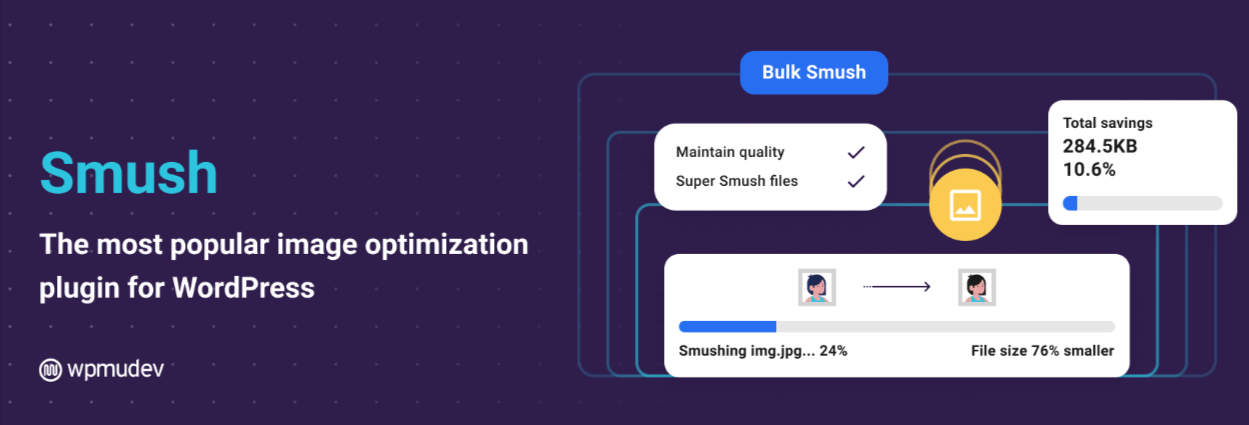
Smush is a fan favorite when it comes to optimizing images for WordPress. It compresses images, resizes them, and even lazy loads them to improve performance. The free version is great, but the pro version offers advanced features like bulk optimization and WebP conversion.
Best Features:
Imagify is a powerful plugin that helps in optimizing images for WordPress and offers both lossy and lossless compression. It’s perfect for beginners and advanced users alike, providing flexibility and full control.

Best Features:
ShortPixel is known for its speed and efficiency when it comes to Optimize Images for WordPress. It supports multiple image formats and is great for sites with a lot of images. It’s a great choice for heavy-duty optimization.

Best Features:
Optimizing images for your WordPress is a game-changer decision. Faster load times mean happier visitors, better SEO rankings, and more conversions. And the best part? You don’t need to be a tech expert to get started.
We’ve covered everything from choosing the right image formats to using powerful plugins and tools. These small steps add up and ultimately show a big difference. Moreover, these strategies are easy to implement and deliver real results.
So, what are you waiting for? Optimize images for WordPress today and watch your WordPress site speed up. Your visitors and your search rankings will thank you. Remember, a faster site is a necessity in today’s digital world. Let’s make your site the best it can be.
Why your WordPress Site Needs High-Converting Landing Pages
Your WordPress store is not just a collection of pages where you represent data. It offers the opportunity to build a meaningful connection with your visitors. The average conversion ratio of high-converting landing pages is 9.7%, whereas 10% is considered the benchmark. So, the landing page is crucial for turning visitors into paying customers.
You are missing out on a great deal of revenue without an ideal landing page on your website. A landing page has a specific objective, like growing an email list, generating sales, or prompting a product. It leads your customers toward a specific call to action by removing distractions where it matters most.
In this guide, we will highlight why your WordPress site needs high-converting landing pages. We will also discuss some major benefits and functional tips so that you can create one that delivers results.
High-converting landing pages are single web pages with a specific purpose: conversion. Typical pages on WordPress sites have multiple objectives, such as showcasing services or content. However, a landing page drives customers to take specific actions, such as signing up for a newsletter, downloading a product, or completing a purchase.
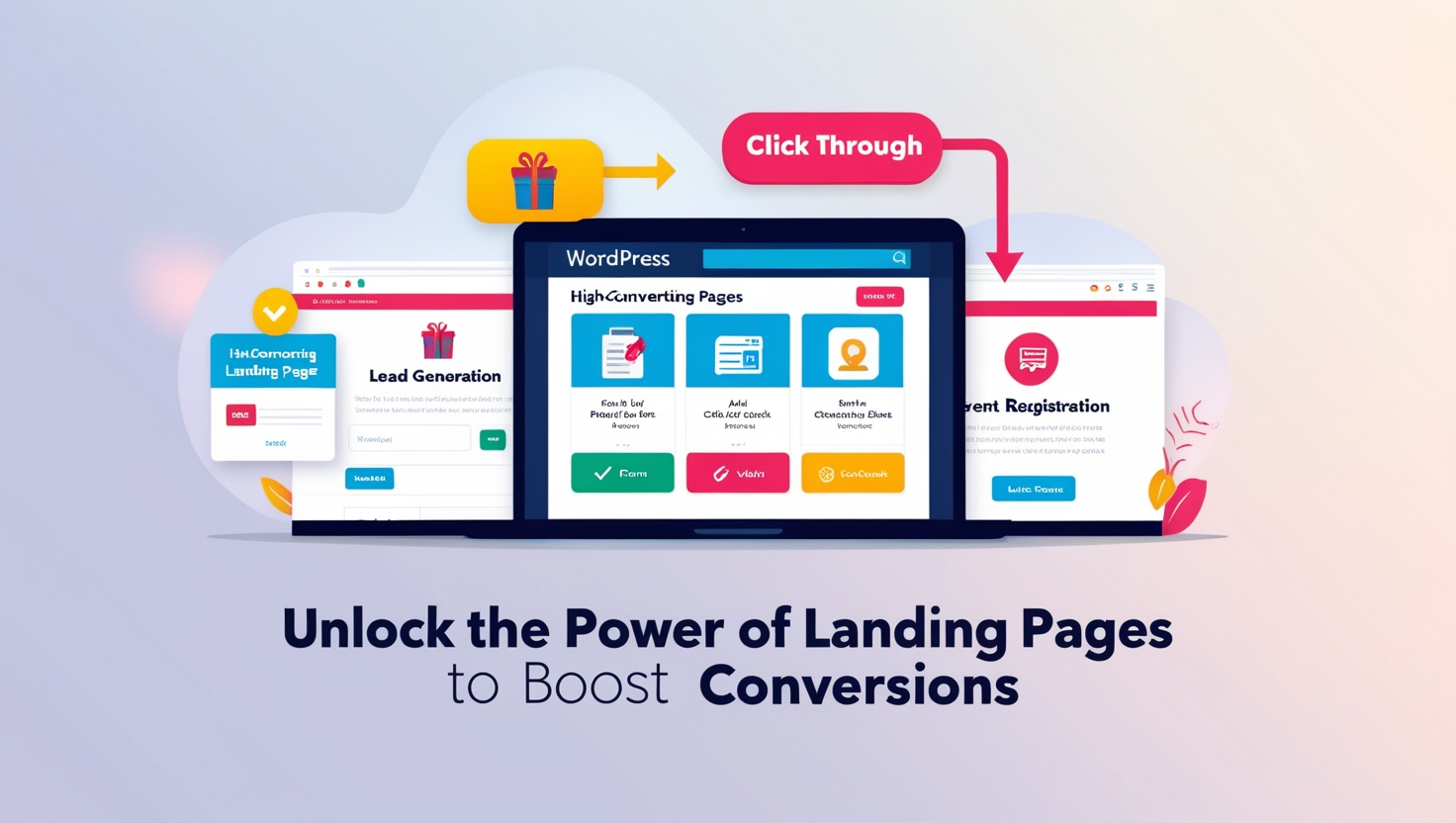
There are different types of landing pages serving specific purposes, including:
Knowing different types of high-converting landing pages gives you an idea of which one suits your business needs. Plus, you can implement a marketing campaign that concentrates on turning normal visitors into paying customers.
High-converting landing pages work as a powerhouse for your WordPress site. You will see growing results through your marketing approach since these pages have a single intent: conversion through engagement. Here are some key benefits of high-converting landing pages:
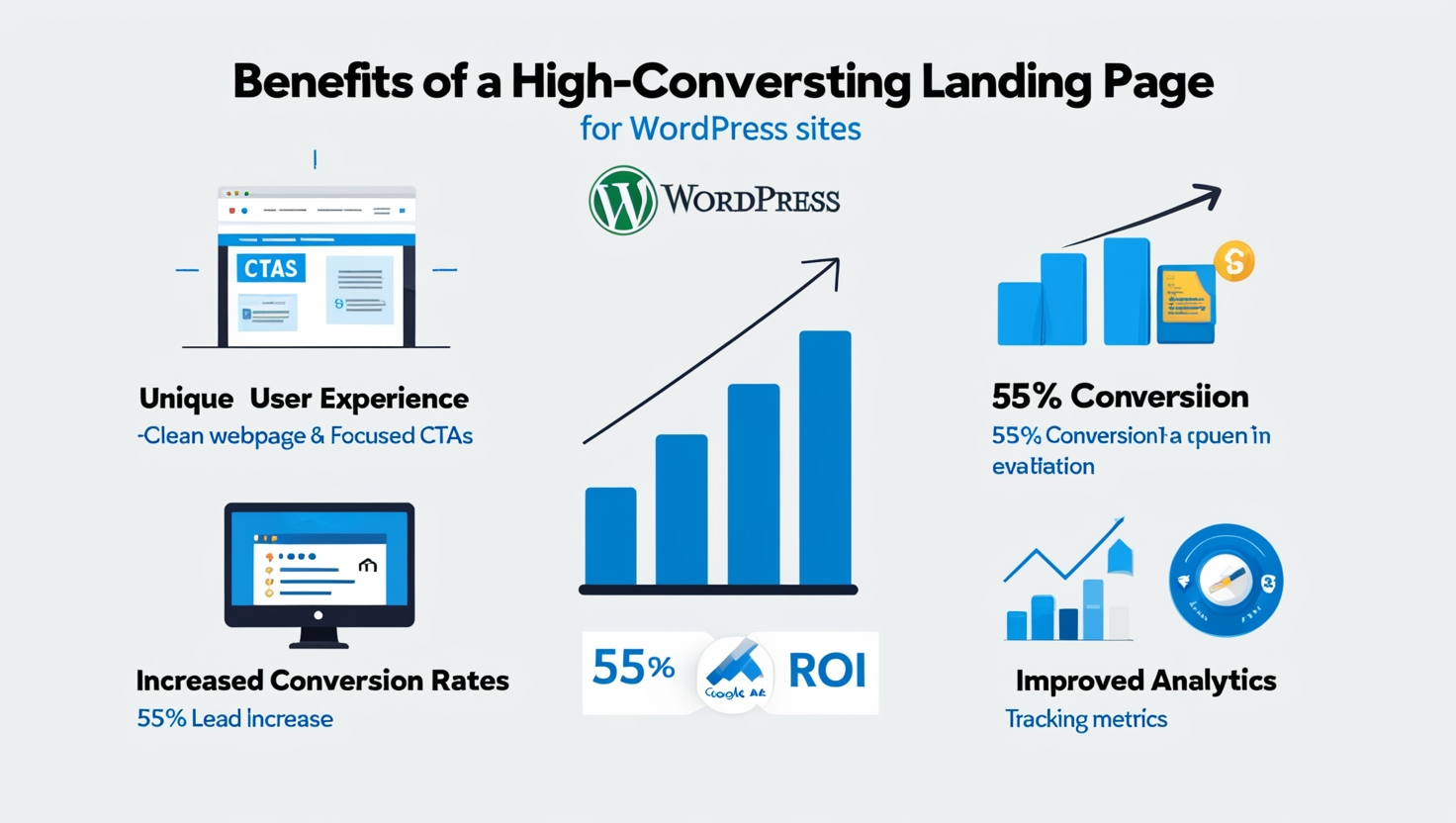
An effective high-converting landing page captures visitors’ attention through a strong focus on conversion. It presents menus, calls to action, and other elements within a simple design that is easy to navigate. Thus, you can quickly draw visitors in by directing their focus toward your goals. Customers feel a positive connection with your brand and comprehend what you offer.
Your high-converting landing page serves a unique purpose for visitor or customer conversion. For example, collect customers’ email addresses, encourage them to purchase, sign up for events, etc. Your site will see at least a 55% increase in leads if you use multiple (8-10) landing pages to showcase your products and services.
Landing pages evaluate every click of your visitors since it’s related to your ads and email campaign. You can get a significant return on investment if you can align your landing page with your business objective. For example, a perfectly designed landing page can perform to the mark with a better quality score when it’s linked with a Google Ads campaign.
A landing page allows you to track customer behavior with minimal effort. Analyzing essential metrics like bounce rate and form completions can enhance your marketing approach. High-converting landing pages make your marketing effort easier than ever before. It already has the mechanism for better conversion, returns your investment, and gives you valuable analytics.
So, what makes a web page a high-converting landing page on the WordPress platform? Some essential features are mandatory for establishing a landing page that actually converts. Let’s take a closer look at those elements:
Headline is the first few words that visitors see while visiting your website. The headlines must grab visitors’ attention instantly. You can communicate by completing headlines for your visitors. These headlines can showcase your value to your audience.
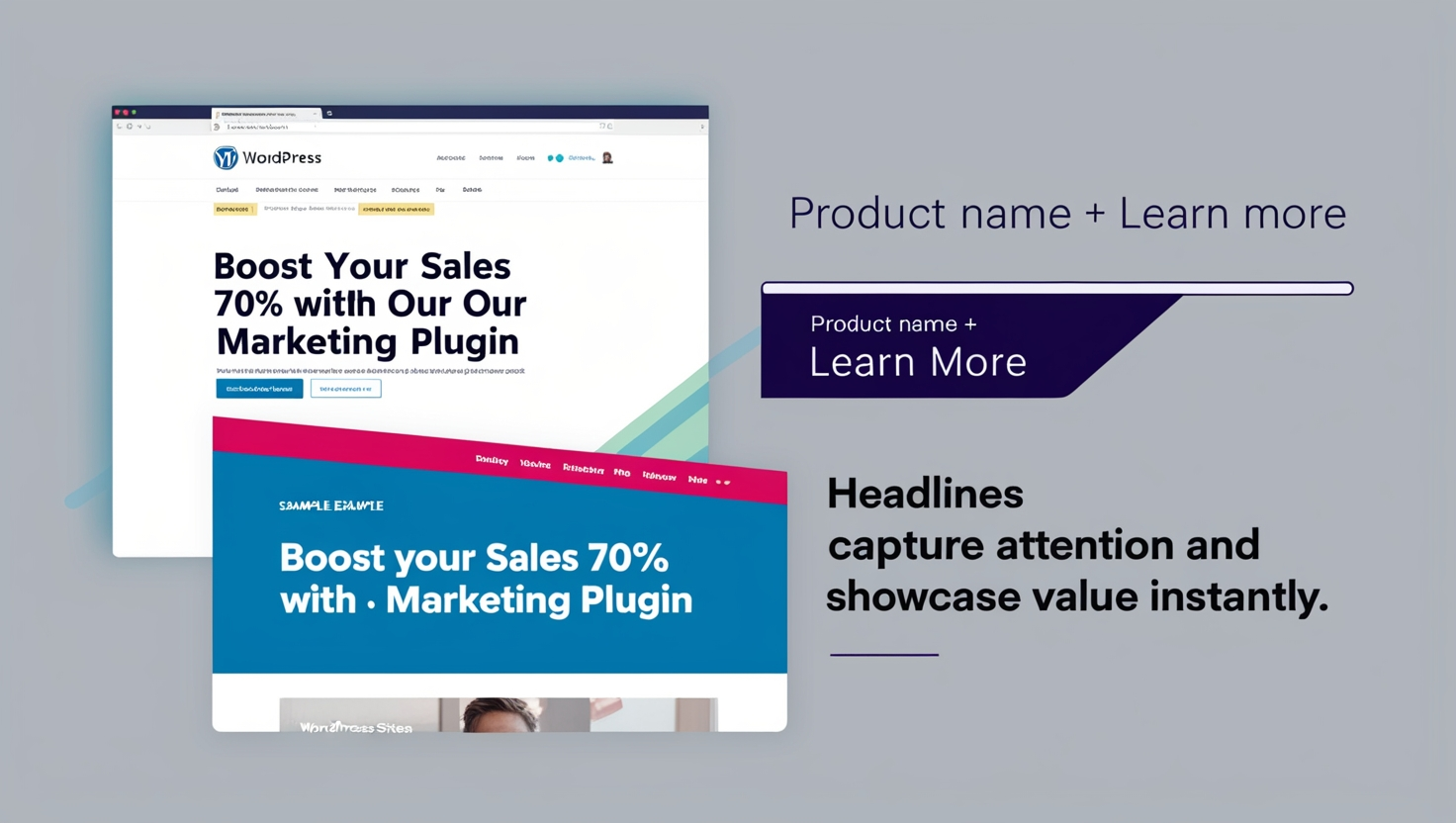
For example, Boost Your Sales 70% with Our Marketing Plugin is a highly effective headline compared to a product name and learn more button.
Creating effective content requires clarity and focus. Aim to answer your customers’ questions directly without unnecessary fluff. Use simple language to define terms and concepts, ensuring accessibility for all readers. Highlight how your products or services address specific challenges by identifying pain points and showcasing solutions.
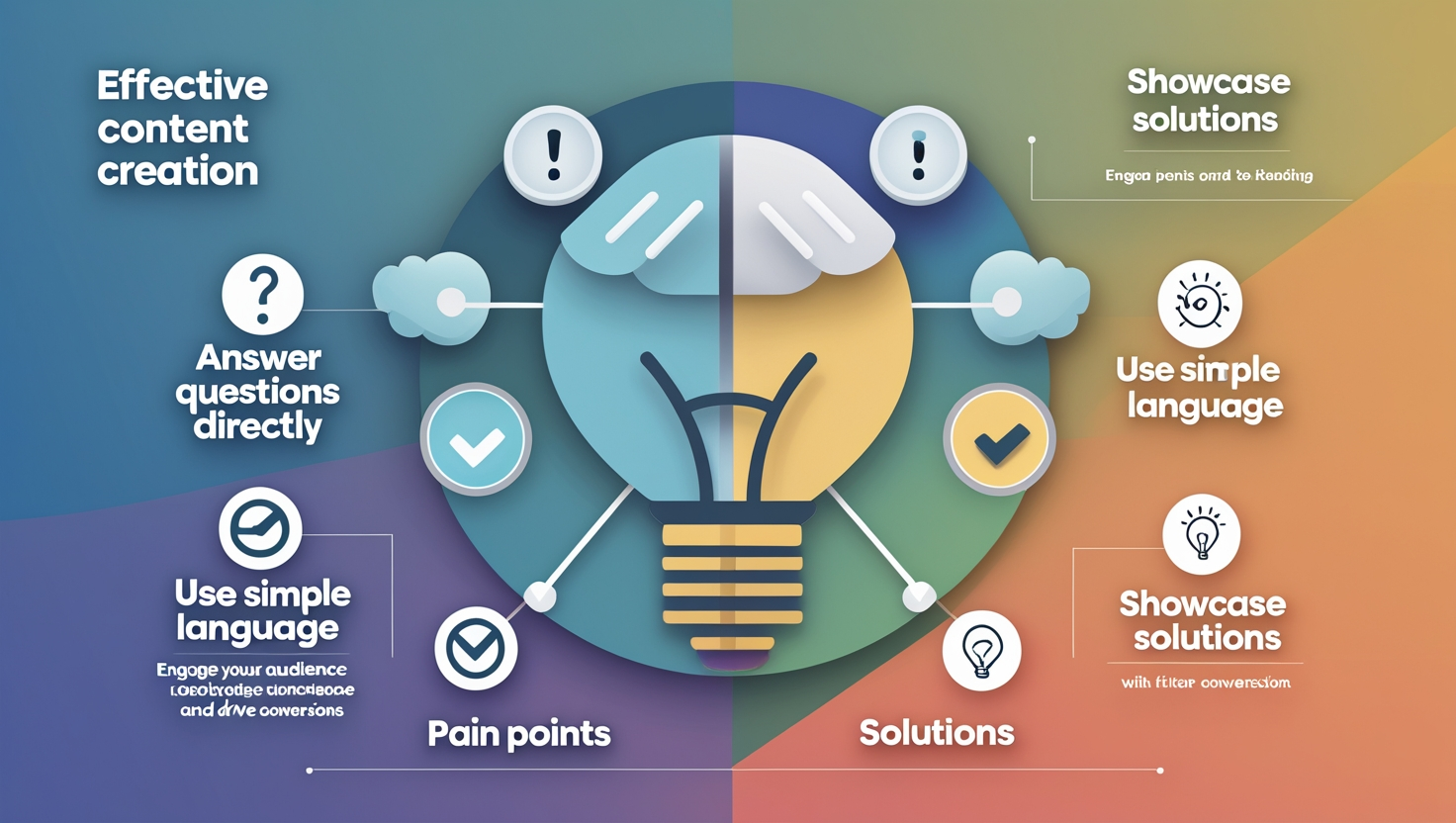
To enhance readability, structure your content with clear subheadings and bullet points. This format allows customers to quickly find the information they need, making it easier to understand your value. By prioritizing concise, benefit-oriented messaging, you can engage your audience more effectively and drive conversions.
A high-converting landing page focuses on a clear and compelling call to action. It can be a button or clickable link with the following texts:
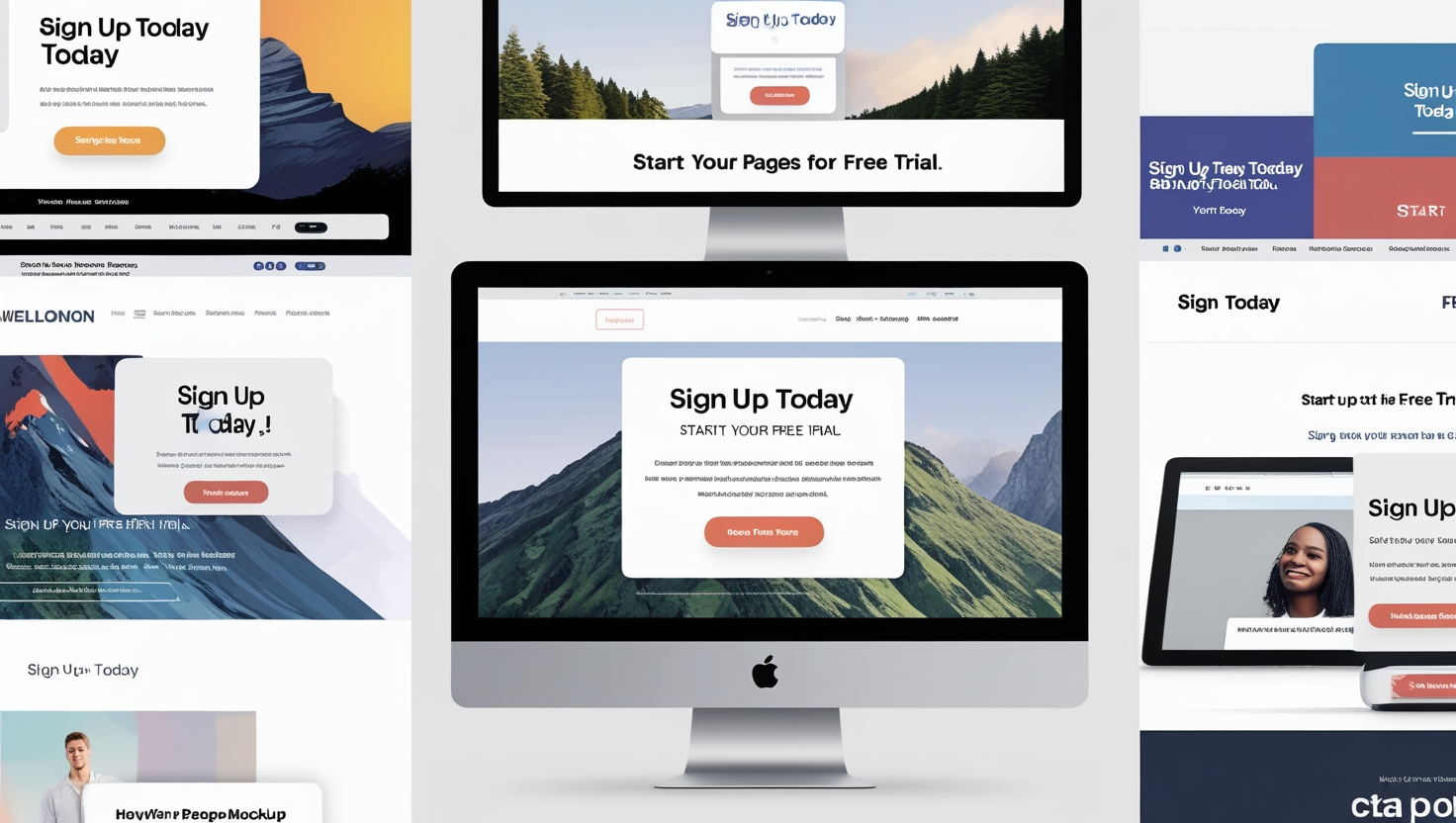
Your chance of conversion increases if you create visually stunning CTAs for your landing page. Your choice of words should be action-oriented to grab the audience’s attention. Moreover, position the CTA button properly above the fold at several touchpoints for better visibility.
Currently, most of the visitors are using mobile devices to browse your WordPress site. Therefore, you should focus on mobile friendliness to present everything perfectly in different display sizes.
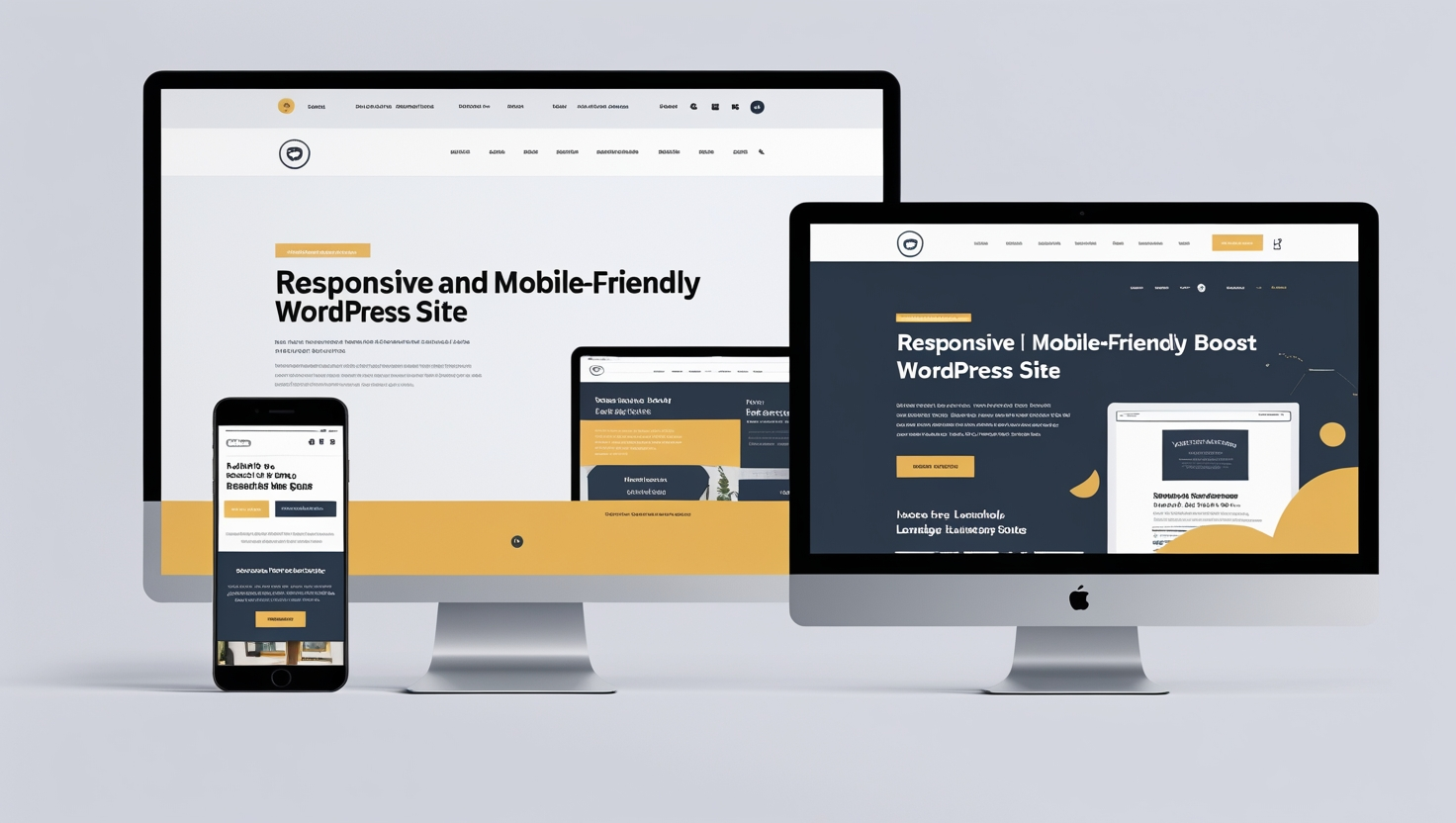
Customers will seek alternatives if they cannot view their preferred content on their devices. To address this, you must develop a responsive website design that enhances user experience. This approach will decrease the bounce rate and boost conversion rates through mobile-friendly landing pages.
Engage your landing page visitors with elements that reinforce your message and business objective. Include visually attractive images, videos, and infographics that convey the right message to your audience.
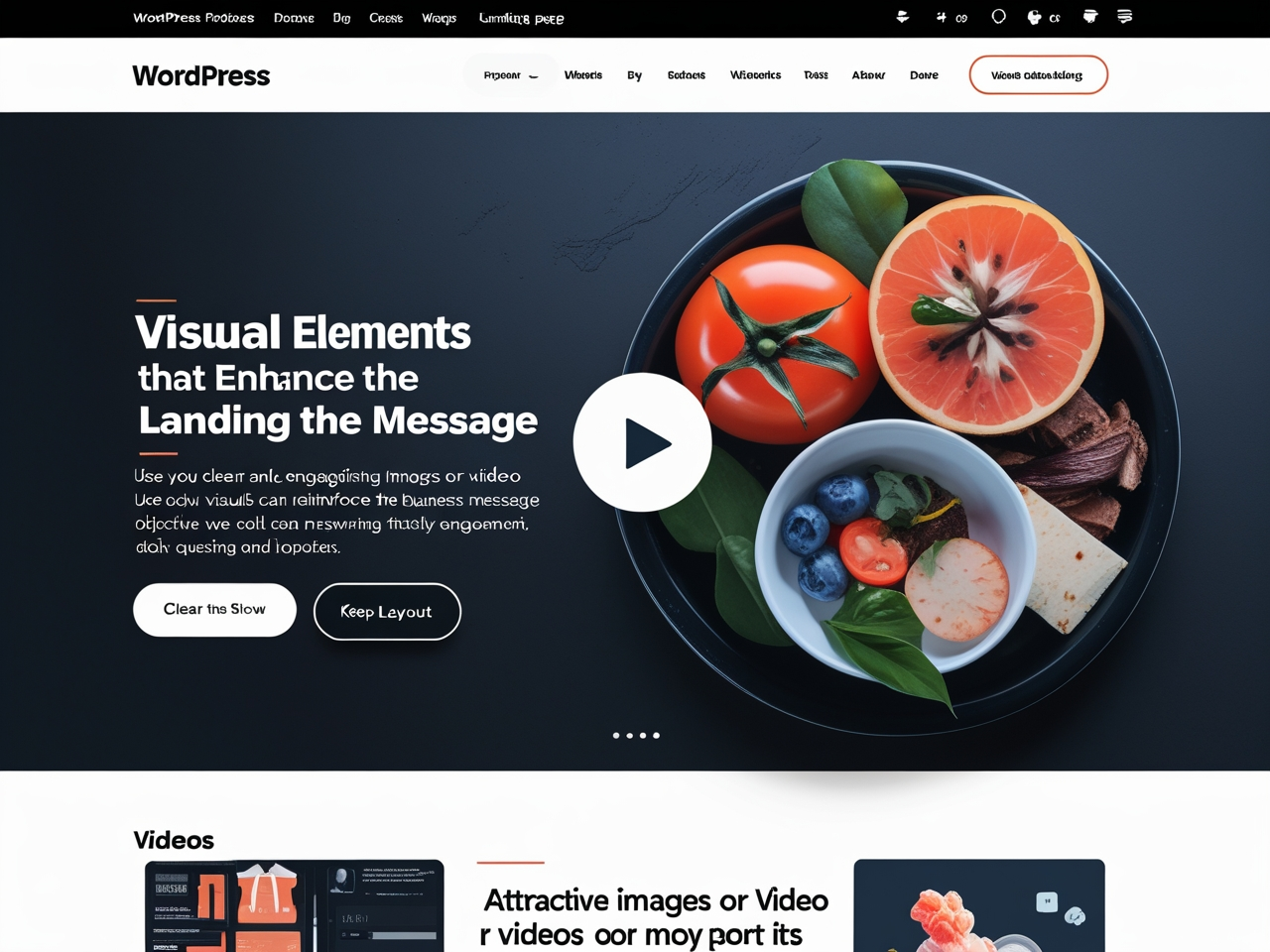
Let’s say you want to promote a product through the landing page of your WordPress site. You can present a product demo video or image highlighting the benefits perfectly. Thus, the media element effectively answers your customers’ questions even before they ask.
Your landing pages can convert more when you implement reliable trust signals on those pages. Include customer testimonials that say how good your product is and how it’s solving customer problems. Represent case studies with your clients and certifications that you’ve earned for your services. Moreover, you can showcase logos of recognizable brands that you’ve worked with.
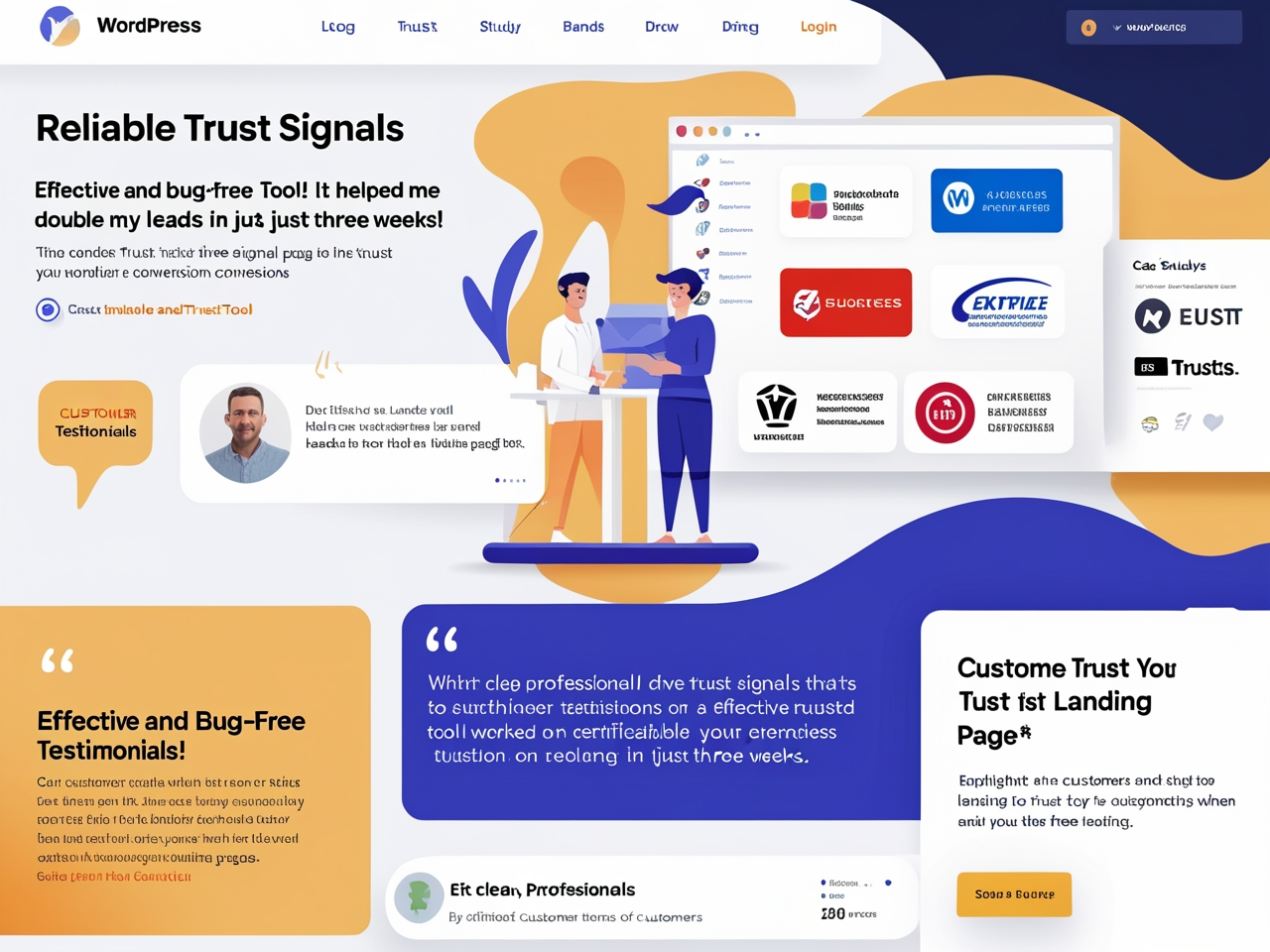
For example, a testimonial like this can create confidence in your customer’s mind towards your product: “Effective and bugfree tool!! It helped me double my leads in just three weeks!”
A one-second delay in page loading can reduce your conversion rate by 7%. This emphasizes the need to optimize your landing page thoroughly. For instance, compress image sizes to ensure they load swiftly.
The back-end or the code behind your WordPress site’s theme and code should not include any bloats or bad structures. Keep in mind that WordPress optimization and maintenance are crucial to improving the page loading speed.
Let’s focus on creating a high-converting landing page since you already know which elements are necessary. You cannot randomly use the necessary elements on a landing page. Instead, you have to implement the following best practices:
Ensure your content is informative yet concise with the use of bullet points and reader-friendliness. The content should have a logical flow so that every step is clearly defined. Always focus on the audience’s pain point and describe how you solve their issues. Your word choices should focus on benefits rather than the features of the product. Here is an example:
Users should be able to navigate from the start to the finish point or checkout page with minimal effort. Keep your design clean and simple so that the CTA is the highest priority. Moreover, maintain consistency with your website’s branding to create a unique identity among your visitors.
Your CTAs should use actionable language to grab the attention of your audience. The text within the button should create a sense of urgency that motivates them to click instantly.
Example:
Conduct A/B tests using different versions of your landing pages. This is important because it will help you analyze which version works best. You can implement the following elements:
SEO strategies can greatly improve the visibility of your landing page in search engine result pages. Therefore, you must thoroughly research keywords matching your objective and people’s search intent. However, do not overuse keywords since you must keep it natural yet engaging.
You must have a high-converting landing page to attract a continuous flow of paying customers to your site. Implementing mandatory elements will transform a simple web page into a money-generating landing page. However, random implementation will not yield the results you expect.
Maintaining the best practices will give you the desired result from those landing pages. This guide gives you a clear, easy-to-understand concept of high-converting landing pages and their best practices. We suggest you follow each step and create one today since your business’s success depends on it. Beside, if your need to wordpress landing page design, we are the best for design services in uk.
How to Restrict Content Access in WordPress Based on User Roles for Better Security & Control
Restricting content access based on user role is one of the powerful admin features of WordPress. This feature maintains your website’s integrity and security by giving you administrative control. Therefore, you can decide who can see or interact with your site’s content.
WordPress has the ability to restrict content access with its built-in functionality. It helps membership, eLearning, and business websites. Besides, you can safeguard sensitive information on your website and allow relevant users to access it. For example, WordPress restricts content functionality to ensure that only contributors can edit your site content, and paying members can access premium content.
In this article, we’ll show you how you can restrict content access based on user roles in WordPress. Ultimately, you can strategically implement the proper admin privileges for your website users.
WordPress restrict content access functionality is intertwined with its built-in user management feature, allowing admins to assign specific privileges to different users. Generally, WordPress offers five pre-defined and one additional user role. Each role binds its users to take specific actions on your website that they can’t surpass.
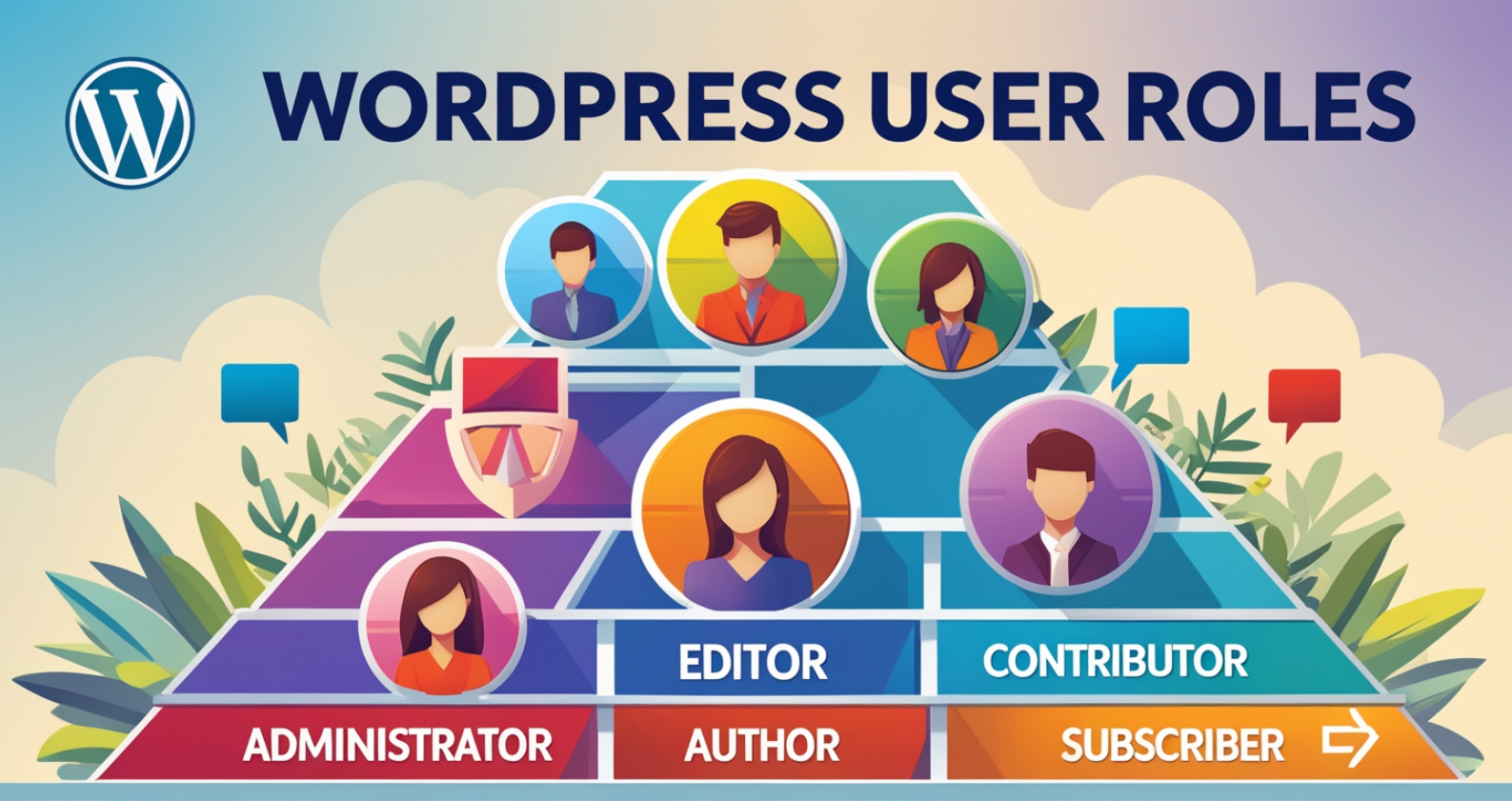
Let’s take a look at the user roles in WordPress:
Administrator: The administrator role has the highest access to all WordPress site features. This means users can manage all the site content, user accounts, plugins, themes, and more. Moreover, they can take their preferred action and also maintain other user roles.
Editor: This role allows users to publish and maintain posts and pages on the website. They can edit or remove content written by other users. So, editors are responsible for maintaining the quality of your website’s content.
Author: Authors can create, edit, and post their content without anyone’s approval. It also allows users to upload media files within the content to maintain quality.
Contributor: Contributors have access to create or write their own content and manage it. However, they cannot publish the post since their post needs approval from the editor or administrator roles.
Subscriber: This user role has the least access and permissions to take actions on your website. However, users can take specific actions defined by the admins, manage their profiles, and read content on the site. This user role becomes necessary if you own a membership or forum site.
Super Admin: This admin type is ideal for multisite setups and can be managed under one installation. Super admins will get the highest access level, surpassing the admin level access. Apart from all other access, these users can monitor network-wide updates, backups, and security measures.
Now, let’s learn how WordPress’s “restrict content access” features enable you to manage and control access. This can help you strategically protect specific sections of your website while ensuring the right users have appropriate access.
You can enable the WordPress “restrict content access” feature by following different methods. Each method can meet your specific requirements and technical understanding. Here are some common approaches that you can follow:
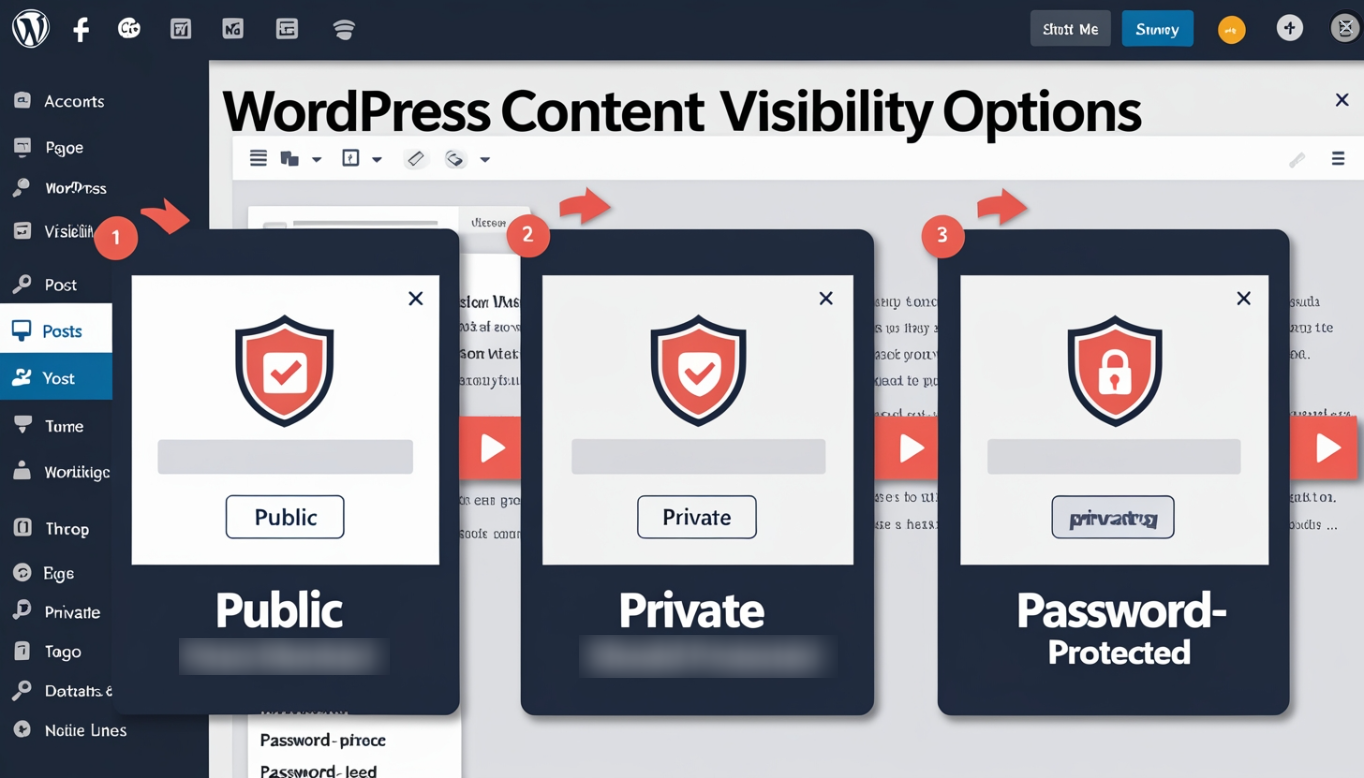
Some built-in features can restrict content access in WordPress without any plugins. To implement it, you simply need to configure the visibility settings for different posts and pages. By leveraging WordPress’s restricted content functionality, as an admin, you can mark your posts with the following settings:
You can easily manage WordPress restrict content access settings using the following steps to control access efficiently:
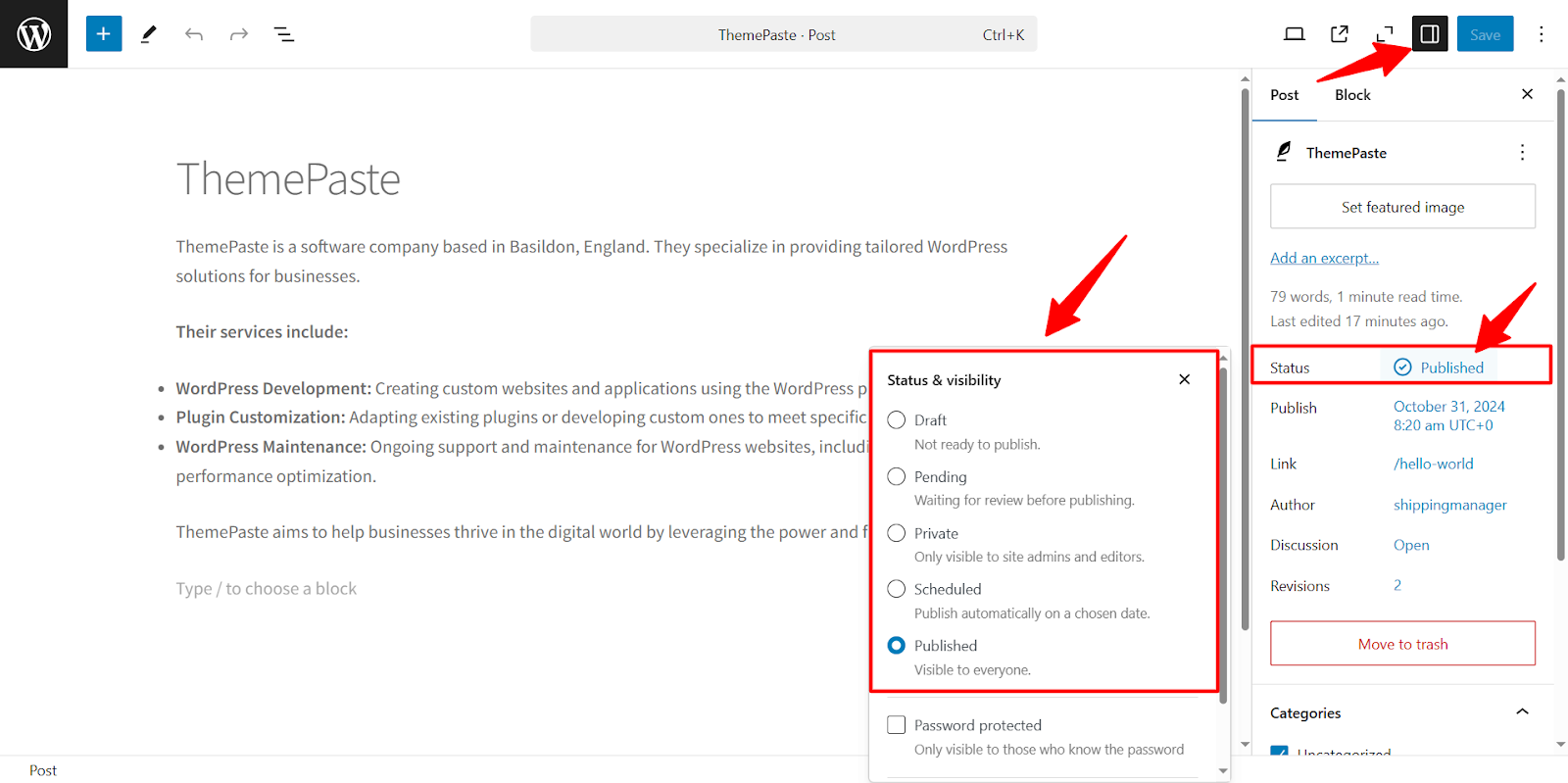
Now, we’ll learn the automated approach for managing WordPress restrict content access settings to efficiently control access on your website.
WordPress Plugins give you a more flexible approach to managing WordPress and restrict content access functionalities on this platform. Plus, you can implement more complex content restrictions according to your requirements.
Members is a membership plugin created by MemberPress that allows you to set roles and capabilities. Admins can use this plugin to provide users with a flexible membership experience on their eCommerce sites. It provides a simple user interface for handling WordPress “restrict content access” functionality for different user roles.
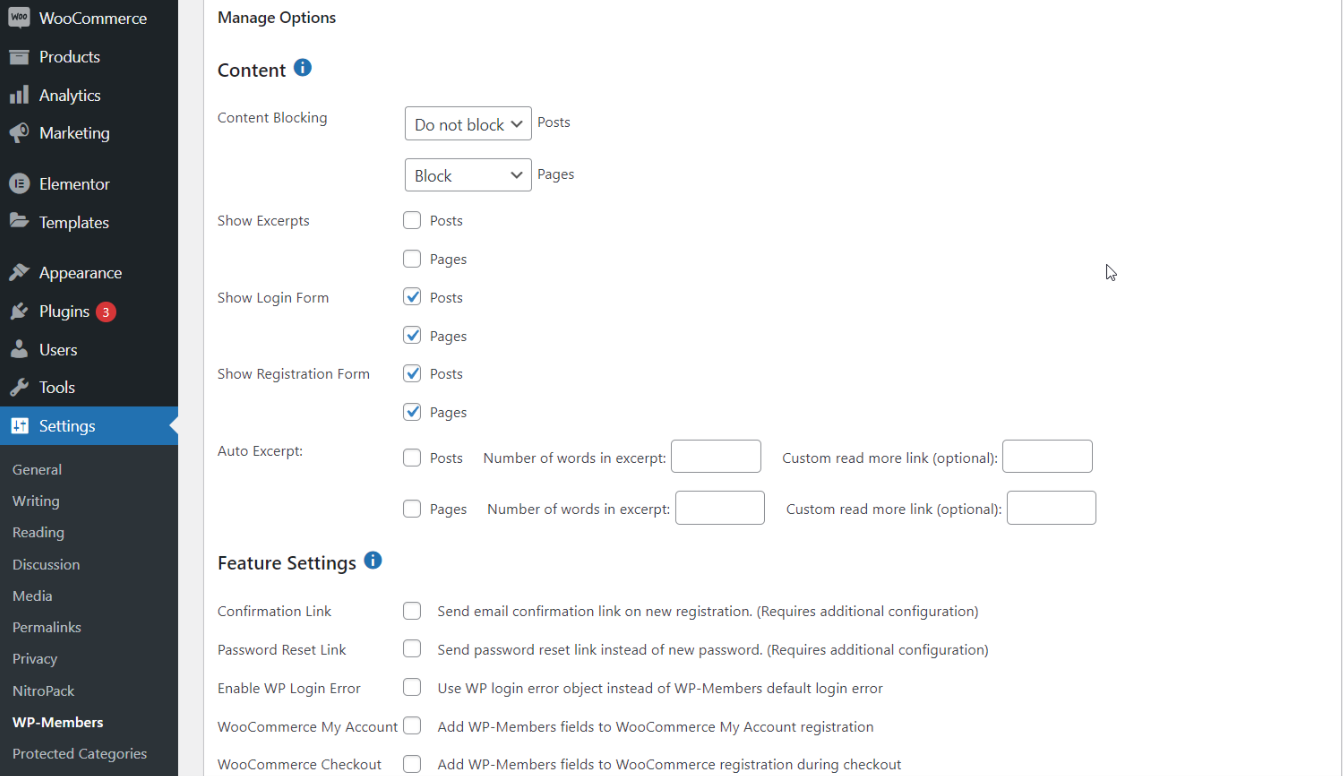
Key Features
Restrict Content comes with robust membership options that help you monetize content access. It gives you complete control over restricting users from your WordPress site. You can create pages displaying content according to user role or membership.
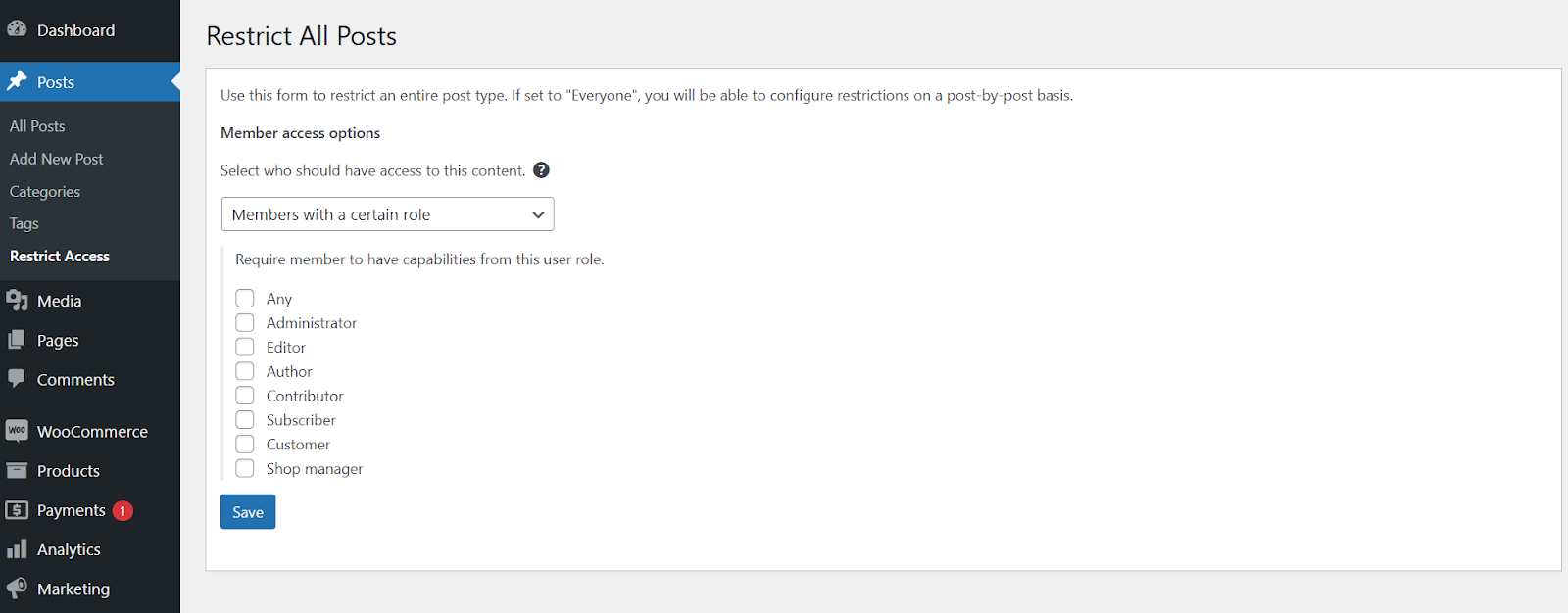
This is an ideal option if you are running a membership or subscription website. With WordPress restrict content features, you can easily control user access to posts, pages, media, custom post types, and `API requests.
Key Feature:
Get flexible WordPress restrict content access with the Content Control plugin. This is not only about controlling user access but also about creating a unique user experience.
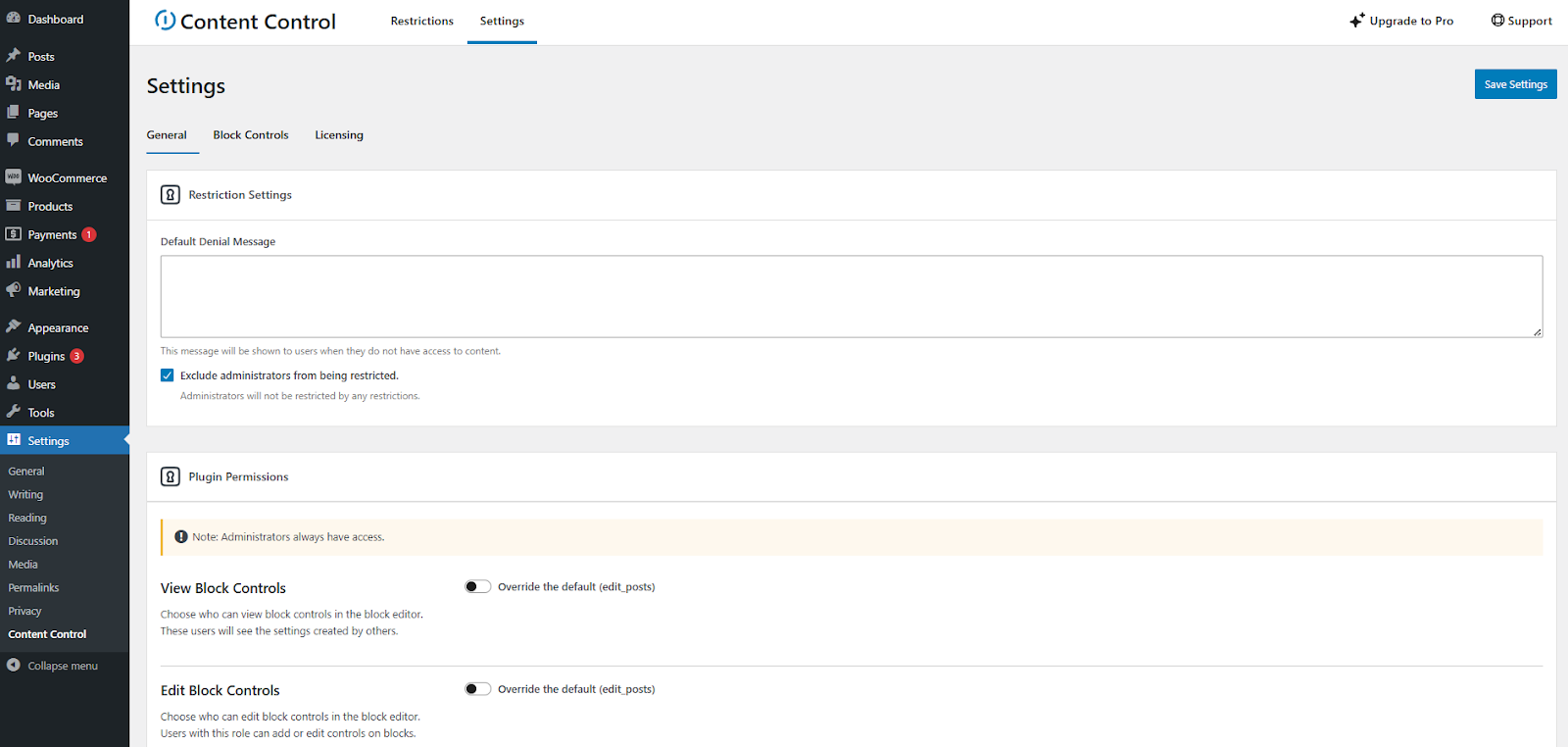
You can showcase specific content to logged-in users and members with different roles and access levels and a teaser of premium content to your guest users. The simple interface lets you control visibility on different pages, posts, widgets, and even Gutenberg blocks.
Key Features:
Custom code for managing WordPress restrict content functionality is another way to limit content access. However, you need to be comfortable with coding to go on with this process. This is a powerful method of restricting content access from your WordPress theme.
You will get better control and flexibility over content access based on user roles. However, you need to have a bit of coding experience in PHP. By utilizing WordPress restrict content custom coding methods, you can achieve this effectively. Here are the steps to follow and control content access through these steps:
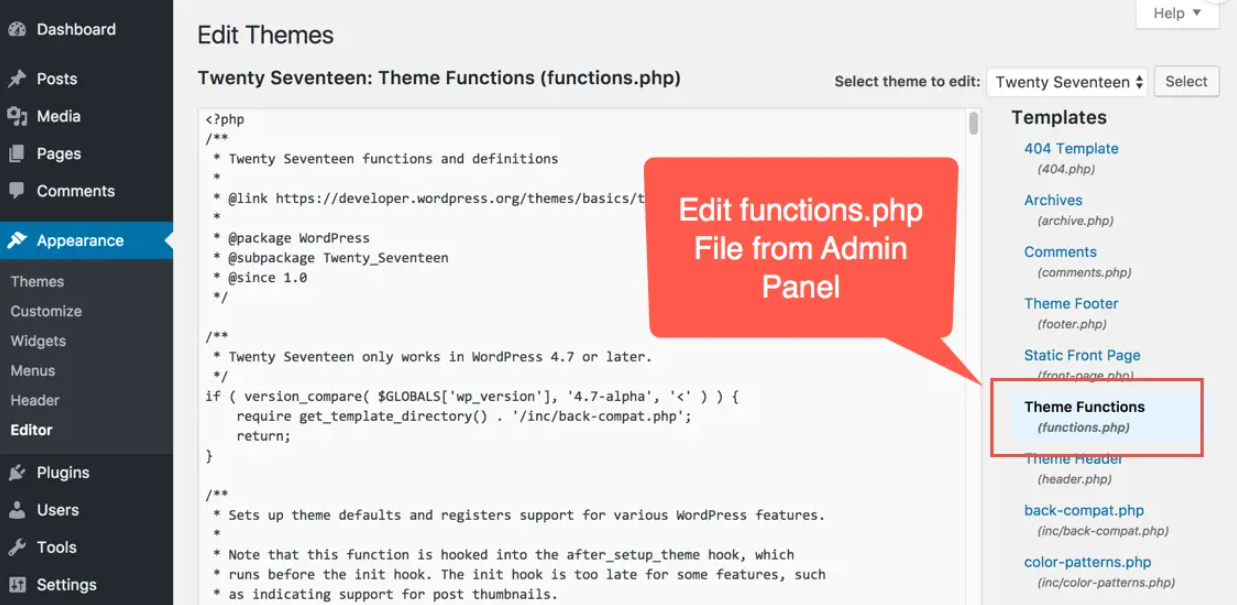
Note: We recommend sticking to the previous methods if you can’t find the function.php file, as these approaches provide easier ways to manage WordPress’s “restrict content access” functionality without delving into coding.
function restrict_content_by_role() {
if ( current_user_can( ‘subscriber’ ) ) {
// Display restricted content here
echo ‘<p>This content is only available to subscribers.</p>’;
} else {
echo ‘<p>Sorry, this content is restricted.</p>’;
}
}
add_action( ‘the_content’, ‘restrict_content_by_role’ );
function restrict_content_by_role() {
if ( current_user_can( ‘administrator’ ) ) {
echo ‘<p>Welcome, Admin! You have full access.</p>’;
} elseif ( current_user_can( ‘editor’ ) ) {
echo ‘<p>Welcome, Editor! You can edit this content.</p>’;
} elseif ( current_user_can( ‘subscriber’ ) ) {
echo ‘<p>This content is only available to subscribers.</p>’;
} else {
echo ‘<p>Sorry, this content is restricted.</p>’;
}
}
add_action( ‘the_content’, ‘restrict_content_by_role’ );
Now, you can easily restrict content access in WordPress using codes. However, try plugins to implement WordPress restrict content functionality if you want to skip coding.
Restricting content access based on user roles can bring several benefits to the table. Most importantly, WordPress restrict content functionality can give your users a better user experience and reduce hassle for the admins. Here are the benefits in detail:
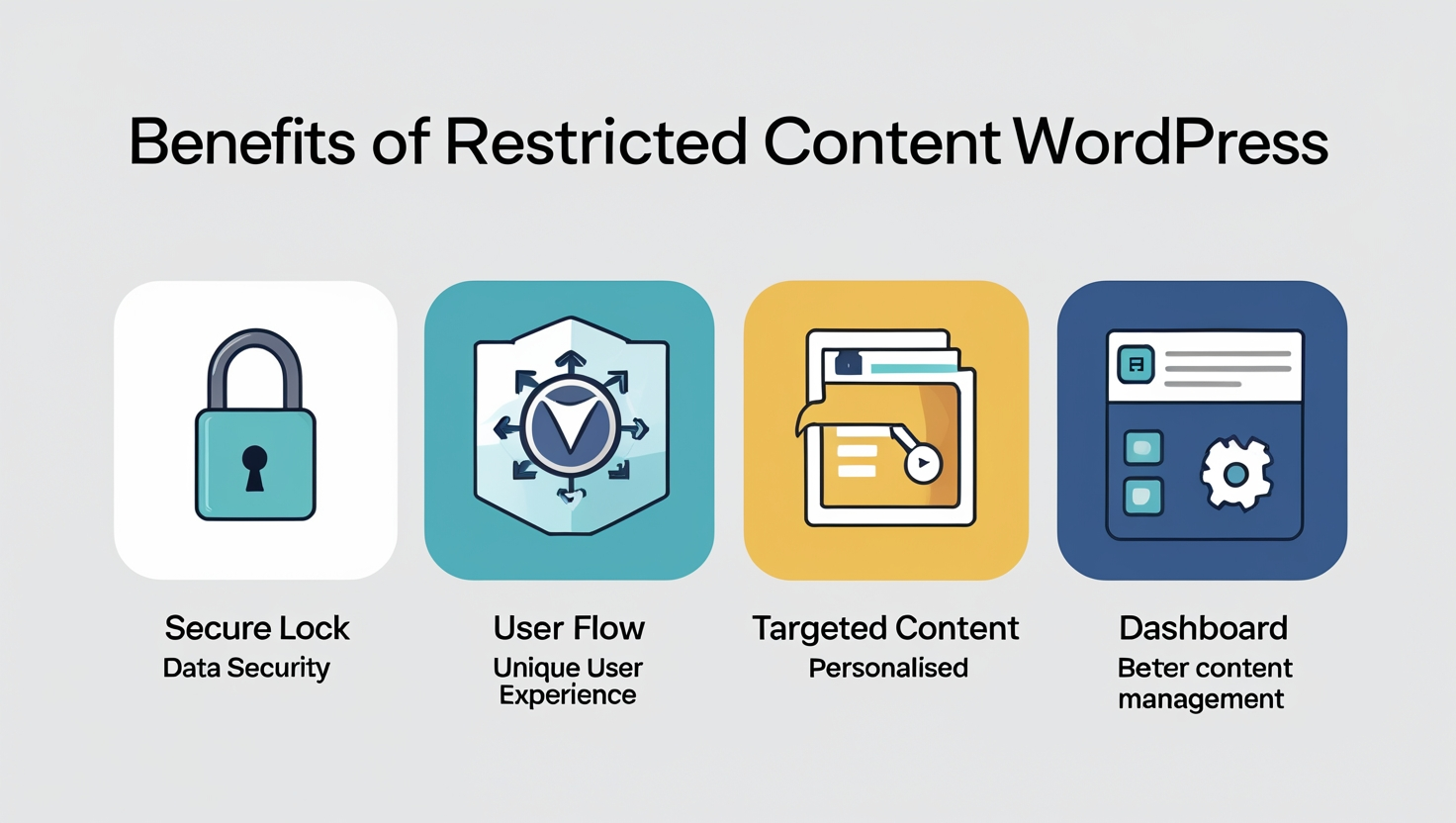
Obviously, you don’t want everyone to access your site’s sensitive or personalized content. To keep your content secure, WordPress can help you restrict content access and separate the things that you want only specific users to gain access to. Let’s say you want to provide confidential business analytics only to premium users and specific team members.
Users with different roles can access content that is only relevant to them, using tools that restrict content access. Therefore, they face less distraction and confusion while searching for specific content. For example, members of a subscription site can find their premium content easily since they can access all of those features.
Using the WordPress restrict content feature, you can target specific content for specific user roles. Let’s say you are running an eLearning website where only registered students can access online classes on your site.
With each user role having its own access to your site, you can get better content management in place. Let’s say you have multiple contributors, editors, and admins on your site. Here, contributors can only create and edit the content but can’t publish it.
On the other hand, editors can make the final edits and then publish the content. With the help of WordPress’s restricted content access features, admins can easily monitor all the activities on the site while others do their part. Therefore, overall content management becomes easier for the site’s admins or owners.
Restricting content access in WordPress is a simple but essential feature that should not be ignored. This powerful approach enhances content and user management with ease. When operating a small site, you can take advantage of WordPress restrict content access functionality through built-in features.
However, when your site grows gradually, you can implement a plugin that suits your site’s user roles and content requirements. You can try all the abovementioned approaches and adopt one that gives you the best control over your content and user roles.
Keep in mind that you must carefully set user roles to keep your data safe and meet your site’s evolving needs. Leveraging WordPress restrict content access features effectively ensures this balance. Otherwise, you might lose potential visitors who you can convert into customers by attracting them to get your premium content.
Read More Article
Common WordPress Security Issues 2026: Checklist & Fixes
How to Optimize Images for WordPress for Faster Load Times and Better SEO
How to Fix reCAPTCHA Validation Failed Errors on WordPress
ReCAPTCHA is a security tool that protects WordPress sites from spam, bots, and malicious attacks. More than 12 million websites worldwide use this method. It mainly verifies that the user attempting to enter the site or complete a form is a human.
However, sometimes, users face a significant issue with the “reCAPTCHA Validation Failed” error. You can lose potential users since this error blocks them from entering your website or taking essential actions. For example, being unable to sign in, submit comments, or sign up for a newsletter.
Google reCAPTCHA Validation Failed error disrupts the user experience, negatively affecting site engagement and conversion. Thus, fixing this issue is mandatory for both user experience and security.
In this guide, we will explore the common causes of reCAPTCHA Validation Failed errors. Plus, we’ll also provide the solutions to fix this issue effectively.
Google invented reCAPTCHA as a security tool to protect websites from spam and automated bot infiltration. It prevents malicious programs from entering your site via forms or login attempts. It also confirms that real persons are taking action on your site, like completing the form or logging in.
There are three different types of reCAPTCHA in WordPress sites. Each reCAPTCHA has its mechanism and serves specific purposes. Let’s learn a bit more about the types:
reCAPTCHA v2: This is the most commonly used reCAPTCHA type. It requires users to confirm whether they are human or not. Therefore, they must tick the “I’m not a robot” checkbox to complete a form action.
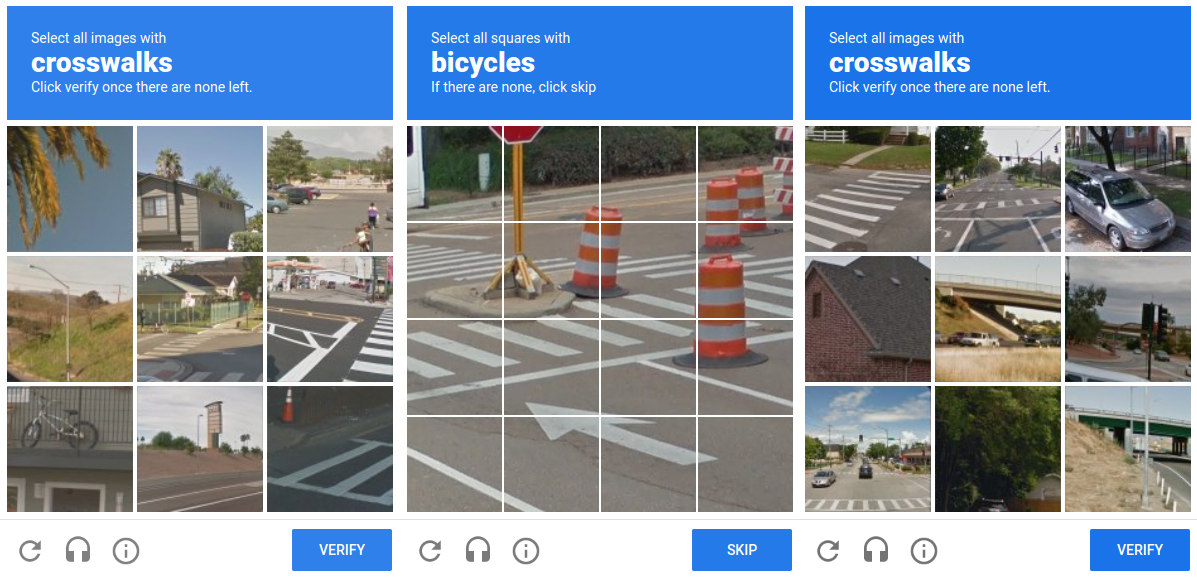
Sometimes, the reCAPTCHA presents image-based challenges or puzzles for human user verification. This version is more stable for balancing usability and security. It’s the ideal reCAPTCHA for login forms, comment sections, and contact forms.
reCAPTCHA v3: This type works in the background and analyzes user behavior to identify whether the interaction is accurate or automated. It won’t ask for user input like reCAPTCHA V2. However, it has a score-based threshold that you must carefully configure so your site doesn’t block genuine users.

Invisible reCAPTCHA: This variant of reCAPTCHA is almost similar to V2 and does not require users to fill in any visible challenges. Users won’t see any reCAPTCHA unless your site detects any suspicious activity. As a result, real users will face minimal distractions, and your site will get enough protection against bots.
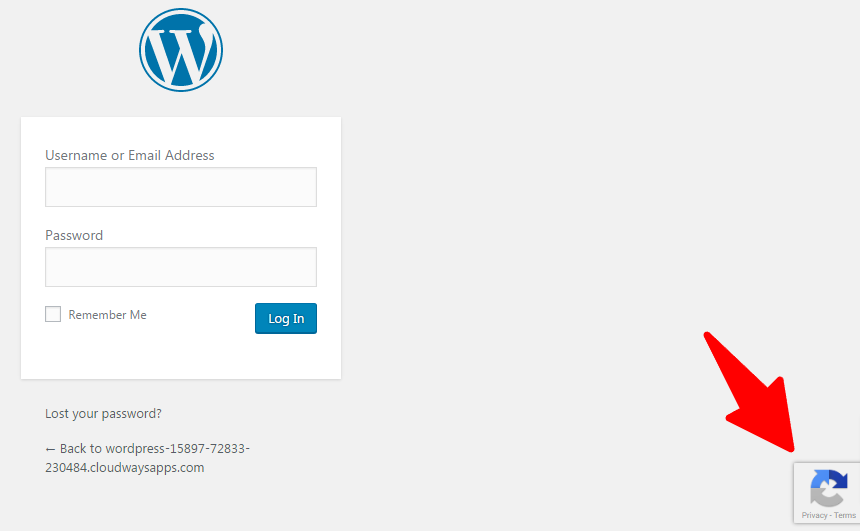
Next, we will explore the typical Google reCAPTCHA validation failed types in WordPress.
The Google reCAPTCHA validation failed error can occur for various common reasons. This error disrupts your site’s functionality and blocks users from entering your site. Knowing why it occurs will help you troubleshoot and restore your site’s accessibility. Here are some common reasons behind this error:
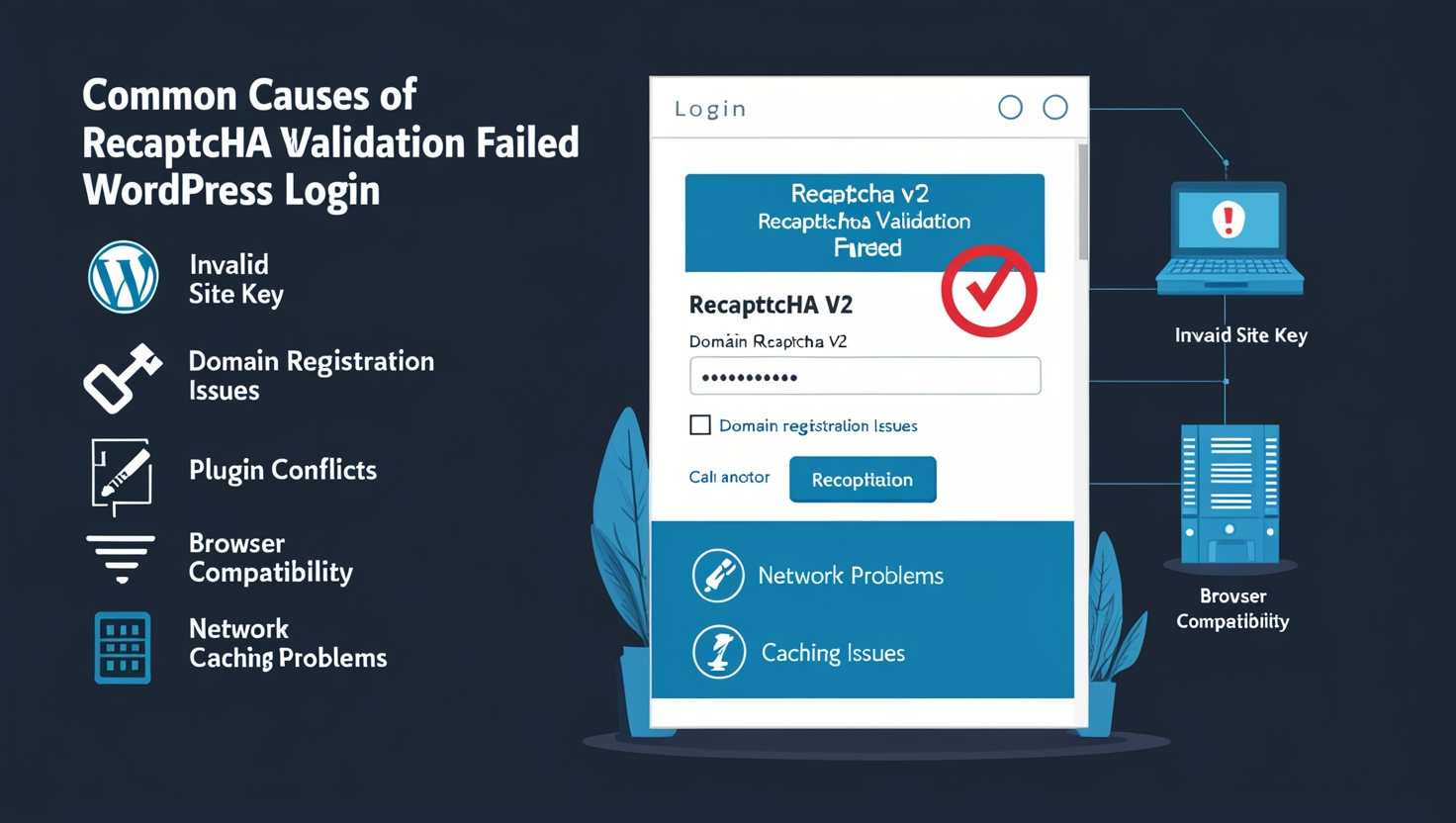
An incorrect site or secret key is one of the most common reasons for a reCAPTCHA validation failed error. Each website has a unique secret key that the admin must enter in its WordPress settings. If you enter this key inaccurately, your site’s reCAPTCHA will not validate.
Be cautious when copying the key from the Google reCAPTCHA admin console and put it properly on your site. Also, remember to check the version of the reCAPTCHA before entering the key. This is essential since the reCAPTCHA is domain-specific.
Your domain must be registered in the Google reCAPTCHA admin console. Otherwise, you will encounter validation errors in your WordPress site. This is applicable for local development environments since reCAPTCHA won’t support localhost by default. However, you can resolve this by adding your local domain (e.g., 127.0.0.1, localhost) under the Domains section in the admin console.
Conflicts between multiple reCAPTCHA plugins can cause your site to fail validation. For example, two different plugins loading the reCAPTCHA at the same time can cause a script conflict.
Thus, neither function will work properly, and you will either see reCAPTCHA validation failed error. In this scenario, you need to disable the reCAPTCHA plugins one by one and identify which one is causing the conflict.
Inaccurate Browser settings and outdated browsers can also cause a reCAPTCHA validation failed error. Check whether JavaScript is disabled in your browser, since it can cause this error.
Besides, privacy extensions can also block the reCAPTCHA scripts and prevent proper validation. You can alert site users to update their browsers and disable unwanted extensions that are blocking the reCAPTCHA validation.
Network connectivity issues can also cause a reCAPTCHA validation failed error on your site. Slow internet connections or server downtime are the culprits behind errors like “Site Not Reachable.” Users can resolve this issue by checking their internet connection and refreshing the page.
The caching problem is another reason behind the reCAPTCHA validation failed error. The mismatch between the cached version of your site and the current reCAPTCHA settings creates the error. So, you can clear your site’s cache and check again to see whether the reCAPTCHA validation still fails.
Now that you know the reasons, it’s time to troubleshoot and fix the reCAPTCHA validation failed issue.
Facing the reCAPTCHA validation failed error can hurt the user experience of a site by blocking accessibility. However, with clear steps, you can easily and quickly resolve this issue effectively. Here are some fixes or solutions to present the reCAPTCHA validation failed error:
The first step towards fixing the reCAPTCHA validation failed error is checking the site and secret keys. These keys are necessary for the reCAPTCHA to work correctly on your website. You will see the error Invalid site key if your site or secret key is erroneous.
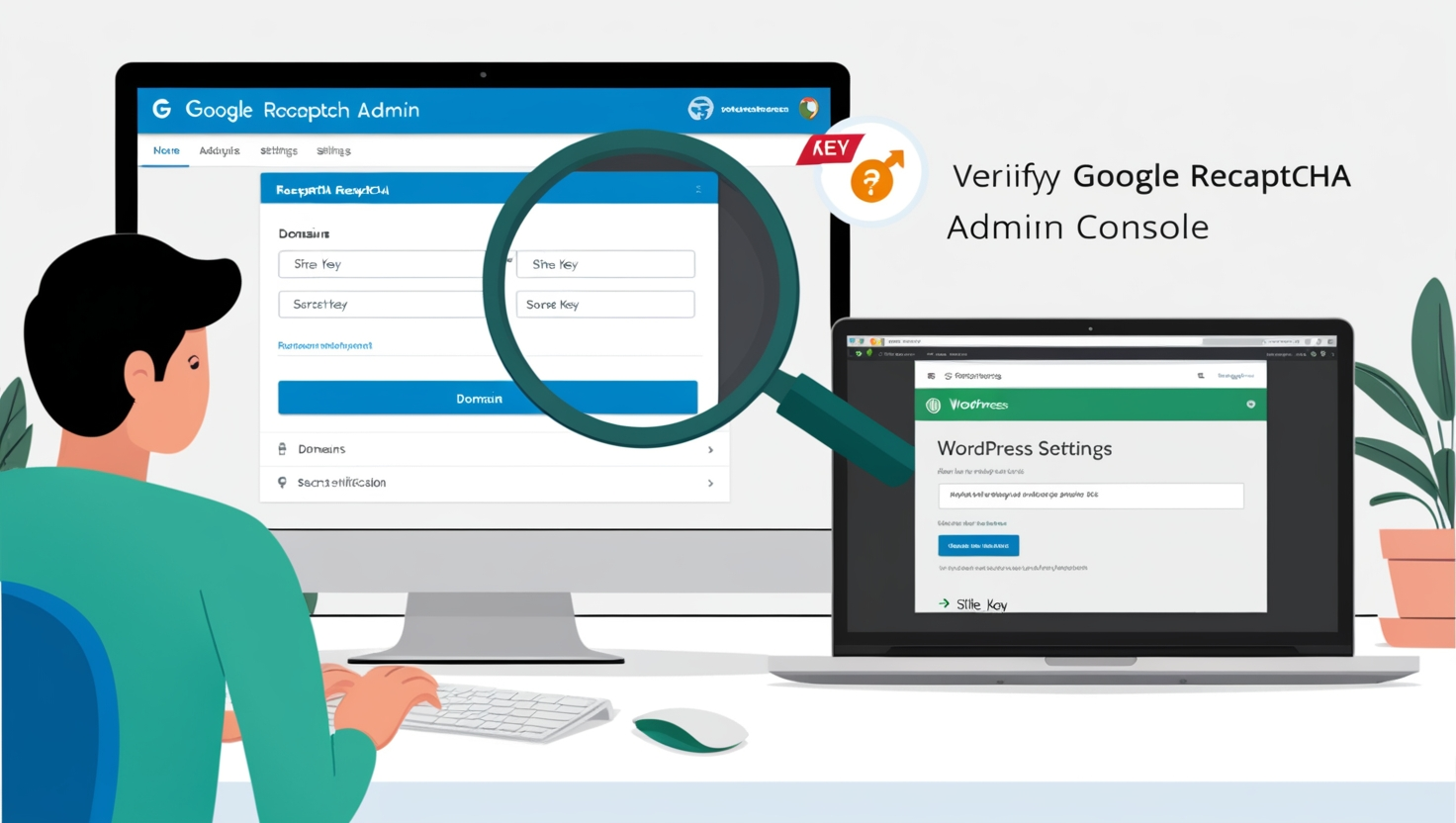
Fixing the Error:
Take the time to verify the keys since it will help you with headaches and prevent errors down the line.
This reCAPTCHA validation failed error shows the following message: Localhost is not in the list of supported domains for this site key. This message indicates that you must fix the domain or site URL within the v3 admin console.
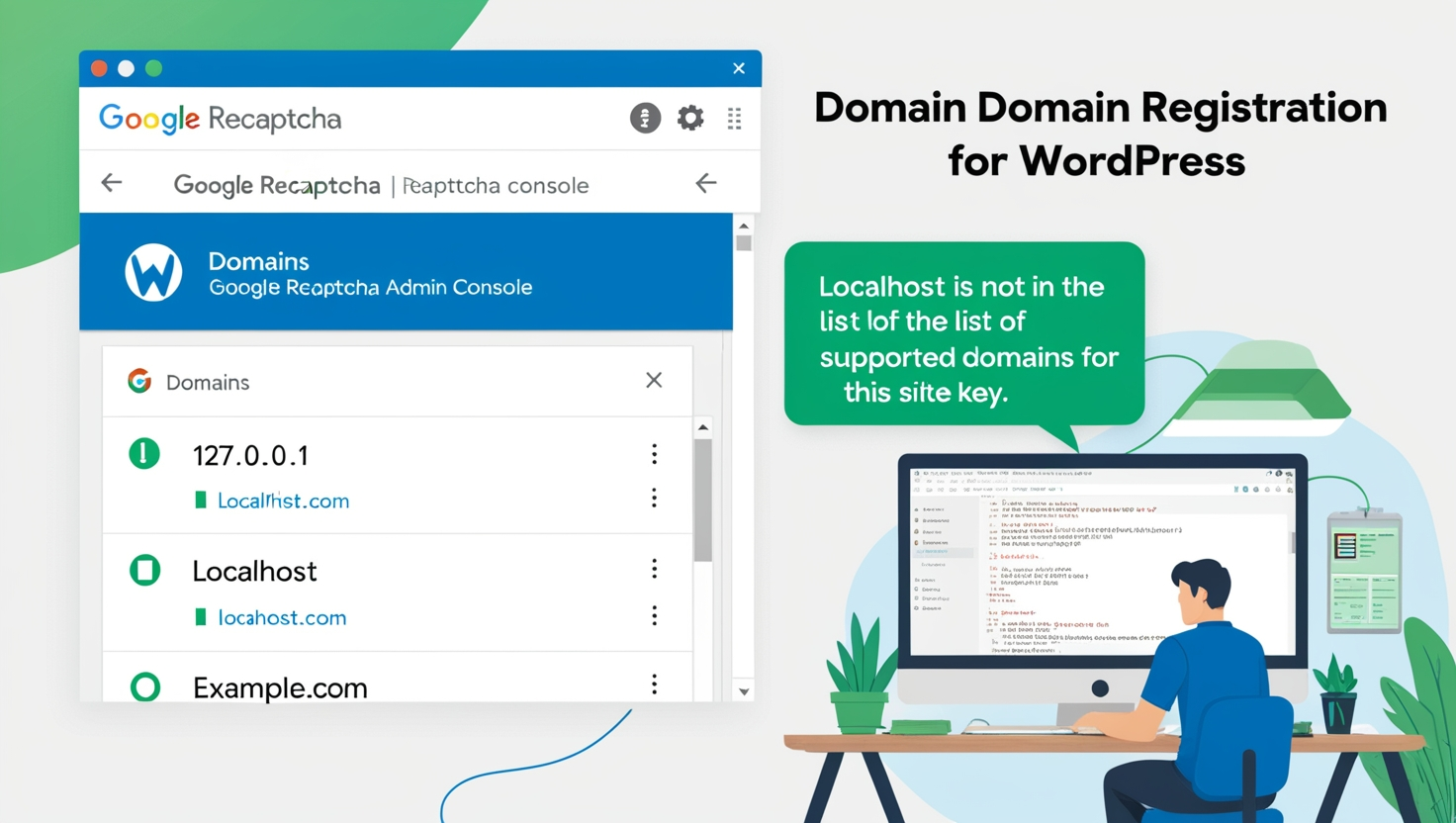
Fixing the Error:
By ensuring the proper domain registration, you can prevent this common Google reCAPTCHA validation failed error.
We recommend that you not use multiple reCAPTCHA plugins to avoid validation failures. Sometimes, multiple reCAPTCHA plugins activated on the same website can cause failed reCAPTCHA validation errors.
Fixing the reCAPTCHA validation failed Error for this scenario:
Regular updates and maintenance are essential for keeping your WordPress site fully functional and avoiding reCAPTCHA validation failed errors.
Always keep your site running in its current status to avoid seeing the cached version of your website. Sometimes, the cached version of your website doesn’t load the reCAPTCHA properly. However, you can simply clear your browser cache so that your site loads the reCAPTCHA without any error.
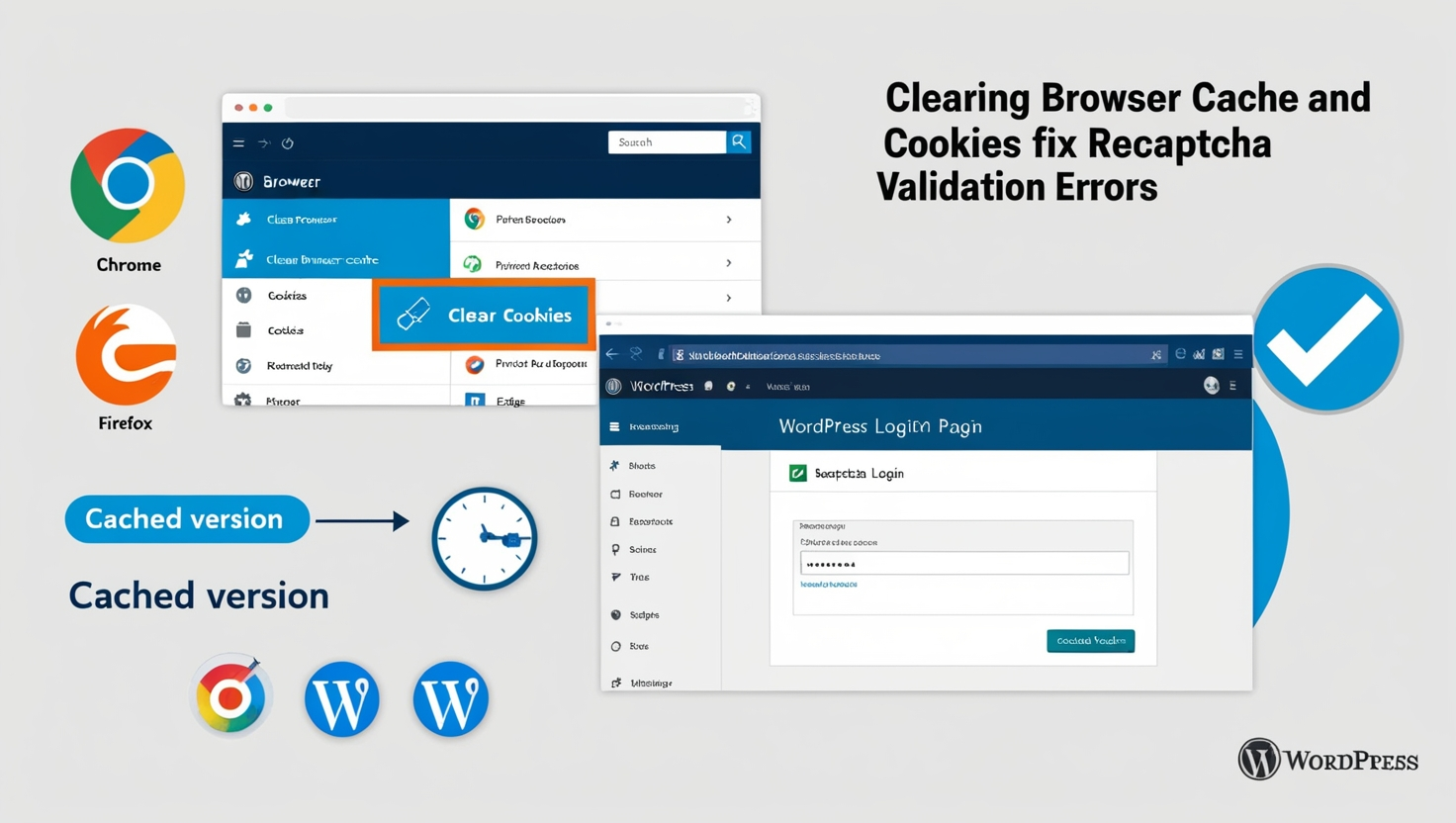
Fixing the reCAPTCHA validation failed Error:
Clearing the cache is a straightforward and quick fix that often resolves the reCAPTCHA validation failed error.
You may face the reCAPTCHA validation failed error while using an outdated browser. Thus, regularly updating your browser is crucial to avoid the error. Though most browsers get updated automatically, you can do it manually.
Fixing the Error:
You should update the browser not only for security reasons but also for improved performance and to avoid other errors.
Some browser extensions can conflict with the reCAPTCHA functionality and block it from appearing, which ultimately causes the reCAPTCHA validation failed error. Disabling the browser extensions is the most common solution in this scenario.
Fixing the Error:
Temporarily disabling the browser extension can help determine whether it is causing the reCAPTCHA validation error.
You may also face reCAPTCHA validation failed error If Google blacklists your IP address. This happens if your IP address indicates some suspicious activities. It leads to validation issues, which ultimately block the IP address.
Fixing the Error:
Press Win + R to open Run, type cmd, and press Enter. Then, enter these commands one by one:
netsh winsock reset
netsh int ip reset
ipconfig /release
ipconfig /renew
Implementing these steps will reset your IP address, eventually fixing the reCAPTCHA validation failed error.
WordPress offers reliable reCAPTCHA plugins to protect your site from spam and bots. Here are some of the best reCAPTCHA plugins available out there.
Advanced Google reCAPTCHA is a powerful plugin that automates the implementation of reCAPTCHA. It allows both reCAPTCHA versions v2 and v3 on your WordPress site. This plugin is an effective option for those who wish to enhance their site’s security and maintain user experience by avoiding Google reCAPTCHA validation failed errors.
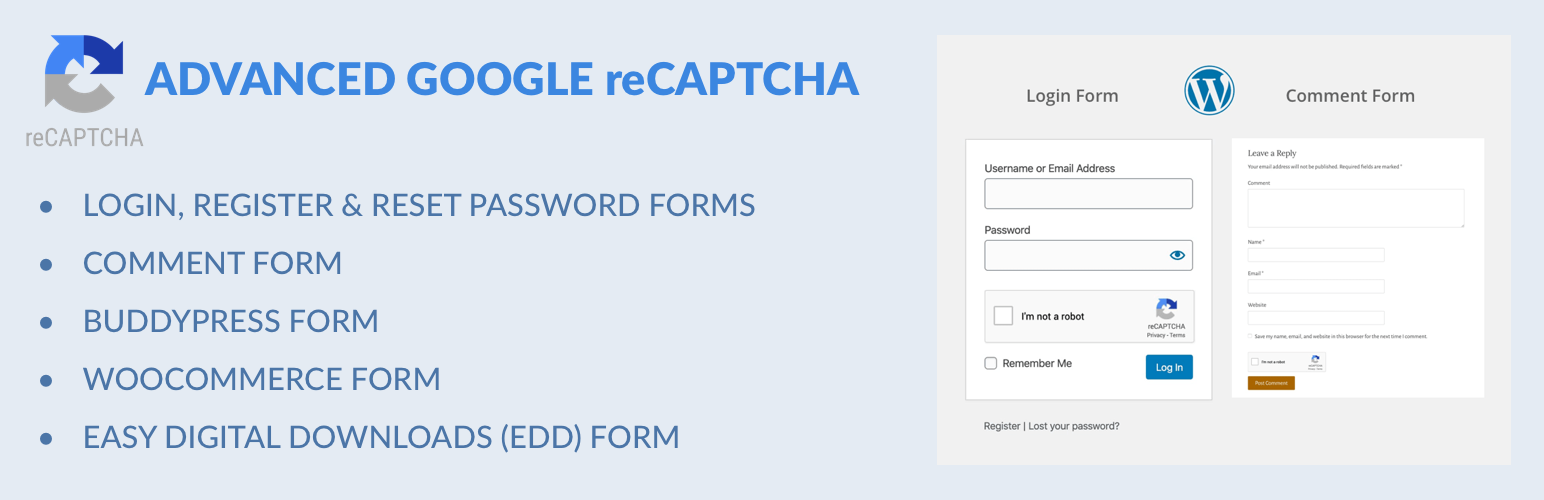
Key Features:
The ReCaptcha Integration for WordPress plugin aims to integrate Google reCAPTCHA into different forms on your WordPress site. It secures the comment sessions, login pages, and registration forms from spam submissions. Besides, it prevents your site from facing the reCAPTCHA validation failed error.
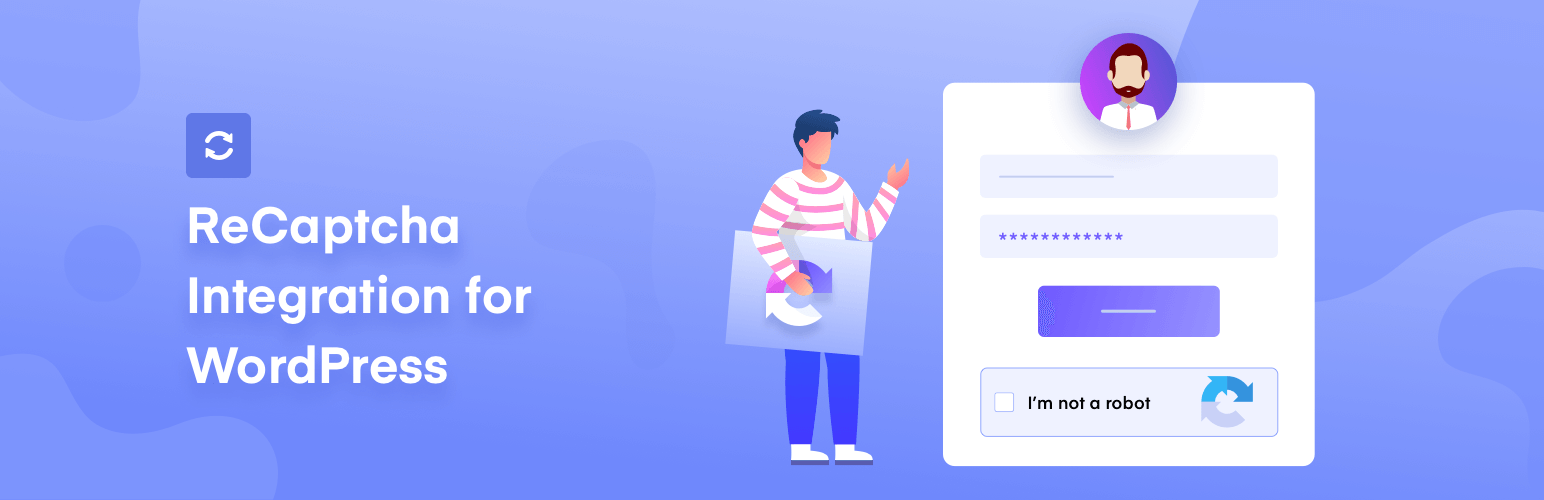
Key Features:
The reCaptcha by BestWebSoft plugin gives you reliable protection against spam and bots. It supports all the available versions of Google reCAPTCHA. You can enable the invisible reCAPTCHA option, which most website owners prefer.
Key Features:
Choose your reCAPTCHA plugin wisely since it will impact your site’s ability to block spam, reCAPTCHA validation failed errors, and maintain user experience.
The reCAPTCHA validation failed error is a common fact that hampers the user’s interest in entering a website. Knowing the common causes and implementing the right solution will allow you to maintain a flawless user experience.
Thus, we’ve developed some of the easiest and most proven methods to prevent it from occurring on your site. We’ve also listed some of the best plugins so that you can automate reCAPTCHA enabling and maintenance efforts. If the reCAPTCHA validation failed error persists, contact our expert WordPress maintenance team for a professional solution.
Why WordPress Form Emails Fail and How to Fix Email Delivery Failure in WordPress
Email communication is a vital component behind every WordPress website’s full effectiveness. There are different types of forms on WordPress sites, such as contact, registration, and feedback forms. These forms are essential for collecting and using information that can reshape your business.
Forms are essential for improving the user experience and collecting leads for better customer engagement. They’re also part of an effective product page that converts. However, most websites can’t utilize forms because they cannot identify or maintain the issues.
Thus, you must learn the reasons behind email delivery failure in WordPress and how to fix them. This will help you use the full potential of your WordPress site’s forms and maintain successful communication.
This article will explore the common reasons behind the failures of WordPress forms. Also, you will learn about rising technical issues, practical solutions, and best practices for maintaining forms. Ultimately, you can improve engagement through reliable email delivery.
First, sorting out the common reasons will help you understand the causes of email delivery failure in WordPress. Here are some typical reasons why emails sent via WordPress forms fail miserably.
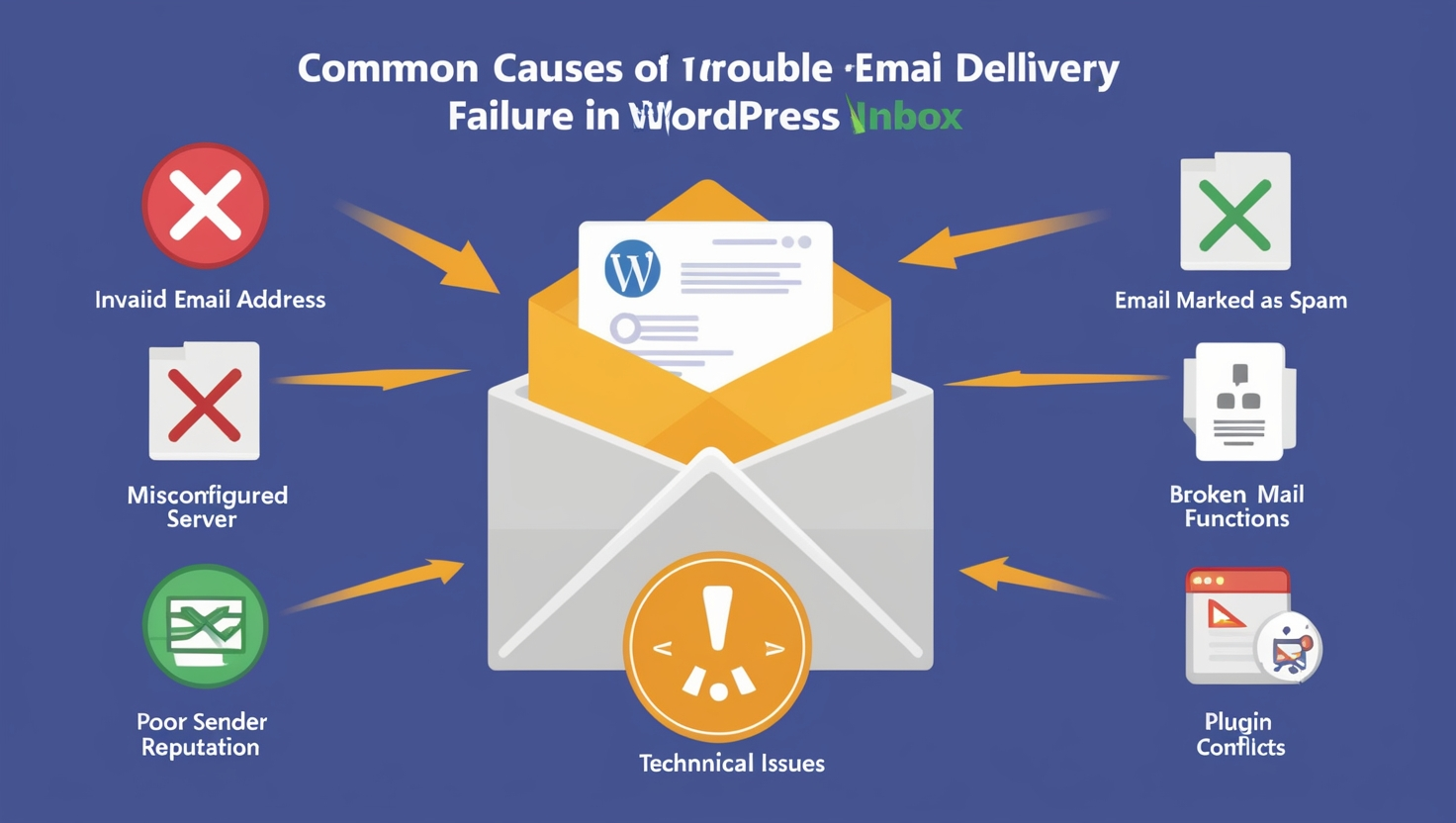
An invalid email address is one of the most common reasons for email delivery failure in WordPress. Users need to enter the correct email address to ensure timely messages are delivered.
For example, a missing character or domain name can stop the emails from reaching the expected recipient. This is where you need to implement proper validation checks in your WordPress form that effectively reduce errors, collect the exact information, and show it to the right people.
Marking emails as spam is annoying, and it’s the reason why emails end up in a spam folder. This can happen due to erroneous authentication protocols and the generic type of default sender address.
Your recipients won’t be able to communicate with you when the email is in a spam folder. Thus, you will lose potential leads and conversion opportunities due to this email delivery failure in WordPress.
Server misconfiguration is another critical factor that causes email delivery failure in WordPress. It commonly occurs when your hosting provider’s server settings are not properly configured. This results in bouncing messages instead of sending them to the recipients.
There are two main reasons that cause server misconfiguration:
You need to configure your server properly to ensure that it handles the email delivery.
A sender’s reputation is also a key factor in email delivery failure in WordPress. Your emails won’t reach your audience or may get blocked if you have a blacklisted domain or IP address. This can happen due to spam reports or low engagement rates.
You should regularly maintain the sender’s reputation by monitoring your domain status. Besides, make sure that you comply with the best practices for email marketing and communications.
Technical issues can also work behind email delivery failure on WordPress sites. Let’s explore these technical issues so that you can troubleshoot them with minimal effort.
Improper mailer configuration is a common technical issue that causes email delivery failure in WordPress. Most WordPress sites rely on the default PHP mail function, which is only functional for some hosting environments.
You should configure an SMTP (Simple Mail Transfer Protocol) plugin for this. It can make sure that the emails are sent reliably and ely via authentic servers.
The default PHP mail function has certain limitations, which is another reason for email delivery failure in WordPress. It needs the required authentication and needs to meet the security requirements of some hosting providers.
As a result, relying completely on the PHP mail function can result in inconsistent email delivery. Plus, there is a higher chance that your messages will end up in the spam folder, and your recipient’s messages will be marked as spam.
Conflicts between plugins can also cause email delivery failure in WordPress sites. For example, having multiple email delivery plugins on your site can prevent deliverability. Besides, compatibility issues between plugins can result in failed deliveries or unexpected behavior.
Here are some ways to troubleshoot this issue:
You need to address the plugin conflicts proactively to enhance the reliability of your email communications.
Now that you know the reasons behind email delivery failure in WordPress sites, we can move on to solutions. You need effective solutions that ensure a smooth and working email delivery system.
Here are some strategies that you can follow for your WordPress site’s email delivery:
First of all, you need to configure the email settings on your WordPress dashboard properly. The wrong configuration may sound minor, but it can be the only reason for email delivery failure in WordPress.
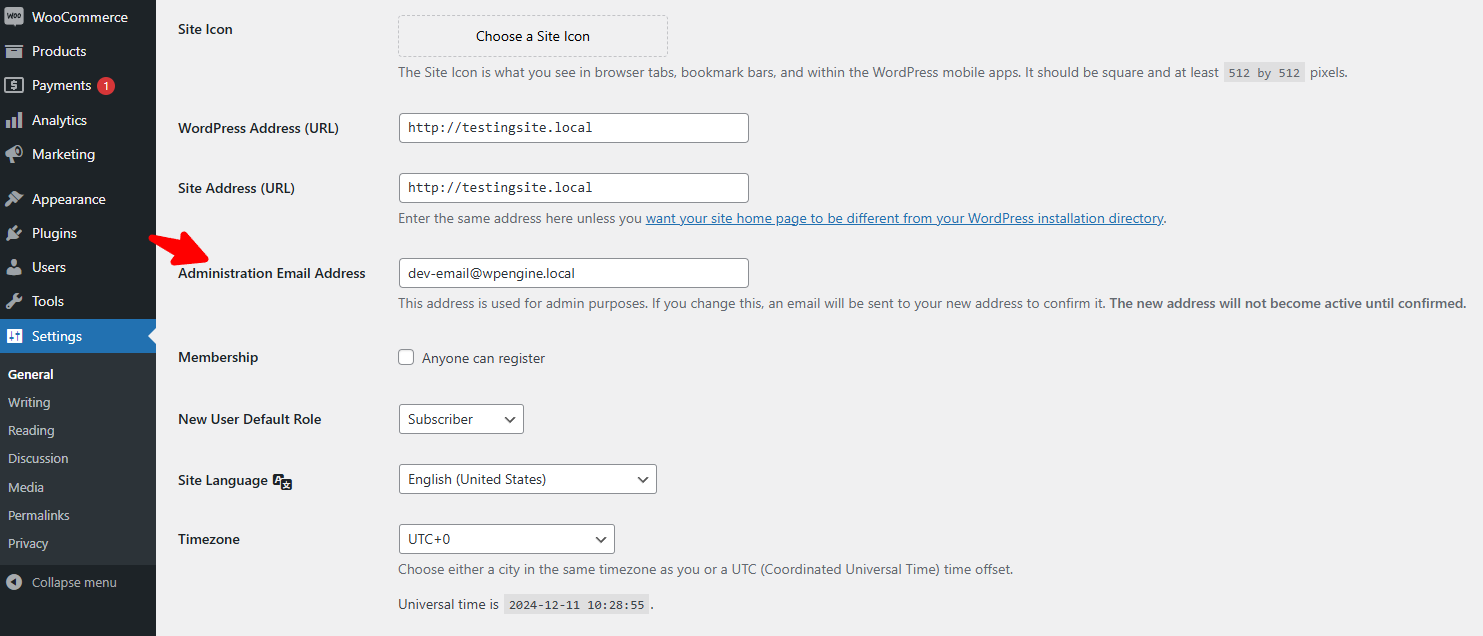
Head over to Settings > General to check your email settings. Ensure the email address in the Administration Email Address field is correct. You must double-check any typos or mistakes. These settings can prevent your emails from being sent or cause them to be marked as spam.
If you are still facing email delivery failure in WordPress, check your hosting provider’s email settings. The web host may block your email-sending capabilities when you send too many emails within an hour.
Another reason is that the hosting provider is not configured properly or not configured at all. In this case, you should go through the following steps and configure your email settings properly:
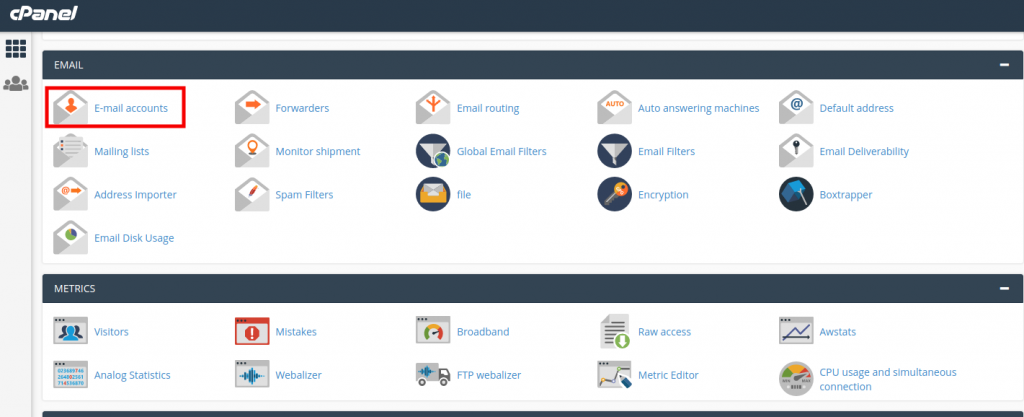
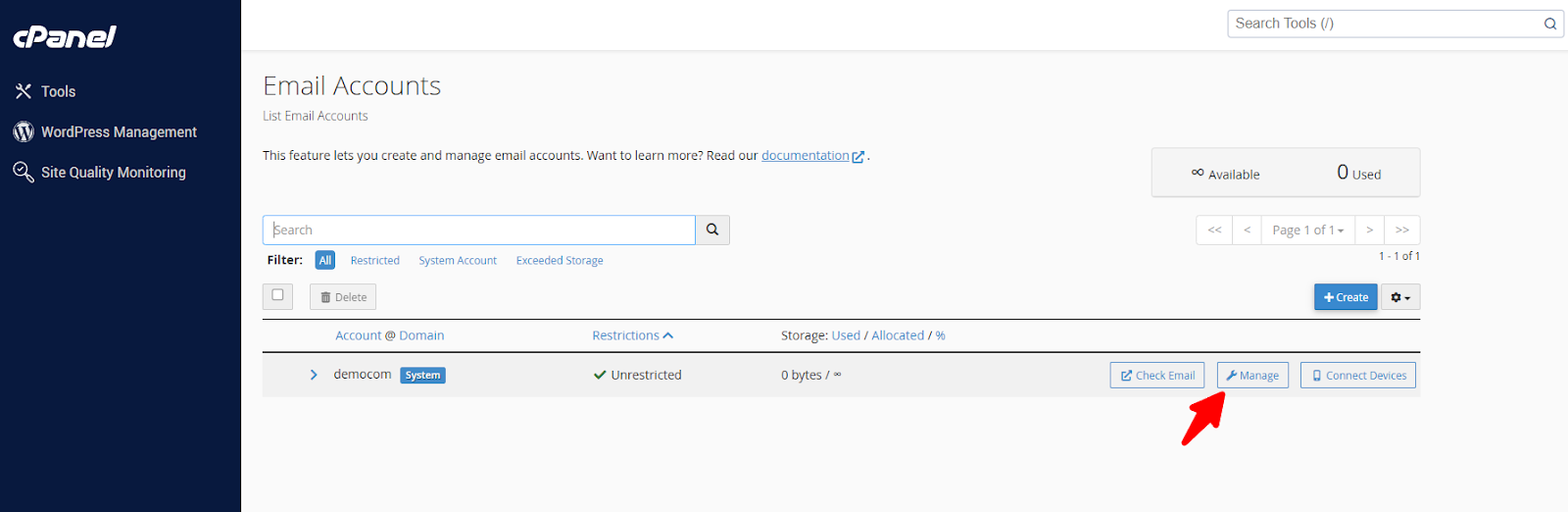
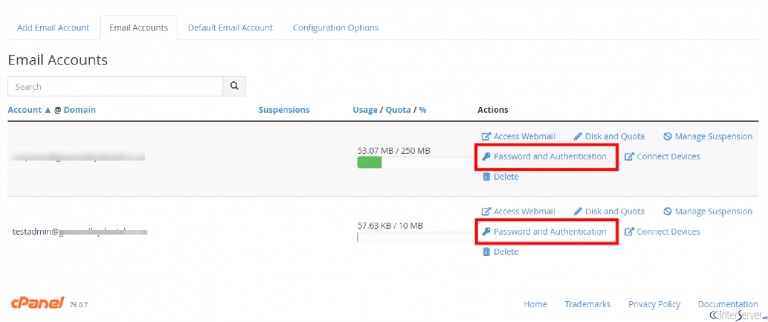
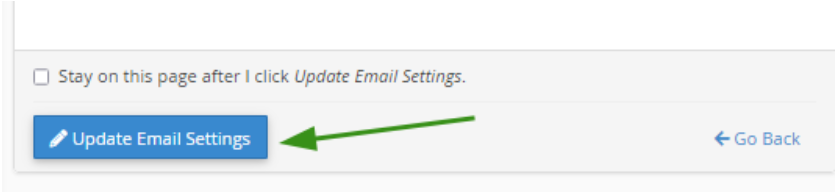
After completing these steps, you can use the new password for your email account.
Using a reliable SMTP plugin is the easiest and most effective way to prevent email delivery failure in WordPress and ensure reliable email delivery. This type of plugin helps you utilize a dedicated email server separated from your hosting provider, allowing you to bypass the restrictions created by the PHP mail() function.
WP Mail SMTP is a reliable plugin that helps you bypass spam filters and firewalls for better deliverability. However, the plugin requires specific settings based on your email server. Each server has its own configuration details that you must provide for proper authentication.
We’ve shown in the previous section how you can access the email configuration and reset the email settings. Get the username and password of your email server from cPanel, as you’ll need this information to properly configure the WP Mail SMTP plugin for your WordPress site.
WP Mail SMTP plugin allows you to enhance the reliability of your emails. Besides, there is less chance of your emails ending up in spam folders. Here’s how you can set up WP Mail SMTP:
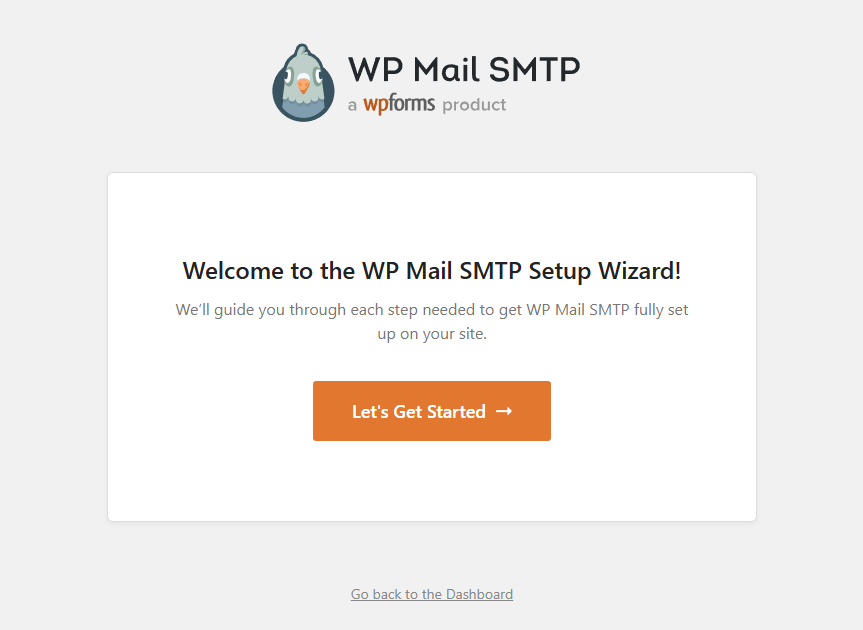
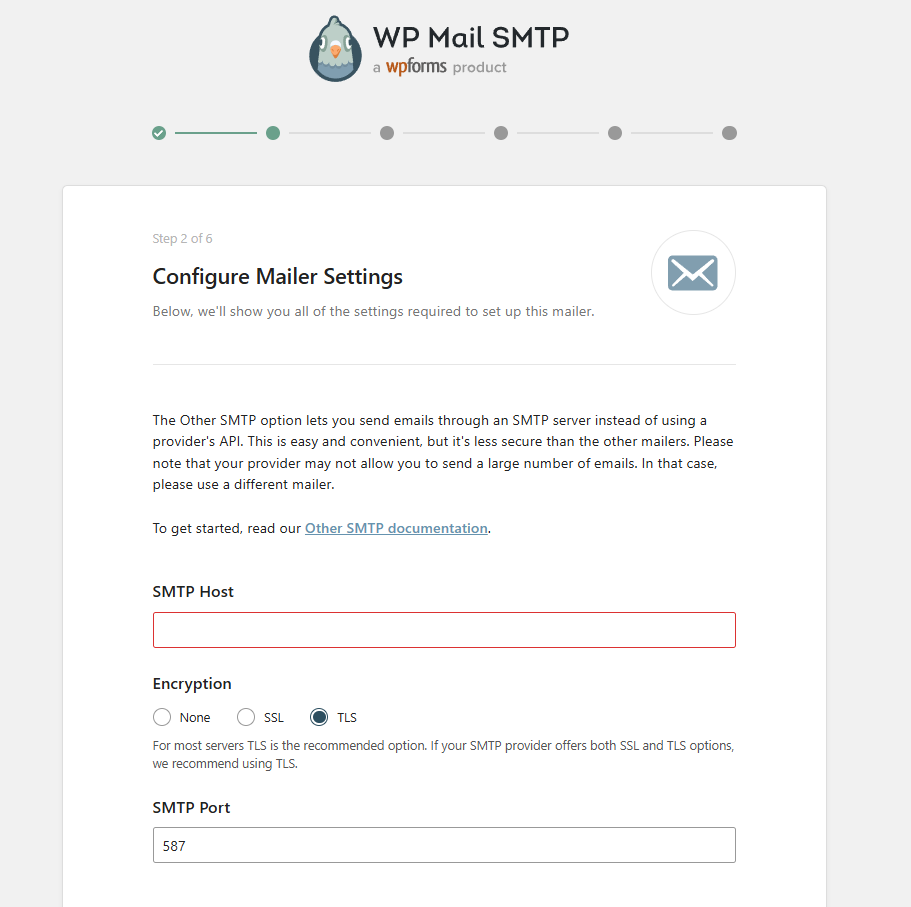
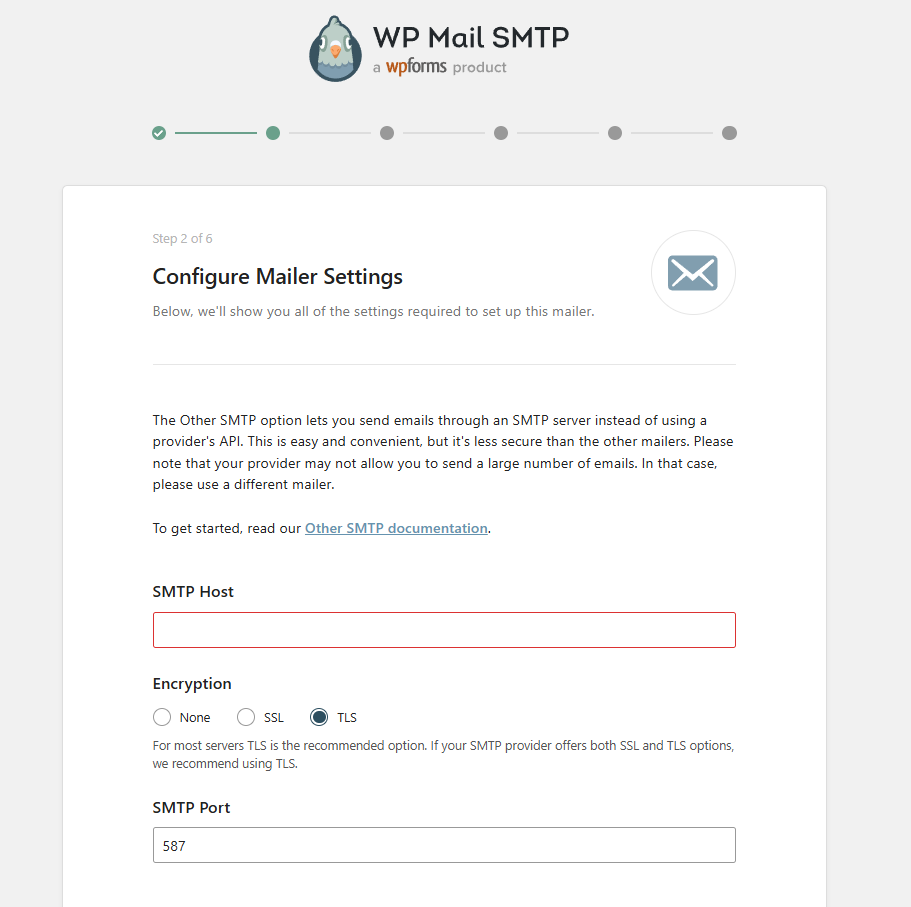
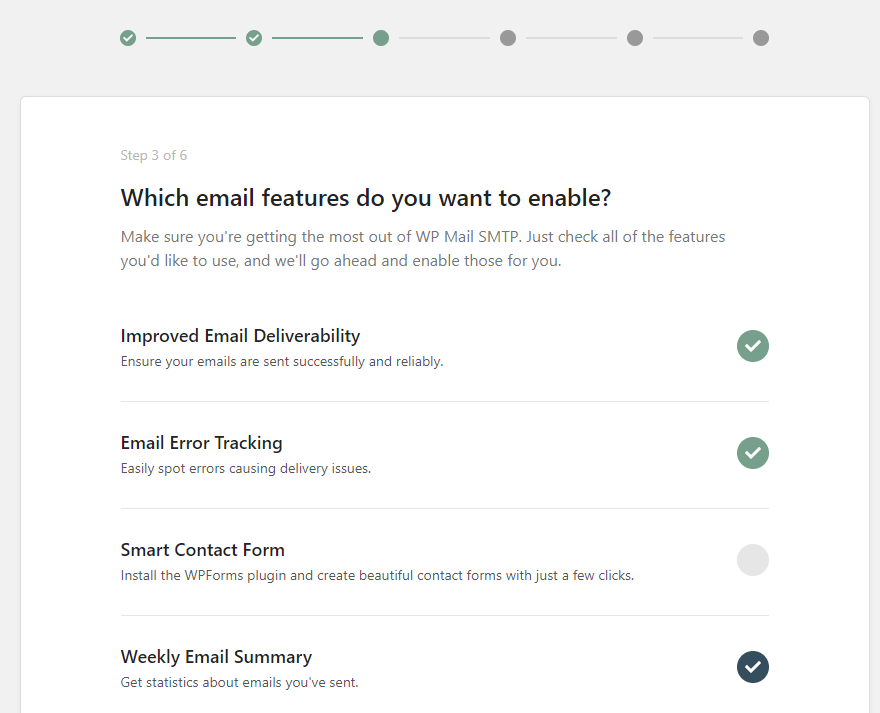
You can also try the following SMTP plugins for the best email deliverability:
Post SMTP claims to be the leading SMTP plugin that replaces the default PHP mailer and enhances email delivery. It offers an easy setup wizard and a connectivity test to identify email delivery issues. You also get an email log that tracks sent messages and sends notifications for email delivery failure in WordPress, including alerts via Slack.
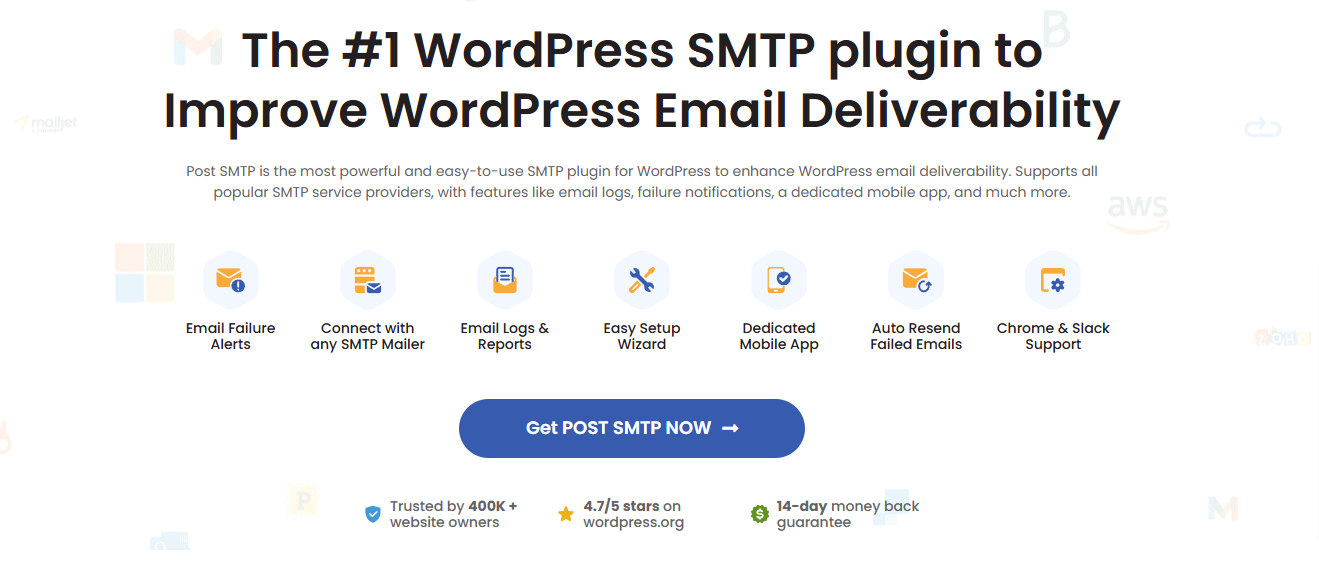
The plugin supports various email services, including Microsoft 365, Amazon SES, etc. Therefore, your email deliverability will be compatible with popular contact from plugins like Contact Form 7 and WooCommerce.
FluentSMTP is a free and open-source SMTP plugin that stands out for its extensive features. It helps prevent email delivery failure in WordPress by allowing users to connect multiple email service providers and offering intelligent email routing. The plugin also provides detailed logging, enabling you to monitor email performance and troubleshoot issues effectively.
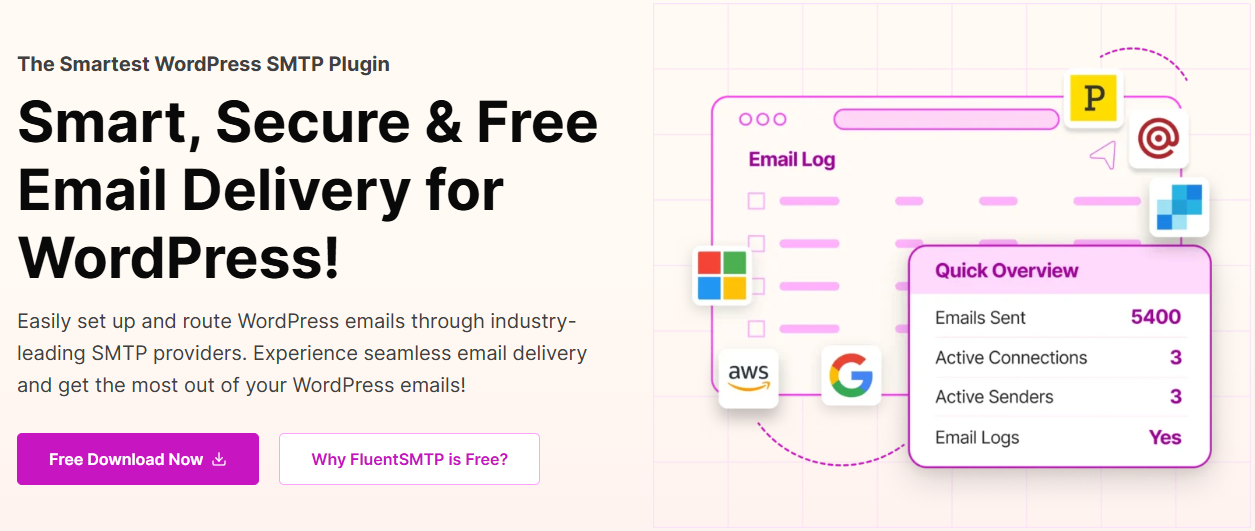
Moreover, FluentSMTP supports native API integrations for faster connections with providers like Gmail, Mailgun, and Amazon SES. This user-friendly interface makes it an excellent choice for those seeking a comprehensive yet cost-effective solution.
Easy WP SMTP is a lightweight plugin developed to reduceemail delivery failure in WordPress with minimal effort. It features a simple setup process that allows users to configure SMTP settings easily, enabling connections with various providers like SendLayer and Mailgun.
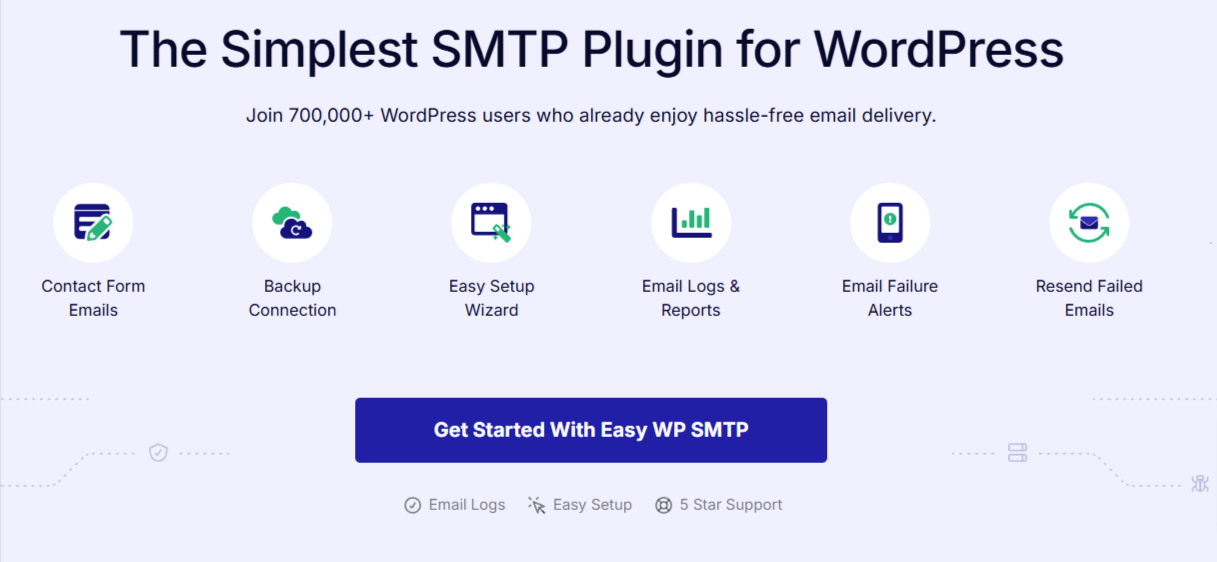
The premium version unlocks additional functionalities such as backup connections and priority support. Easy WP SMTP also offers debugging options to help identify issues with email delivery.
If you want to set up automated email responses through form submission, this section is for you. However, this section will focus on those responses rather than on emails sent from WordPress or admin notifications.
Each contact form plugin has its own email settings. When someone fills out a form on your site, the plugin sends a notification email to your specified address.
If your emails aren’t going through, the issue may be causing email delivery failure in WordPress, often related to your plugin configuration. Sender and recipient email addresses are some of the settings that need to be updated.
Here’s a quick guide to check and adjust these settings using Contact Form 7:
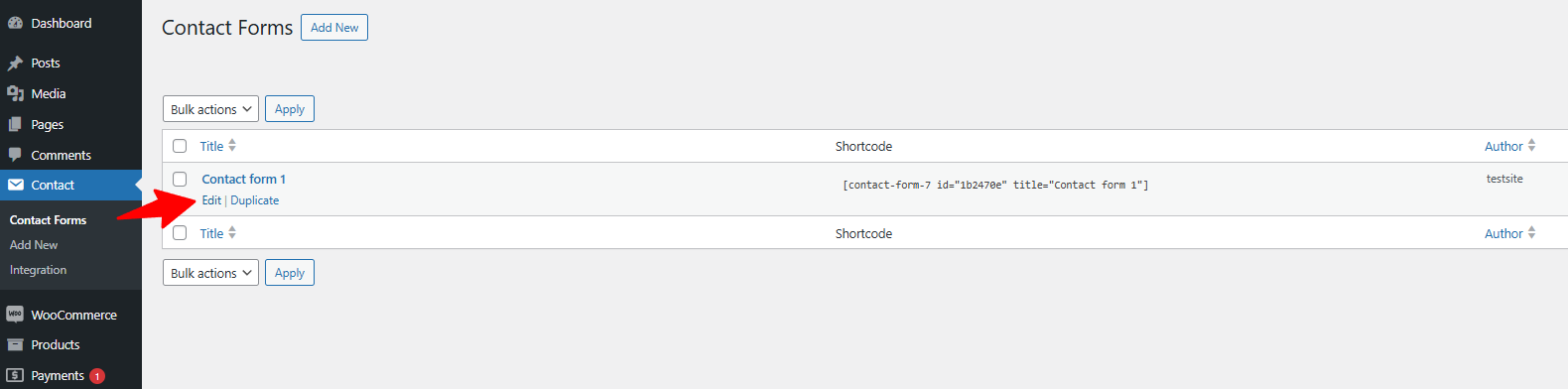
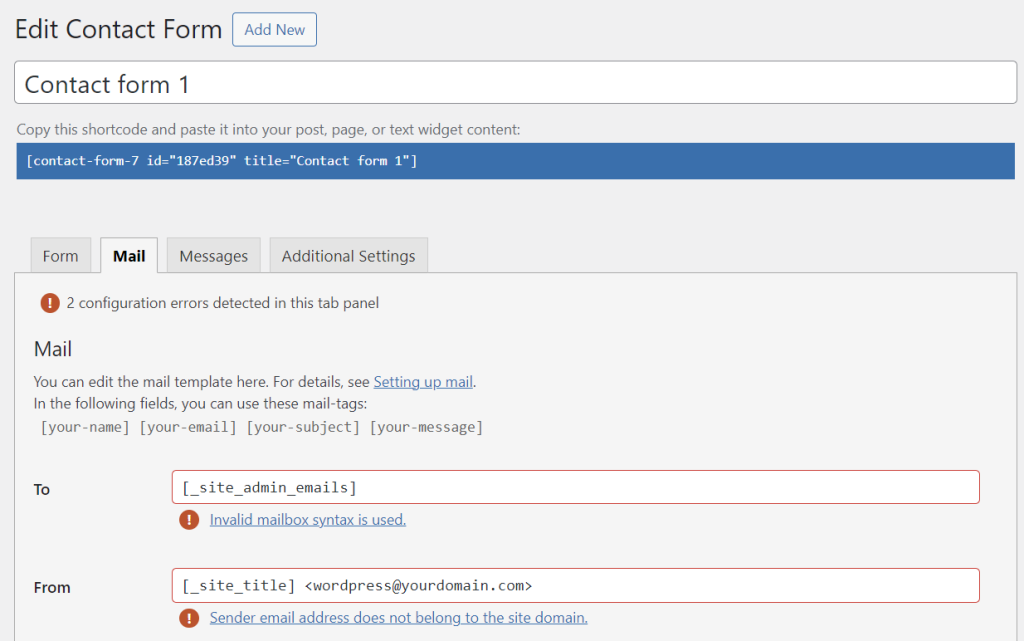
Connecting your WordPress site to a third-party email service can reduce the chances of email delivery failure in WordPress. There are some critical steps to ensure your emails are not landing inside the spam folders.
Whitelisting your email address helps prevent email delivery failure in WordPress by ensuring your messages reach the inbox instead of spam. This means you need to add your address to a trusted sender list. Individual users can do this in their email settings, while businesses can register their addresses with larger whitelists recognized by spam filters.
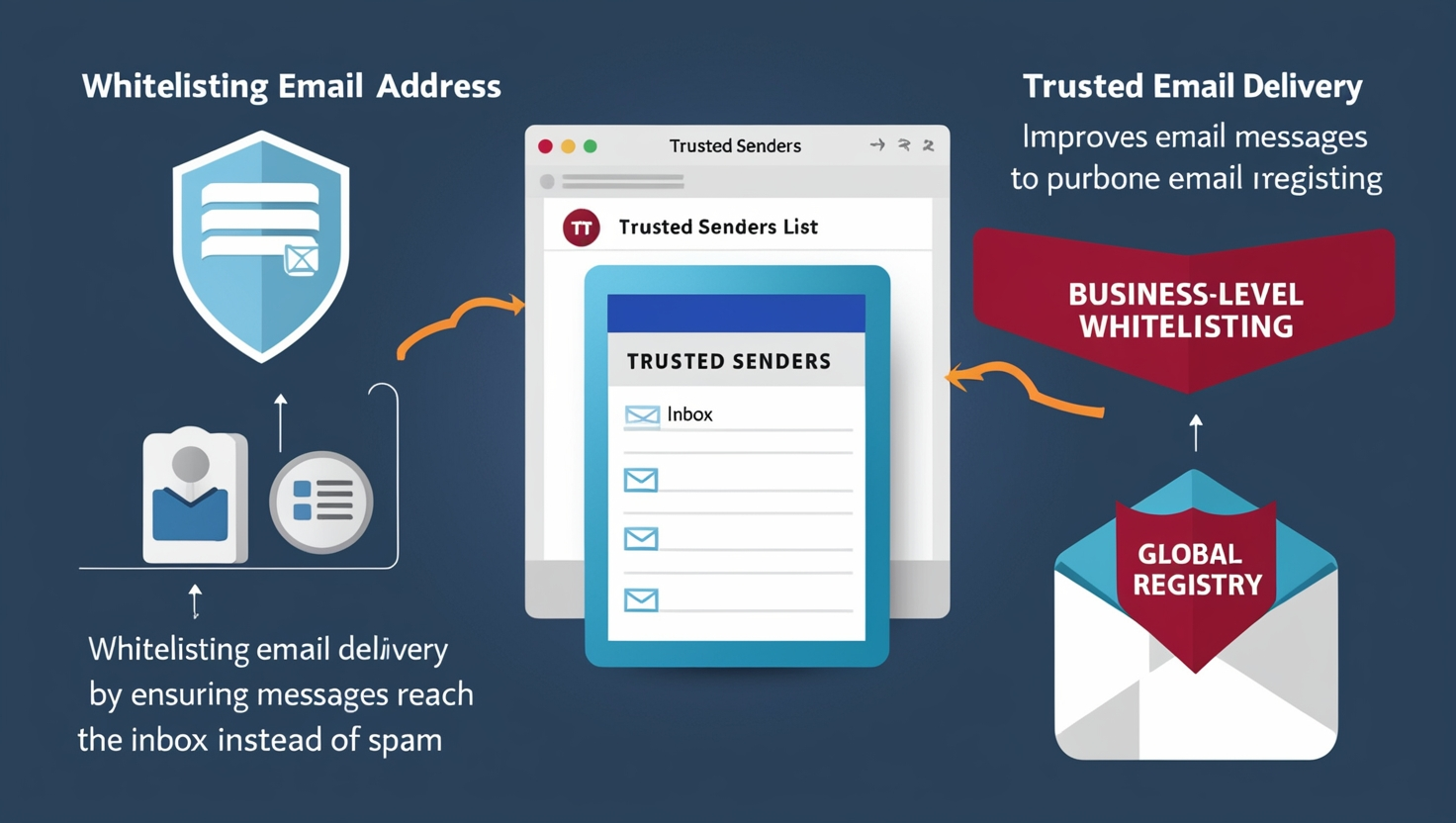
However, only some email providers utilize these global lists. This means that if your email list is verified by one, it significantly enhances your email delivery success. Pairing this with good email practices will improve your chances of reaching your audience effectively.
Using a safer email address can prevent email delivery failure in WordPress. Firstly, you can authenticate your email via protocols like SPF, DKIM, and DMARC. This helps you verify that you are authorized to send emails on behalf of your domain. As a result, your emails won’t end up in the spam folder.
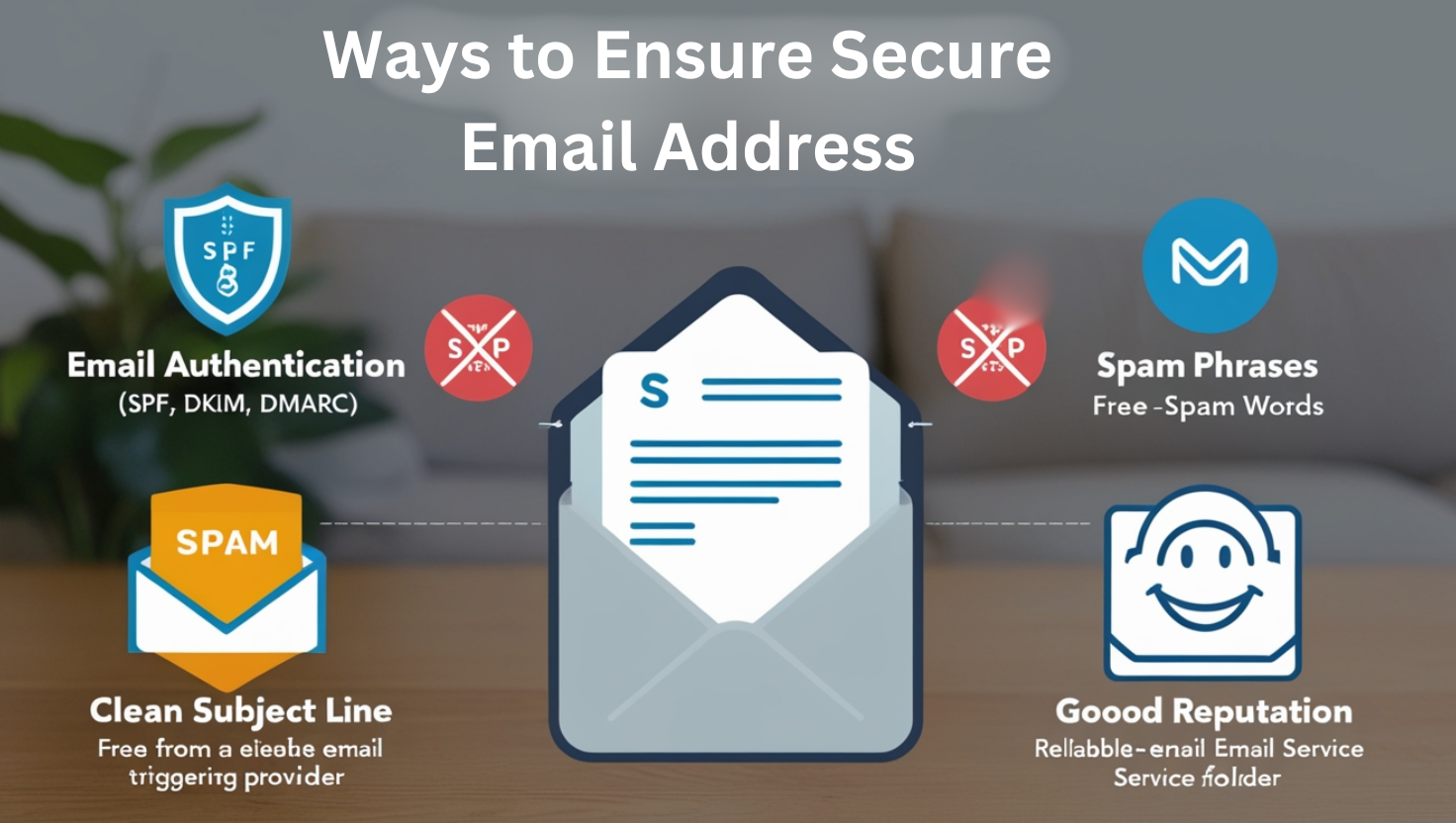
Never use spam-triggering words or phrases like free, guaranteed, or earn money within the subject line or email body. These words can activate the spam filters and send your emails to the recipient’s spam folder.
Lastly, maintain a positive sending reputation using a reliable email service provider. This will further improve the chances of your emails reaching their intended recipients without being marked as spam.
Adding email authentication improves the reliability of your emails and helps prevent email delivery failure in WordPress. You can include or enable authentication for your WordPress emails to boost deliverability.
If you use the PHP mail() function, the PHPMailer tool can assist in many ways. It’s an open-source library that supports several authentication methods, including SPF, DKIM, and DMARC.
Much of this setup is handled automatically for those relying on third-party email services or plugins. However, consult your hosting provider for additional email optimization options to ensure delivery.
Regularly testing and monitoring your email sending and receiving processes are crucial. It helps you prevent simple issues before they become more significant. Here are some processes that you can follow:

Regular testing is the best way to prevent email delivery failure in WordPress and also improve the process. It helps you gain user’s trust in your WordPress site’s communication pattern.
Addressing the reasons behind email delivery failure in WordPress sites is crucial for maintaining effective communication. Finding these reasons will help you create a bridge between customers and your store. Thus, you can convert potential customers by providing them with a satisfying user experience.
We have introduced you to the easiest steps to mitigate email delivery-related problems. Implementing solutions like validating email addresses, using SMTP plugins, improving sender reputation, and regularly testing functionality will significantly enhance deliverability rates.
Following our best practices will also uphold your site’s communication effectiveness. By following these steps patiently, you can ensure that your messages reach your targeted audience without failure.
Read more Atricle
Common WordPress Security Issues 2026: Checklist & Fixes
Why Every Modern Website Needs a WordPress Chatbot Plugin to Maximize Engagement
The complete guide to WordPress website migration: what you need to know
If you operate a WordPress site, you might need to migrate it at some point. There are several reasons behind migrating your site. It can be your hosting provider that’s not serving you with enough storage or speed. You might also want to rebrand your entire site with new features and improvements.
WordPress website migration must be smooth, whether you’re upgrading the hosting provider or recreating it. It’s a complex task that requires your focus and proper guidance if you want your site to work smoothly. You can also rely on WordPress website migration services to get everything done by professionals.
In this article, we’ll walk you through the Complete Guide to WordPress Website Migration process. You will learn both manual and automated WordPress website migration processes and some post-migration tasks. So, let’s learn the process to re-establish your WordPress site.
When it comes to the website migration process, you are simply moving your website from one server or domain to another. It’s like changing your website location virtually but keeping its elements intact. In WordPress, you need to move your site’s files, databases, and configuration to another location. So, understanding the ins and outs of the migration process is essential if you want a fully functional website after the process.
There are several ways to migrate a WordPress site from one location to another. Here are some common processes:
Local Server Migration: This type of migration happens when you are transferring a website from a local environment to a live server. Developers utilize this process to test their site in a local environment and make it live when it’s ready to launch. Everyone can access that website after transferring it to the live server.
Server-to-Server Migration: This type of WordPress website migration happens if you transfer your website from one hosting provider to another. Let’s say you are willing to get a better hosting provider since it’s not providing you with better speed or storage. Then, the only option is to go with a server-to-server migration process with a better provider.
Domain Changes: This process is ideal for those who want to change the domain name while keeping the same hosting provider. During this migration process, You must be careful about your website’s redirects and SEO factors.
Understanding the reason behind the website migration is as important as knowing the migration process. There can be multiple reasons behind a WordPress Website migration process. Here are some common reasons behind it:
You can prepare more adequately when you specifically know the reason behind the migration. Let’s learn about the necessary steps that you need to take before conducting the WordPress website migration process.
You can ensure a smooth website migration process with thorough preparation before the process. Your pre-migration checklist should be organized so that you don’t miss any crucial steps. Here are the steps that you must take before migrating your WordPress site:
First of all, you must create a backup of your WordPress site before beginning the migration process. The backup should accurately include all the files, databases, and settings of your website. The backup file of your website will help you restore your site in case anything goes wrong during the migration process.
You can choose between manual and automated processes to back up your website. For manual processes, you can use FTP clients such as FileZilla. It allows you to download all the necessary files for your WordPress site. Moreover, you can use PhpMyAdmin to export the entire WordPress database for migration purposes.
You can utilize backup plugins to minimize the effort of backing up your entire WordPress site. Plugins like UpdraftPlus, BackupBuddy, and Duplicator can automate the entire backup process. Plus, you can back up your website with cloud servers, Google Drive, Dropbox, and other services.
You’ve obviously selected a hosting provider to launch your WordPress site to live. If you are unhappy with your current hosting provider, you can go through the WordPress website migration process. Thus, you need to change your hosting provider and select one that meets all your business requirements.
Here are some criteria that you need to focus on while selecting your next hosting provider:
Here are some renowned hosting providers
| Hosting Provider | Best For |
| SiteGround | Fast loading speed and customer support |
| Bluehost | Reliable services, features, competitive pricing |
| WP Engine | Robust features for WordPress sites |
You shouldn’t start the WordPress website migration process whenever you see fit. There are some considerations to make before starting the process. You can choose a timeframe when you have minimal traffic on your site.
It’s best to start the process late at night or on the weekend to ensure you have minimal downtime. You won’t lose potential customer visitors or sales if you select a perfect time for migration.
Always inform your visitors that they will face downtime due to migration. Showing them the courtesy helps you earn their trust. You can either email your customers or place a notice on your website about the migration.
You must deactivate caching plugins such as W3 Total Cache or WP Super Cache before migrating your site. This is helpful because deactivating these plugins allows you to stop caching your site’s old data. The same goes for security plugins like Wordfence since they can block access to your site’s necessary data during migration.
You can also put your site in maintenance mode so that users can’t access it before it’s fully ready. You can showcase a message on your website that it’s going through maintenance and is unavailable for a certain period.
After going through these checklists, it will be easy for you to successfully migrate your WordPress site.
With a manual approach, you won’t use any plugin to migrate your WordPress site. This process may seem complex to you, but it gives you more control over the migration process. Here is a step-by-step WordPress website migration guide on how you can migrate the site manually:
Firstly, you need to export the database of your WordPress site using the following steps:
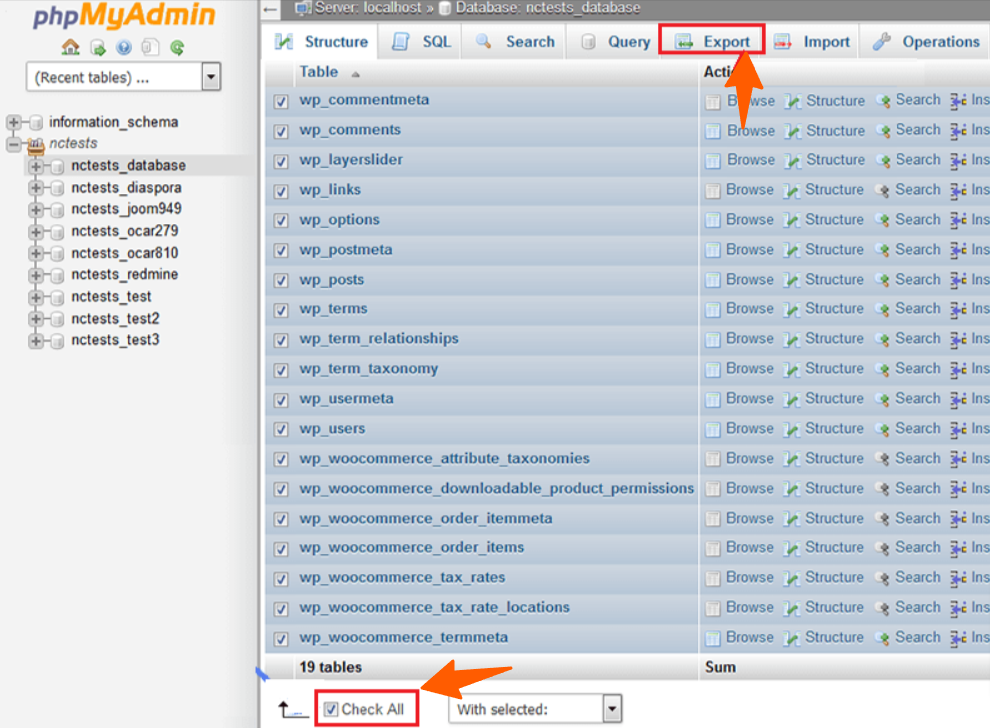
The second step is downloading your entire WordPress site before migrating. Here are the steps to follow:
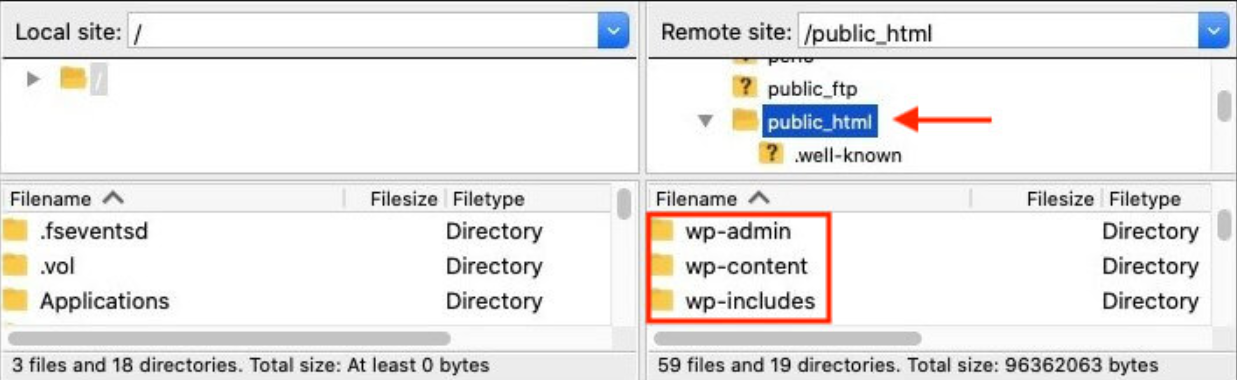
You need to upload the files to the new servers you recently downloaded from your previous site. Here are the steps you can follow:
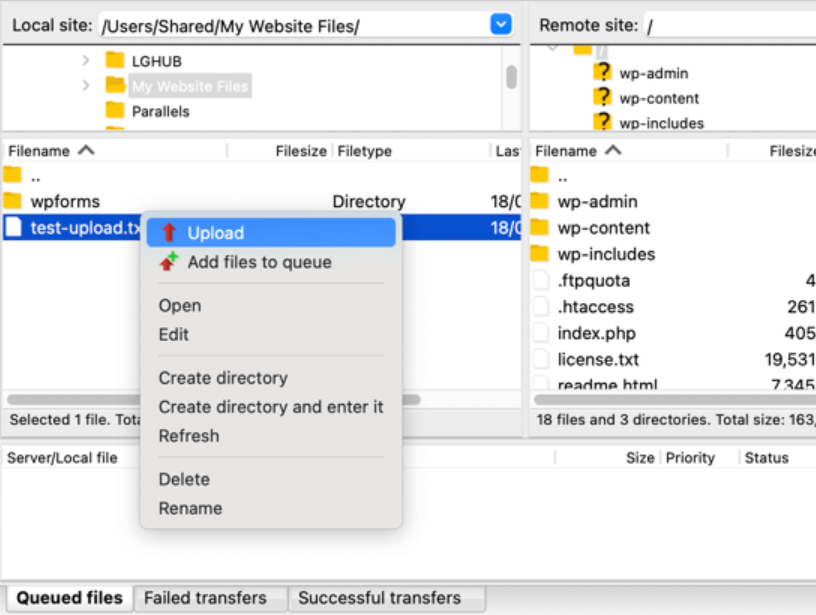
At this stage, you need to import the database of your previous WordPress site into a new database. Follow these steps to complete the process:
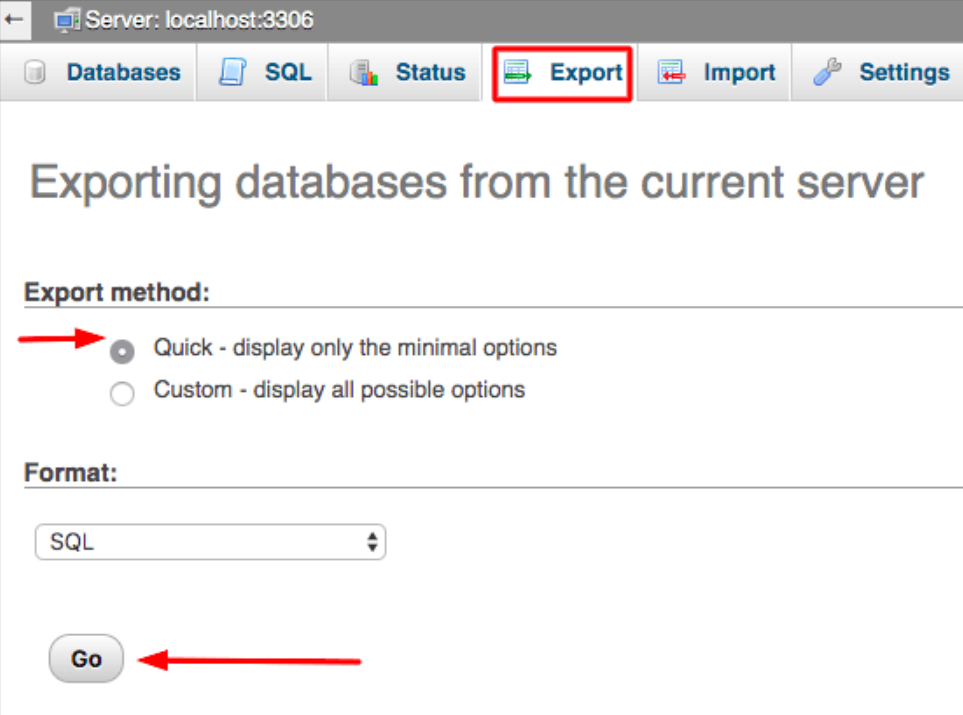
Now, you need to update the most crucial file of your latest site for a successful WordPress website migration process. Here are the steps to follow:
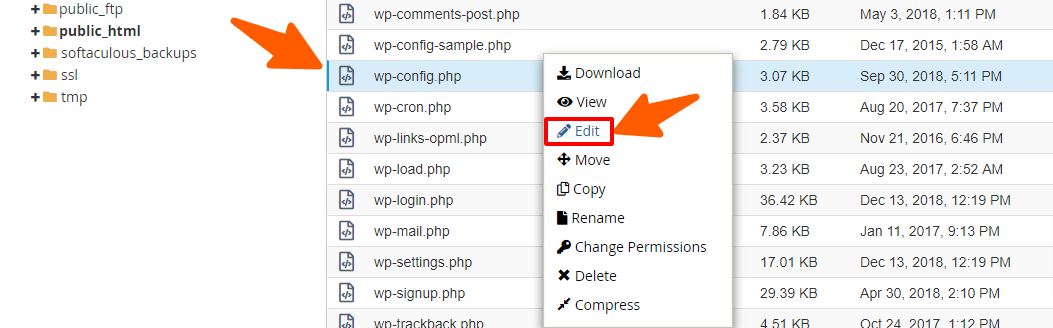
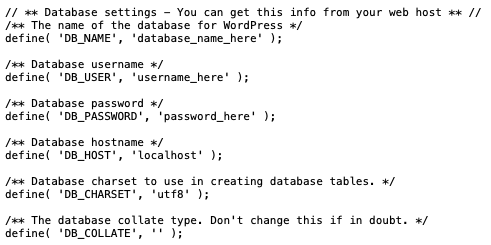
You must update the URLs If you are doing this WordPress website migration process due to domain name change. Updating the URLs is necessary if you’ve changed them during migration. However, you can use plugins like Replace DB or execute SQL queries directly within the phpMyAdmin.
You can rely on plugins if you lack the technical expertise to follow the manual approach to site migration. So, Plugins can minimize the effort of migrating your entire WordPress site with minimal effort and time. Here are the two best migration plugins and processes to use for migrating a WordPress site:
Duplicator is a well-known plugin that simplifies the WordPress website migration process with its top-notch features. You will get guides on creating a backup package and installation script using the plugin. Thus, you can quickly restore your site to a new server without any interruption or error.
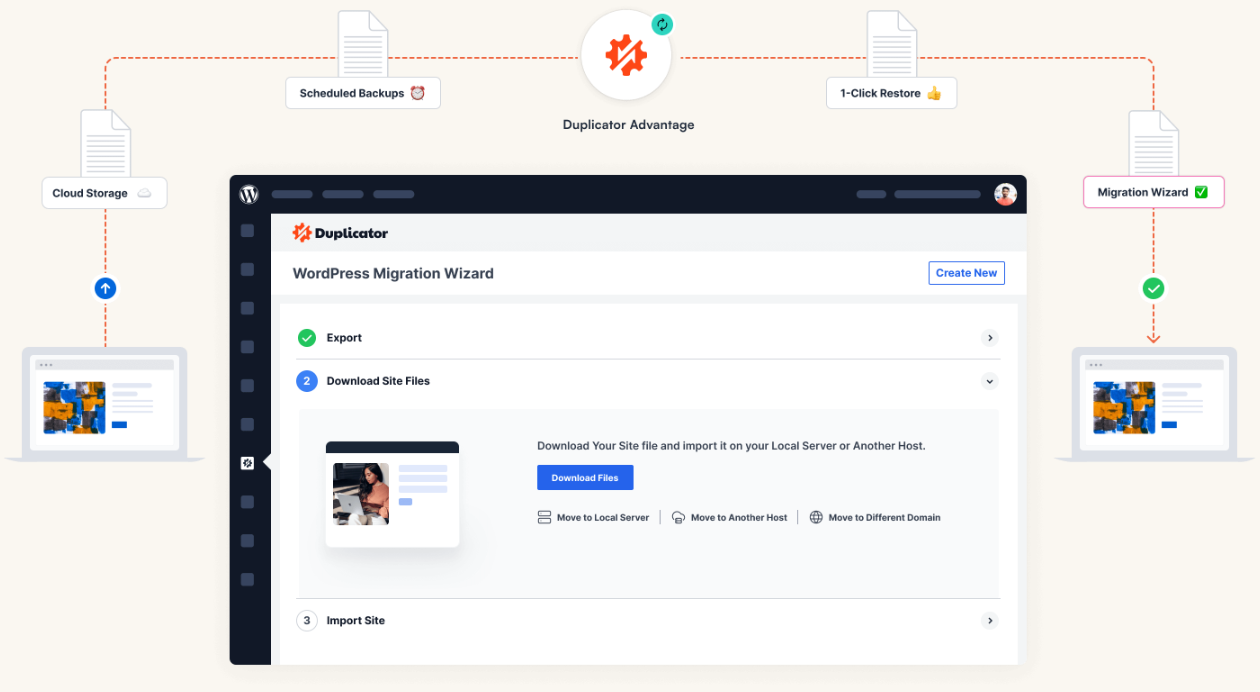
The plugin also lets you create a site backup and store it in cloud storage, such as Google Drive, Dropbox, and Amazon S3. The migration process becomes more enhanced with the Pro version of the plugin.
Duplicator gives you reliable and simple WordPress website migration capabilities. Here are the steps to use this tool to migrate your site smoothly:
Here are some more plugins for WordPress website migration processes:
| Migration Plugin | Best For |
| All-in-One WP Migration and Backup | Easily migrating your entire WordPress site, including your database, files, and theme |
| UpdraftPlus | User-friendly interface and extensive backup options. |
| Backup Migration | Simple and intuitive interface to migrate the site using basic backup functionality |
The next process is for you If you don’t want to handle the WordPress website migration process by yourself at all.
Consider hiring a professional for the WordPress website migration process If you own a large site. The same goes for eCommerce websites since you need to handle a lot of sensitive data. Most of the top-rated hosting providers offer migration services in their packages.
However, you can hire professional WordPress website migration services to handle complex sites. It helps if your site includes a lot of data to handle. It also helps you handle the migration service if your site is custom-made and has many plugins installed.
Professional services have the expertise to properly handle different types of migration processes. You can focus on essential business objectives while the professionals handle the entire migration process. Services such as ThemePaste can help you migrate your WordPress site within your budget.
Now that you are done with the WordPress website migration process, make sure everything is functioning properly. You need to go through a post-migration checklist since some of the features may not work as you expect. Here is the checklist that you need to take care of after the migration process:
Pages: Make sure every page of your website is loading properly.
Menu and Buttons: Make sure all the menu items and buttons are working and redirecting properly.
Media Files: Click all the images, videos, and other media files and make sure they are loading with the correct dimensions on all devices. You have to re-upload the media files that are missing from your website.
Links: Check whether all the links are clickable or redirect you to the proper page.
Plugins and Themes: Check whether all the installed plugins and themes are functioning properly in the new server environment.
User registration and Login: You may have multiple users registered to your WordPress site. Thus, you need to check the login process and ensure users are able to access their accounts on your website.
Missing Content: Some pages or posts may appear without any content in the new server environment. In that case, you need to upload the database file and make sure everything has been transferred from your previous website.
Error Messages: You need to fix issues with permalinks or missing files if you are seeing 404 error messages on your site.
Site URL settings: Log in to your WordPress site and go to Settings> General. Then, make sure the WordPress Address (URL) and Site Address (URL) are showing the correct domain. This is crucial if you’ve changed it during the WordPress website migration process.
301 Redirects: You may have changed your new website’s URLs or domains. In that case, you must set up 301 redirects from the old URLs to the new ones. In this way, you can keep the SEO rankings intact by redirecting visitors and search engines to the latest pages of your site.
WordPress website migration is important when it comes to owning and maintaining it successfully. First of all, you need to understand the pre-migration checklist and then select either the manual approach or use a plugin.
We’ve covered all the processes in this guide so that you can select the best method that suits you. We highly recommend that you rely on professional services to avoid any issues during the process.
The ultimate guide to WordPress website design and development for 2025
WordPress transforms your online presence into a thrilling adventure in this digital landscape. It owns the crown of content management system CMS by powering up 43% of the websites globally. You can create your website as you imagine, whether you are a blogger, business owner, or developer.
WordPress is going through unique upgrades and innovations that changed the WordPress website design experience. You will get more built-in features, plugins, and themes that will further enhance your site’s functionality. It’s high time you learned the new techniques and tools of WordPress sites if you are new to this domain.
In this article, we will share the knowledge that will equip you with the skills for creating an impactful WordPress site. You will learn the best practices for setting up your site and enhancing it with themes, plugins, SEO, and security. So, let’s gear up for creating a high-performing WordPress site.
WordPress website design is evolving every day with exciting new additions since its beginning in 2003. It was a simple blogging platform that transformed into an all-rounder website builder platform. You can create a simple website and gradually extend it in any direction, such as a complex eCommerce website.
WordPress is already known for its user-friendly interface that comes with an intuitive dashboard. With minimal technical knowledge, you can easily navigate different website functionalities using this dashboard. It also helps you easily manage the content, personalize the themes, and utilize the plugins.
You can access more than 59000 plugins to add functionalities to your site. Besides, you can choose from 12000+ themes to change the outlook of your website. Therefore, you can create a website that serves your objective with the exact features and outlook.
WordPress website design also offers built-in search engine optimization features. This means optimized title, meta title, URL, and much more, which are already done for you. Then come the SEO plugins that help you establish a strong presence in search engine results.
Developers and users with less technical expertise can engage with the massive WordPress community. According to the trend, they can get all the necessary resources to create and enhance their site. Also, they can get timely support to troubleshoot any issues they are facing.
There has been a huge shift around the WordPress platform with unique changes in different areas. First of all, the new Gutenberg editor gives you a block-based design and editing experience. You have more freedom in designing different sections of your website.
Real-Time Collaboration: Using Gutenberg blocks, multiple users can simultaneously work on the same content. So, changes in a project will be visible to all collaborators at the same time. Collaborators can also place comments and get feedback on the WordPress editor.
Built-in Features: Most of the simple features are already available within this editor. Moreover, the platform focuses on mobile friendliness, performance, and security.
Better publishing workflow: Users can generate public review links to collect feedback even before publishing the content. You can easily identify the changes in your content and other site elements.
Typography Management: You can access the font library that offers ideal typography for your brand type or design preference. Besides, you can generate CSS, which makes the custom font implementation easier.
Headless WordPress: Separate the front end from the back end of your website for headless WordPress integration. Developers will have the flexibility to focus separately on the front end of the website using the framework of their choice.
AI Integration: AI-powered content improvement tools can create new content and improve the existing posts on your site. Moreover, the AI chatbots provide instant customer support and enhance customer engagement.
Prompt-Based Actions: WordPress website design follows the latest trends and offers prompt-based search and command features. Thus, you can access files, folders, and settings, and even execute custom actions using prompts. The textbase interface is easy to use and boosts productivity.
Now, we will take you through the key steps behind WordPress website design and development.
There are some major steps you must follow to create your very own WordPress site. So, let’s take a closer look at those steps:
Choose your domain name wisely since it reflects your brand identity through a website address.
Here are a few things to remember while selecting a domain name for WordPress website design:
Selecting the right hosting provider is important since it reflects your site’s performance. Hosting services now offer appropriate features dedicated to WordPress users. Make sure you are getting the following features:
Here are some ideal hosting plans for WordPress:
| Name | Type | Best for |
| Bluehost, Siteground | Shared Hosting | Beginners, cost-effectiveness |
| WP Engine, Kinsta | Managed WordPress hosting | Optimized performance, security, auto-backups |
| InMotion Hosting, A2 Hosting | VPS Hosting | Better resources and control, growing websites |
Once you have your domain name and hosting plan, you can install your WordPress site. Nowadays, most of the hosting providers offer a one-click installation option for your WordPress website design. However, you can follow this instruction if you prefer manual installation:
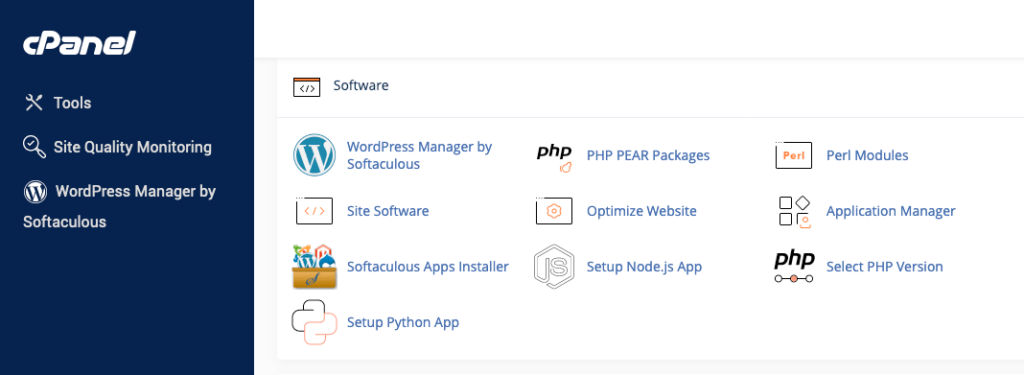
Hosting Control Panel: Login to your hosting account using the login credentials they’ve provided to you. Navigate to the cPanel or control panel to install WordPress.
WordPress Installer: Find the WordPress installer or the Softaculous icon to initiate the installation process.
Domain Selection: Select the correct domain where you want to install your WordPress website.
Site Information Insertion: Provide the title, admin username, password, and email address of your WordPress website.
Installation Completion: Now click the install button and wait until the installation process is complete. Lastly, you will get the WordPress login URL with an installation confirmation message.
We recommend you go with the one-click installation if you are new to WordPress website design. It minimizes the hassle of installing the WordPress site and requires no technical expertise.
WordPress themes provide an aesthetic touch to a website with its vast collection. You can select a theme that speaks up as your brand voice. You can also customize it according to your preference or the objective of your website. So, it’s important to choose the right theme to establish a meaningful online presence.
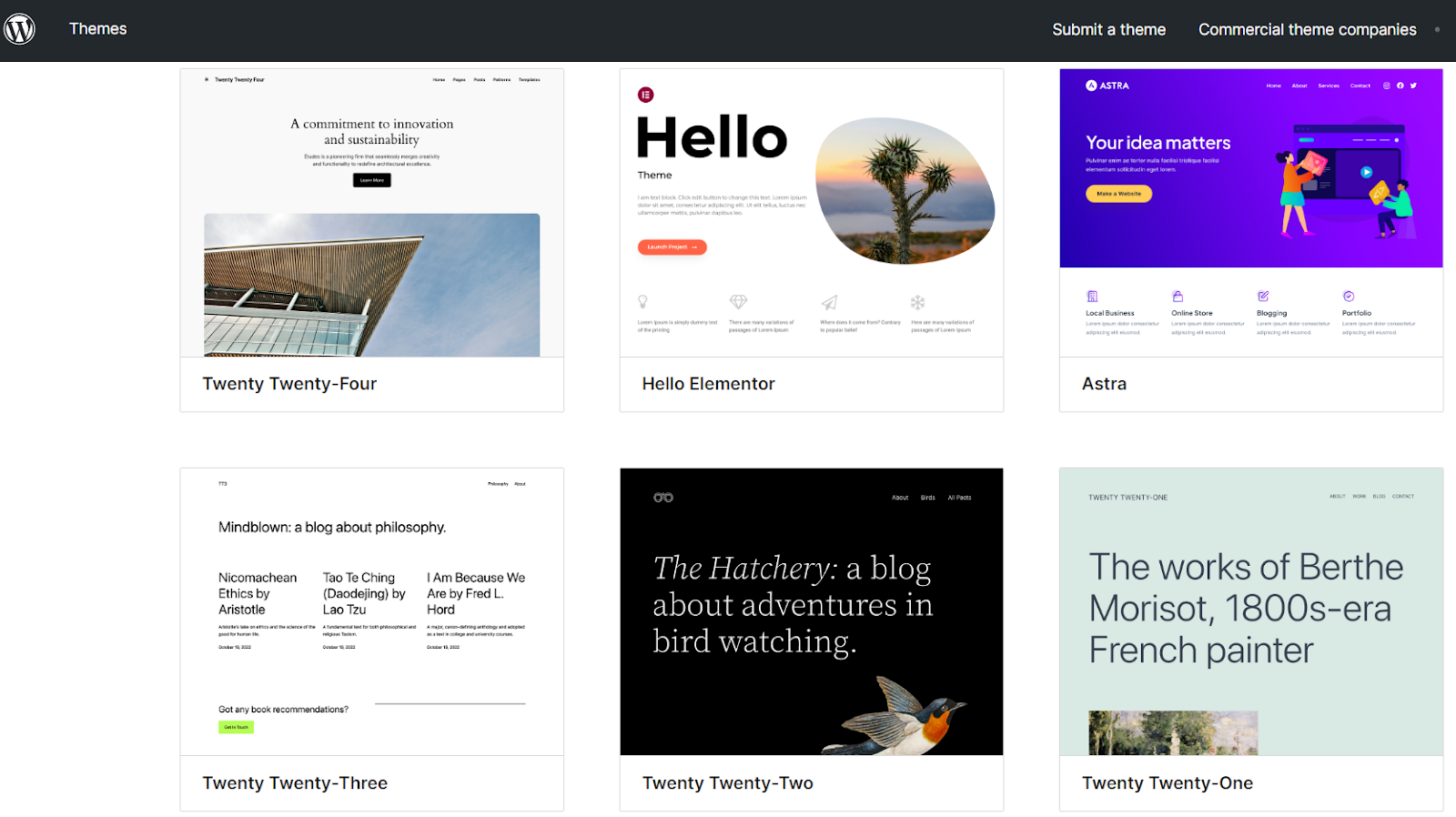
Currently, most people are using mobile devices to surf the internet and use websites. So, you need to focus on the device friendliness of your website to grab all sorts of users. Responsive themes can auto-adjust themselves for different screen sizes.
You don’t need to worry about ensuring a user experience separately for different device users. Besides, WordPress themes are fast enough to maintain user experience and satisfy the SEO criteria of search engines.
Themes provide a professional outlook of a website with all its design components. In 2024, Themes that support the Gutenberg block editor are gaining more popularity. It minimizes the complexity of using plugins or page builders to create simple design elements.
As a result, you will get more flexibility to customize any part of your website using blocks. Block-based themes like Kadence and GeneratePress are getting massive attention from users.
Page builders can assist you in creating one-of-a-kind themes for WordPress website design. It comes with a drag-and-drop interface for creating unique page layouts without coding.
Here are some popular page builders to choose from:
| Name | Best For |
| Elementor | Versatile with many customization options and templates. |
| Beaver Builder | Known for its clean interface and fast performance |
| Gutenberg | WordPress’s native block editor |
Focus on the following factors while selecting a theme for your brand:
The WordPress Customizer is a feature-rich tool with so many customization options. It lets you preview and change your website’s look in real-time. This option allows you to take the following actions:
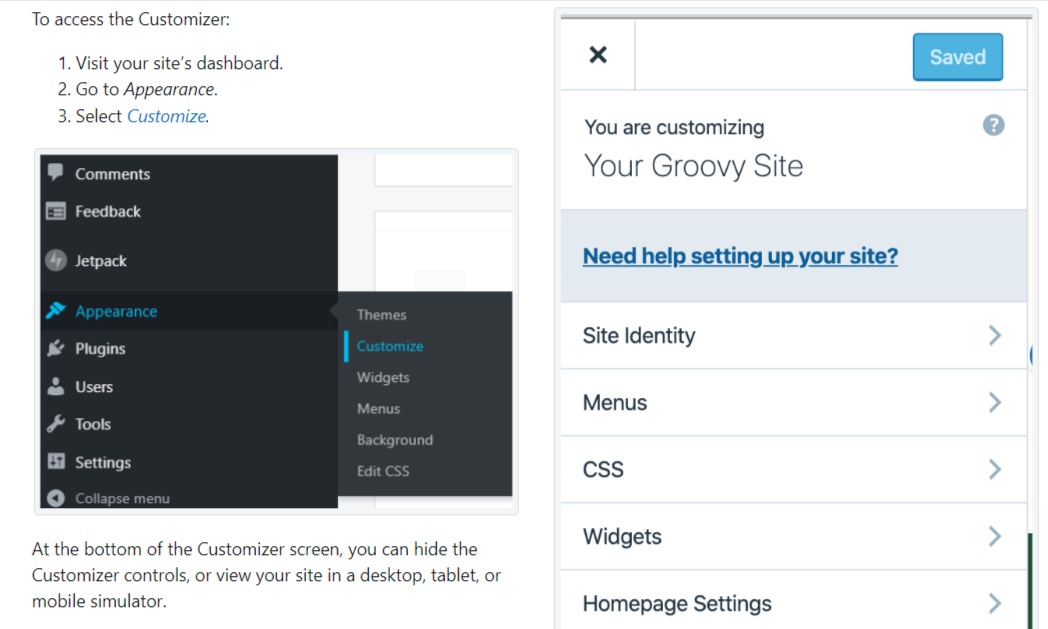
Using a suitable theme is essential to establishing your unique brand identity. It also helps your audience to navigate the content or product with ease.
Plugins can boost your WordPress site’s major functionalities, performance, and workflow speed. Some must-have criteria for using a plugin are:
| Criteria | Plugin Name |
| SEO Booster | Yoast SEO |
| Security Tool | Wordfence Security |
| Performance Enhancer | WP Rocket |
| Ecommerce Solution: | WooCommerce |
| User data collection | WP Forms |
Yoast SEO is a leading plugin for search engine optimization. It can boost your site’s SEO significantly so that you can focus more on improving your content quality. The plugin offers the following features:
Website speed has become a crucial factor to satisfy modern-day users. This is where the WP Rocket plugin is vital for WordPress website design. This plugin can speed up your website with features like:
WordPress Website Security is another primary concern since cybercrimes are increasing every day. Therefore, you need plugins like Wordfence Security to protect your site against all kinds of threats. Here are some key features that it offers:

WooCommerce is the best solution for creating a WordPress website design for your online store. Setting up and running a complete eCommerce store is easy and effective when you have this plugin. Some key features include:
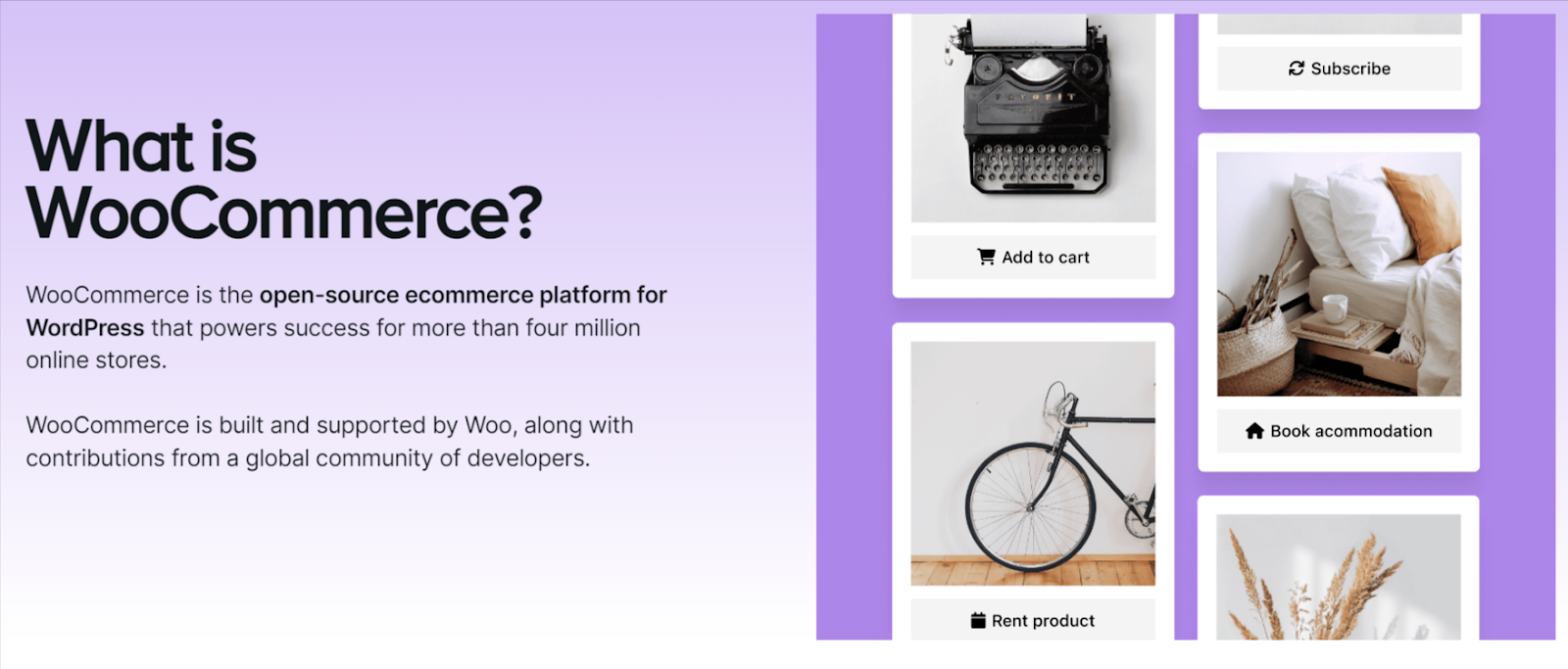
WPForms is a user-friendly plugin that helps you collect essential visitor data. It allows you to create basic contact forms and detailed surveys. Here are some key features:
WordPress and its plugins are constantly evolving with the changing demands of users. Here are some new trends to focus on in WordPress website design:
Choose your WordPress plugins wisely and always update them for regular WordPress maintenance. This helps your site stay competitive and meet your goals with the necessary features to meet your objective.
The demands and expectations of modern-day users regarding WordPress website design are changing. Therefore, you must stay updated with the latest trends to keep your visitor engagement intact. Now we will explore some of the latest design trends that are shaping WordPress in recent times.

The minimalistic style will continue to thrive in the WordPress website design realm in 2026. Simple layouts with lots of white space improve readability and user experience. Here are some key elements of a minimalistic design approach:
It is wise to focus on mobile-first design since most of the visitors come from mobile devices. Google also prioritizes mobile-friendly designs for SEO and website ranking. The mobile-first design contains:
High-quality images can easily attract customers to your website and highlight your brand message. This is why advanced image processing is crucial to maintaining the quality and performance of your website. Implement these strategies to maintain image quality and performance:
Website speed plays a significant role in attracting and retaining visitors to your website. Your website must load within 3 seconds to keep your visitors’ attention. Otherwise, they will move out to your competitors. Fast-loading sites can give you lower bounce rates, higher conversion rates, and satisfying search engine rankings.
Here are some techniques to optimize your website performance:
The popularity of online shopping is growing more rapidly than the traditional shopping experience. Thus, businesses are relying on eCommerce websites using the WordPress platform. WordPress offers an adaptable foundation for creating and maintaining an online store using WooCommerce.

Follow these steps to set WooCommere in your WordPress website:
You have to optimize your shop to create the best user experience for your customers. Here are some Best Practices for your WordPress website design for an eCommerce store:
High-Quality Images: Use size-optimized, clear, and sharp photos to showcase your products from multiple angles. Consider adding Zoom features so customers can see details.
Detailed Descriptions: Write clear, engaging, and informative product descriptions. Highlight the essential key features, benefits, and details that highlight the pain points of the customers.
Product Organization: Make product navigation more accessible for the users by creating product categories.
Multiple Payment Options: Make the payment process easier for global customers by adding different payment methods such as digital wallets, PayPal, and credit cards.
Safe Transactions: Customer trusts secure payment options where they can share their credentials without worrying too much. Ensure your payment gateways comply with standards like PCI-DSS.
Integrate AR: Integrate AR in your eCommerce store so that shoppers can view the product in their real-life environment before buying. This allows customers to be confident about what they are buying.
Integrate VR: Integrate VR or virtual reality in your eCommerce store so that customers can virtually interact with the products. This also increases customer satisfaction and leads to a better conversion rate.
Ensuring the security of your WordPress site is crucial since 30,000 new websites are hacked daily. Your WordPress website design will be in vain if you do not maintain security for your website.
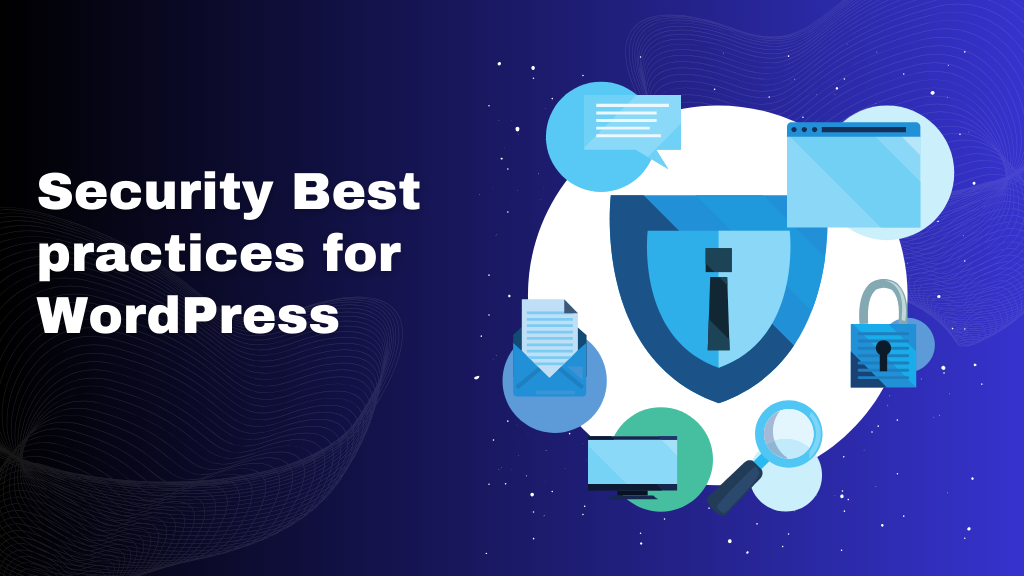
Some common security threats include brute force attacks, SQL injections, and cross-site scripting. However, you can easily prevent these security threats with proper security measures in WordPress website design.
Let’s check out the best practices that you should follow to maintain website security:
Automatic Updates: Always update your WordPress core, themes, and plugins to activate the latest security patches. Activate automatic updates to ensure your site is never vulnerable to the latest threats.
Regular Backups: Use backup solutions to secure your data in case of any disaster and maintain the uptime of your site. Maintain backups in different locations, including cloud storage, so that you can recover it instantly.
SSL Certificates: Ensure you have an SSL certificate installed on your site via your hosting provider. This certificate is necessary to encrypt the data transmission between your site and its users.
Strong password: Use a strong password that uses a complex combination of letters, numbers, and characters.
User Permission: Assign user roles and grant limited permission according to their responsibilities. Remove inactive users and their accounts from your website.
Here are some plugins that will ensure stronger security measures for your WordPress website design:
| Plugin Name | Best For |
| Sucuri Security | firewall, malware scanner, live traffic monitoring, and more |
| All-In-One Security (AIOS) | web application firewall (WAF), malware scanner, DDoS protection, and security monitoring. |
| Solid Security | Brute force protection, malware scanning, security hardening, two-factor authentication, security logging, and security audits |
| Security Ninja | Secure Firewall & Secure Malware Scanner |
Search engine optimization is still an essential aspect of WordPress website design. It helps you showcase your site for better search engine exposure. With proper SEO tactics, you can generate natural traffic to your site, which is crucial for search engine ranking. Here are some SEO tactics to put your website on the front line in search engine result pages:
For on-page SEO tactics, you need to focus on content optimization, metadata, and alternative text. Here are the best practices to maintain on-page SEO for your WordPress website design:
Relevant Keywords: Utilize Google Keyword Planner or SEMrush to search for relevant keywords. This will help you get the attention of your target audience through search engines.
Keyword Placement: Place the keywords (primary and secondary) naturally inside your content without overusing them. Include all the necessary keywords in the heading, subheadings, and paragraphs.
Engaging Content: The content you are producing should reflect the audience’s intent and offer value to the readers with valid information.
Title Tags: Write catchy title tags that properly summarize the content of the page and contain your main keywords.
Meta Descriptions: Write concise (150–160 characters) meta descriptions to gain the attention of the readers. It helps users to click through from search results and to explain the subject of the page.
Image Alt Text: Use detailed alt text for the images on your website. It offers accessibility and helps in search engine indexing. Also, include pertinent keywords within the altered text.
Off-page strategies for backlink generation can create trustworthiness toward your content. On the other hand, social media integration can help you increase your online presence and attract more traffic to your WordPress website design. These are some off-page SEO strategies:
Guest Blogging: Writing guest articles with backlinks to your website is a good way to promote other relevant sites in your industry.
Content Promotion: Get extra exposure for your content by sharing it on social media and relevant online forums.
Networking: Connect with other bloggers and influencers that relate to your industry. This helps you cultivate relationships that will gain more backlinks for your website.
Shareable Content: Create shareable content that will help you generate traffic and get more backlinks. Our social media content should be optimized with images and short URLs.
Engagement: Making connections with other bloggers and industry leaders can assist you in creating a network and provide possibilities for backlinks.
Implementing SEO strategies is not enough to get competitive search engine rankings in WordPress website design. You need to monitor your SEO efforts and make changes whenever the SEO algorithm changes.
Regular WordPress maintenance and performance monitoring are mandatory for achieving continuous success. Simply updating your website is not enough to maintain smooth performance. You need to take some advanced steps to maintain performance, security, and content management during WordPress website design.
Regular Updates: Frequently update your WordPress core, themes, and plugins without exception. These updates help you protect your site from security breaches and keep it up to date with the latest features. The latest WordPress version lets you set automatic plugin updates.
Scheduled Backup: Be ready with a scheduled backup plan for the event of an incident or emergency. Your backup tool should be able to create an entire backup of your website with the database and files. Plus, it should store the data in a reliable storage unit such as cloud storage.
Performance Monitoring: Even if you use tools, you need to monitor the performance of your website regularly. Identifying the areas of improvement will help you plan your next strategy for creating a better user experience.
Content Audit: Audit all your content on a regular basis to find out information that needs updating. Also, look out for broken links and poorly performing pages. Maintain quality by adding the latest information to your content or removing unnecessary content.
SEO Optimization: Implement the latest keywords and update the content as well for SEO optimization. Plus, update the metadata and internal links that redirect to the latest information. Also, images should be updated according to the latest information, including links and alternative tags.
Here are some tools best suited for monitoring site performance:
| Name | Best For |
| Google Analytics | Track user behavior, traffic sources, and conversion rates. |
| GTmetrix | Getting insights into page load times, performance scores, and recommendations for improvement |
| Pingdom | Monitors website uptime and performance and sends alerts about issues affecting user experience. |
Crore web vitals like Loading performance, Interactivity, and visual stability are essential factors. These factors allow Google to identify the user experience of your website. You should regularly check these core web vitals to keep up with the search engine placements and user engagement.
Mobile responsiveness is another web standard that you must maintain to ensure customer satisfaction. Besides, HTTPS implementation and maintaining data protection regulations are mandatory to ensure security protocols.
However, you can hire professionals if you are overwhelmed with too much effort in maintaining your website. They can handle every aspect of your WordPress website dsign, including development, maintenance, speed, and security optimization.
The domain of WordPress website design is expanding as we move forward with the new timeline. In this guide, we’ve explored all the necessary steps to establish a successful WordPress website. Once you start the journey, you will learn new tactics and how you can implement them effectively.
Feel free to contact us if you are facing any trouble understanding the steps to create a successful online presence. We are always ready to provide you with a professional WordPress solution that meets the requirements of an ever-changing web environment.
Why Website Speed Matters: The impact on user experience and SEO
Website speed has become a major determining factor behind the success of a website. User satisfaction rises toward a website that loads all its content instantly. Besides, search engines like Google consider website speed to be a major ranking factor. As a website owner, you should improve website speed to maintain user experience and search engine optimization.
Users prefer a website that loads between 2-3 seconds, and sites that take longer than that lose organic traffic. Slow-loading sites discourage customers from navigating that site and send bad signals to search engines. If you don’t have experience in optimizing the website by yourself, hire professional website development services for your WordPress site.
In this article, we’ll explain why website speed is essential when it comes to user experience and SEO. You will also learn the factors affecting the website speed and some strategies to optimize your site speed. Let’s buckle up.
Website speed is not a single concept that determines the performance of your website. It affects what users think about your website and how they interact with it. You have to understand the differences between various speed measurements. Plus, you have to learn about the factors influencing page speed to maintain the speed.

Page Speed: Let’s say you are visiting a website’s homepage that took 2 seconds to load in your browser. Within 2 seconds, it loads all its content and resources, such as HTML, JavaScript, images, and videos. So, 2 seconds is the page speed, which is a crucial factor for user experience.
You can measure page speed by three key metrics:
Site Speed: Similarly, you are visiting a website where the average loading time for all the web pages on that site takes 5 seconds. Here, 5 seconds is the site speed you require for navigating from the homepage to various categories, product pages, cart pages, and so on.
There are some major factors that affect both page speed and site speed of a website as a whole. It will become easier for you to improve website speed by learning those factors.
Server Response Time: This indicates the time your website’s server takes to respond to the request of a visitor. Your website will take more time to load if your server response is slow. So, it’s better to get a hosting provider that offers the best server response time and loads your site instantly.
Page and Resource Size: A page that includes larger media files, such as heavy images, can take a longer time to load. Similarly, a webpage with poorly written HTML code or Javascript can take a longer time to load. Hence, you need to minimize the size of the image and remove unnecessary codes from the resource files to improve website speed.
Network condition and User Location: The quality of your user’s internet connection and their distance from your website’s server matters. It determines how quickly they can get into your website. You can ensure faster content distribution in different user locations by utilizing a Content Delivery Network or CDN.
Media File Optimization: Large media files such as images can significantly slow down your page loading times. Therefore, you should always optimize images and compress them to a smaller size or change their format for faster loading time. Changing the image format can also help you get a better loading time.
Caching Issues: The chasing mechanism can contribute to loading time by limiting the repetitive downloads. Your website’s server will get minimal strain while serving content if you are caching those files.
Mobile Responsiveness: Your site will obviously load slowly on a smaller screen if it’s not optimized for mobile use. You will lose traffic since smartphone users are higher in numbers if you compare it with other device users. Thus, the focus should be on a touch-friendly interface that offers minimal design and image optimization.
The above-mentioned factors will help you take appropriate steps to improve website speed and user experience. Now, we will learn why website speed is equally important for both user experience and SEO.
Website speed goes beyond a number of technical aspects that measure the performance of a website. It greatly affects the user experience since a faster website can boost engagement, keep visitors coming back, and ultimately increase the conversion rate. So, let’s take a look at why website speed is important for user experience.
The initial loading time of a website shapes the first impression a user has of that website. So, a website that instantly loads all its content impresses its users with a positive experience. It proves that you are professional and reliable in terms of ensuring user flexibility.
If your website takes too long to load, surely your customers will not stick to it. Slow-loading sites indicate that they require website maintenance, which creates a negative impression for users. As a result, they choose to browse for other websites without even interacting with your content.
Users are so fond of speed these days that they abandon websites that take more than 3 seconds to load. These statistics clearly indicate that you must improve website speed from the very first interaction.
The bounce rate of your website indicates the percentage of users who came into your website but left after viewing only a single page. Modern-day users are so impatient that they won’t even bother viewing another page if your site loads slowly. This means slow loading time is the culprit behind the bounce rate.
Let’s say you are running an online business website, which takes several pages to complete a purchase process. When a customer is landing on your site with buying interest but getting a slow-loading product page. It’s highly possible that the customer will not complete the purchase process and move to another site. So, every second is important for preventing bounce rates on your website.
Slow loading time not only causes a bounce rate but also discourages visitors from coming back to your website. Even if the customer purchases a product, you will eventually lose future sales opportunities. Their previous user experience won’t motivate them even if you have rich content and the best offers in the market.
On the other hand, a fast-loading website is like a sales mine for business website owners. People with buying intentions come in and interact quickly with different pages and complete the purchase process. They even come back to purchase more or refer your site to others.
Website speed influences conversion rate, which indicates the percentage of visitors completing the objectives of your website. Usually, conversion happens when someone purchases a product, signs up for a newsletter, or completes a form. Users can complete these actions when you ensure a fast-loading website.
Every second of delay in completing a task on your site can ruin the user experience. It can demotivate the customers, and they may abandon their ongoing activities. Ultimately, you will lose the sales and conversion opportunity.
The conversion rate of an eCommerce site is 2.5x higher when you compare it with a site that loads in 5 seconds. Similarly, when a B2B website loads within a second, it has a 3x conversion rate compared to a site loading within 5 seconds. So, these examples clearly indicate that even a millisecond is important for conversion rate and revenue generation.
Website speed plays a virtual role in placing a website in the top tier in search engine result pages. Search engine values user experience and prioritize websites that load within 2-3 seconds. This means website loading time directly affects the search engine visibility and organic traffic. So, let’s take a look at how website speed becomes an SEO factor of a website.

Google’s ranking algorithm considers page speed to be one of the major ranking factors for a website. Back in 2010, google announced page speed as the crucial ranking signal for desktop searches.
In 2018, Google also considered page speed to be the major ranking factor for mobile searches. Furthermore, they emphasized the page speed issue with a rollout of core web vitals in 2021. As of April 2023, Google still recognizes page loading speed as a ranking factor in search engine results.
However, these stats determine the user experience of a website by emphasizing the loading speed, ease of use, and visual stability. Fast-loading websites stay on top of search engine results since search engines focus on user experience.
Core web vitals are key ranking factors according to Google’s page experience update in May 2021. It consists of three key web metrics, including:
Your website has a higher chance of ranking if it meets these conditions. Conversely, your site’s rank will significantly drop with poor loading speed.
Getting a favorable spot involves huge competition between top-performing sites with noticeable loading speeds. So, It’s really hard to attract organic traffic with a slow-loading website. Search engine results pages rank slow-loading websites in lower positions, which gets a lower click ratio.
The search engine also tracks the bounce rates and how much time a visitor is spending on a site. So, Websites with slow loading times will obviously face higher bounce rates and eventually go down.
On the other hand, quick-loading sites have lower bounce rates because people spend more time in them. As a result, the search engine gets a positive vibe from a fast-loading site due to higher user engagement. With that, the ranking potential of a fast-loading website increases significantly.
Currently, users are not interested in wasting their time on slow-loading web pages. The probability of bounce rate goes up to 32% when a page loading time increases from 1 second to 3 seconds.
This means your site will face approximately a 123% bounce rate if it takes 10 seconds to load. So, a minimum of 3 seconds of loading time is mandatory to retain visitors and generate conversion via search engine ranking.
Website speed is not the only element that will determine the ranking factor of your website. Google also judges the quality of the content at first and then focuses on website speed. Thus, you can still rank higher with a slow-loading site that contains relevant and valuable content.
We are not encouraging you to skip the fact that you need to improve your website speed. You need to maintain the right balance between high-quality content and website loading speed Optimize. This will allow you to reach out to your audience with the right content at the right time when others can’t.
You will get so many websites out there competing with similar keywords and content. But you have more possibility to rank higher when you have that same content with better loading speed. This emphasizes how crucial it is to maintain quality and improve website speed to boost search engine results.
You need to take the technical approach and also use tools to spot the issues that are affecting your website speed. You can ensure a smooth user experience and also satisfy SEO requirements by combining these strategies.
Always compress and optimize the file size of the images on your website. You can use online tools like TnyPNG and IamgeOptim to reduce the image file size while maintaining its quality. Besides, you can use the trending WebP format for the images, which offers better image compression but enhances site speed.
If you are using responsive images, it will fit in the screen size of the user’s device. You can utilize the “srcset” attribute to offer different image sizes for various screen resolutions. This is how you can improve the loading speed of the image by avoiding unnecessary data transfers.
Your website speed can slow down since each element and resource file of your site requires a separate HTTP request. But you can cut down the number of HTTP requests. You can combine multiple CSS or Javascript files into a single file to minimize the number of requests. Moreover, you can inline the critical CSS and JavaScript to improve website speed.
The caching mechanism allows browsers to save resources like images, CSS, and JavaScript on a user’s device. Thus, you don’t need to download the resource file repetitively while revisiting a website. You need to utilize solutions like Cloudflare or a Content Delivery Network (CDN) and properly set up the cache headers.
The time to first byte (TTFB) calculates how fast a browser takes to get its first byte of data from a webpage upon request. To minimize TTFB, you can get a reliable hosting provider with better server performance. Besides, you can optimize server-side code and database queries to improve website speed.
Note: Hire a professional website speed maintenance service if you are unable to implement these changes on your site.
The right tool can identify the performance issues on your website and offer improvement suggestions in a glimpse. As a result, you can quickly and effectively make adjustments to improve website speed and performance.
Google PageSpeed Insights: This free tool is a popular option that gives you valuable suggestions for webpage optimization. You can separately focus on improving all the core web vitals of your site for both mobile and desktop devices.
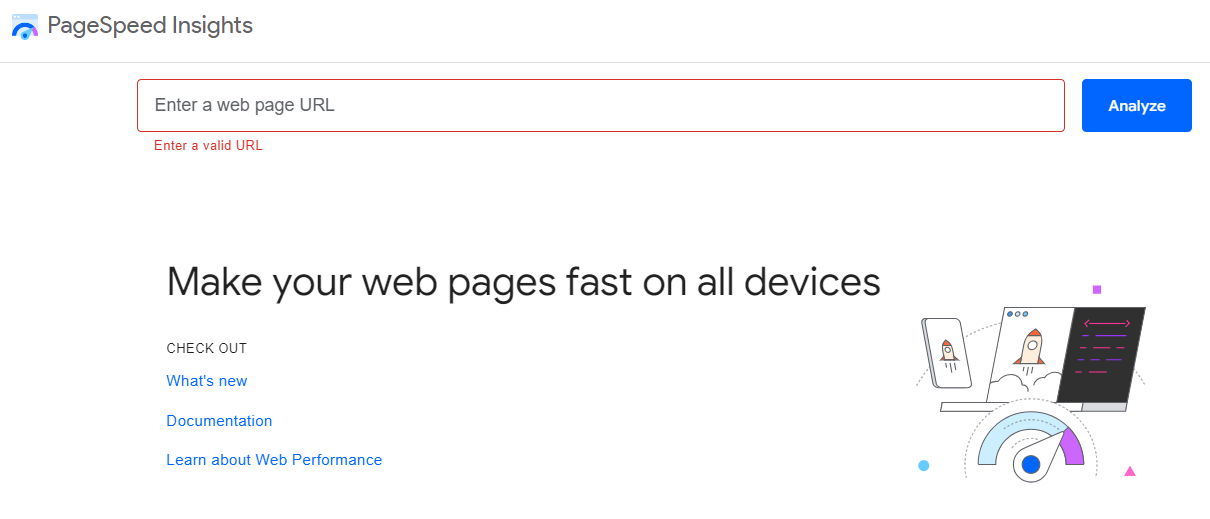
GTmetrix: This tool offers every detail on how fast your webpage is loading and where you need improvements. It represents the data using charts and performance scores that makes it easy to comprehend.
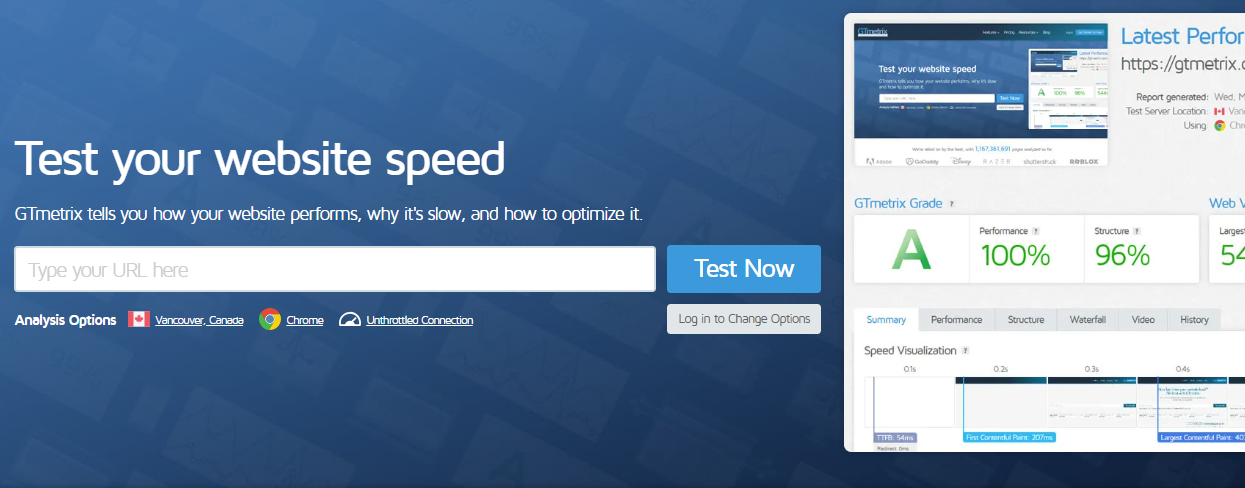
Pingdom Website Speed Test: You can utilize the user-friendly interface of this tool to test your page loading speed for different locations. You will get performance scores and breakdowns on your site’s loading time. Plus, the improvement suggestion will let you tweak your site to improve page speed with minimal effort.

Fast-loading sites affect user experience by offering flexibility to users so they can complete their tasks on your site. It ensures your site sends positive signals to the search engines so they can reach out to visitors more frequently.
We have presented the importance of website loading speed for both user experience and SEO. It will help you learn why you need to care about improving your site speed. Plus, our mentioned strategies and tools will help you take a DIY approach to optimize your site speed.
If you are a business person with minimal tech abilities, ThemePaste is here to help you. We offer top-notch design, development, and maintenance services and the best speed optimization. Our budgie-friendly services can improve your WordPress site speed and SEO within your budget. Feel free to contact us anytime and take your WordPress business site to the next level.
We will reply within 2 hours